About Me

My photo
This is a blog for John Weber. One of my joys in life is helping others get ahead in life. Content here will be focused on that from this date forward. John was a Skype for Business MVP (2015-2018) - before that, a Lync Server MVP (2010-2014). I used to write a variety of articles (https://tsoorad.blogspot.com) on technical issues with a smattering of other interests. I have a variety of certifications dating back to Novell CNE and working up through the Microsoft MCP stack to MCITP multiple times. FWIW, I am on my third career - ex-USMC, retired US Army. I have a fancy MBA. The opinions expressed on this blog are mine and mine alone.
Showing posts with label ws12. Show all posts

2018/05/21

Official SfB 2015 Server Disable TLS 1.0 and 1.1 part 3 guidance

updated 20181107


Microsoft update to what they think they are doing, how they are going to do it, and basically, another waffle episode on their part.


https://support.microsoft.com/en-us/help/4057306/preparing-for-tls-1-2-in-office-365


As you may be aware, we have covered the upcoming 31 October 2018 TLS 1.0/1.1 support being removed from O365.  You can find that guidance here.  As promised, Microsoft has finally published the last pieces of the series.
You can find part 3 here.
As usual, I strongly recommend that you start looking at this now – some of this might take a bit of planning and coordination on your part to accomplish in a clean fashion.

Now is the time to get your sales types contacting existing customers and offering to help.  This will not be a clean thing; rest assured that there will be “issues” and IMHO there is significant potential for unintended consequences.

YMMV

2018/04/19

SfB Disabling TLS 1.0/1.1 Guidance

Update 20181107
Microsoft waffles yet again.
https://support.microsoft.com/en-us/help/4057306/preparing-for-tls-1-2-in-office-365


On October 31, 2018, Microsoft Office 365 will be disabling support for TLS 1.0 and 1.1. This means that, starting on October 31, 2018, all client-server and browser-server combinations must use TLS 1.2 or later protocol versions to be able to connect without issues to Office 365 services. This may require certain client-server and browser-server combinations to be updated.
https://support.microsoft.com/en-us/help/4057306/preparing-for-tls-1-2-in-office-365

SfB impact?

At a high level, this requires installing Skype for Business Server 2015 CU6 HF2, applying pre-requisite updates to .Net and SQL, and finally another, separate round of OS configuration updates, i.e. disabling TLS 1.0 and 1.1 via registry file import. It is critically important that you complete installation of all prerequisites, including Skype for Business Server 2015 CU6 HF2, prior to disabling TLS 1.0 and 1.1 on any server in your environment. Every Skype for Business Server, including Edge role and SQL Backends, require the updates. Also ensure that all supported (in-scope) clients have been updated to the required minimum versions. Don’t forget to update management workstations as well.

Background reading:

https://blogs.technet.microsoft.com/cloudyhappypeople/2017/12/22/the-end-of-support-for-older-tls-versions-in-office-365/
And then read part 1 here for more background specific to SfB/Lync and the supportability statements
https://blogs.technet.microsoft.com/nexthop/2018/04/18/disabling-tls-1-01-1-in-skype-for-business-server-2015-part-1/
Part 2 here gets into the weeds a bit on “How To Achieve”.https://blogs.technet.microsoft.com/nexthop/2018/04/18/disabling-tls-1-01-1-in-skype-for-business-server-2015-part-2/Part 3 will be published at a later date.  Woot!

Here is guidance for Lync Phone Edition (LPE):

https://techcommunity.microsoft.com/t5/Skype-for-Business-Blog/Certified-Skype-for-Business-Online-Phones-and-what-this-means/ba-p/120035 

General TLS1.2 whitepaper:

https://cloudblogs.microsoft.com/microsoftsecure/2017/06/20/tls-1-2-support-at-microsoft/

Here is the Microsoft Exchange equivalent:

Part 1https://blogs.technet.microsoft.com/exchange/2018/01/26/exchange-server-tls-guidance-part-1-getting-ready-for-tls-1-2/Part 2https://blogs.technet.microsoft.com/exchange/2018/04/02/exchange-server-tls-guidance-part-2-enabling-tls-1-2-and-identifying-clients-not-using-it/And big surprise, part 3 to be published later.

Summary

If you or your customer is doing anything with Office 365 hybrid, then you need to be reading all of this and figuring out your next steps.


2017/05/31

SQL Change Ports

The Port Change Issue

On a project where the SQL team has a policy of changing the SQL port away from the default of 1433? 

This does not pose a huge problem for your intrepid Skype (or Lync) deployment engineer.  If you are needing to know what to do, and maybe you have, oh, 30 or so front ends to modify, then maybe I can help you out a tad.

The issue is modifying the registry to tell your host server where to go to access the requisite port on the target SQL server.  As it turns out, I had to remember this, as it has been a bit since I had to last do this task. 

The Simple Fix to the Simple Issue

Luckily for you and me, it seems that every copy of a Windows operating system I looked at for this post (Win7, Win8, Win10, Server 2008+) have a utility in \windows\system32 called cliconfg.exe.  You can read up on that utility here.

A wonderful tool.  Here is it in Windows 10 form.  Which looks the same as Win7, so I think they will all pretty much appear to be the same. Actually, the Win7 version has a different set of window frames, so the appearance is more rounded instead of the ugly-ass Win10 metro crap.  But I digress.

image

What we need to do is select the Alias tab…the select Add.

image

For the purposes of this exercise, I need my system to talk to my SQL server (FQDN = sqlalwayson-a.tsoorad.net) on port 49001.  So, you set it up like this and then say OK.

image

image

Follow up that OK with an APPLY and your newly modified operating system will for thereafter talk to SQL server sqlalwayson-A.tsoorad.net on port 49001 vice 1433.  Simple.  Easy.  Works well.  Less filling.  Man, I am thirsty!

But Wait!  What if…

…you have like four user pools, and they all need to talk to the same monitoring server, but different archive targets per pool?  And what if there are like 30 front ends that need this modification, and every time you type this stuff in there is the possibility of spelling errors that mean system failure.  Now, I am sure there is some folks out there in techie land that are starting to chant “PowerShell!  PowerShell” -  but in this case, I am going to ignore them, and simply export a registry key, and then incorporate that into my server build process – which can be PowerShell-ized if you wish.

Here is the registry key to export.  HKLM\software\microsoft\mssqlserver\client\connectto

In my project, we had four SQL AG clusters, each with two nodes, a cluster name, and the AG name; all that needed to resolve by DNS.  So, our registry key looked somewhat like this: 16 entries with AG, cluster, node1, and node2 per supporting SQL cluster.  We then simply imported that into each server at build time.

image


Summary

The SQL mavens might well change ports on you.  If they do, there is an answer in form of cliconfg.exe.  If the scale is a tad larger than manual typing will cover, you can regedit your way to success.

YMMV


2016/06/06

WebConf modalities not working for internal users after server patching

This falls into the “oh wonderful” category…

https://technet.microsoft.com/en-us/library/security/ms16-065.aspx breaks Office Web Apps for internal users.  External users seem to be unaffected.

Conferencing modalities no longer function in Lync Server 2010, Lync Server 2013, or Skype for Business Server 2015 after you install Security Bulletin MS16-065Here is a fix workaround:

https://support.microsoft.com/en-us/kb/3165438

And people wonder why I always advise waiting 90 days or so before patching Lync and SfB host servers.

The documented update in the article is KB3156757, but the actual KB installed was KB3156756.  Which also is associated with MS16-065.

YMMV

2015/07/23

Lync 2013 Edge Server Replication Failing

Background reading: http://tsoorad.blogspot.com/2015/07/windows-pki-sha-1-to-sha-2.html

Environment Outline:

Mixed Lync 2013 (Edge) with SfB user pools.  CMS on SfB SE. Operating systems:  All user pools are 2012R2, Edge servers are 2012 (no R2).  Windows updates are current.  PKI is public for Edge external land FE external; PKI is AD DS for FE internal and Edge internal.  Customer changed  AD certificate authority from sha-1 to sha-2.  New root cert pushed to all servers via active directory routines; edge server new trusted root manually imported.

The Issue:

Lync Edge server fails to pick up on the concept that the domain root cert had changed even after we manually imported the new root cert (sha-2) into the certificate store. The certs on both the CMS master and the Edge server all chained up properly, but the cmsreplication was failing. All the certificates assigned to all services in the Lync/SfB environment checked good, were all current, and all showed that they chained properly to either the internal PKI root or the Digicert root.  Basic connection testing using <telnet fqdn 4443> were successful both directions.

The Fix:

We had to reboot the Edge server to get it to recognize the trusted root cert chain.

Logic path:

The CMS master was presenting the edge server with changes, but the Edge server did not like the new cert on the CMS master. The Edge server had a copy of the new Root Cert, but would not accept the TLS from the CMS master until the Edge restarted. Restarting services on the Edge server did not resolve the issue; a reboot was needed.

Conclusion:

If you change the domain Root cert, Lync and SfB may or may not like the root certificate change AT THE OPERATING SYSTEM LEVEL, until a reboot, or even longer. <Sigh>

YMMV

2015/07/15

Windows PKI SHA-1 to SHA-2

(How do you hear me now?)

Thanks go to fellow CDW co-workers Dean Sesko, Russell Despain, and Keith Crosby


What is the issue here?

Basically, the issue is that SHA-1 for PKI is going away in favor of SHA-2, and you WILL have customers that need help with this.


Reference:


AND…?

Any Microsoft supported operating system, properly patched/upgraded, and any Microsoft supported application, again properly patched/upgraded, will support SHA-2 PKI certificates.


Reference:

…there are some caveats: notably around XP and Server 2003, and oddly, Server 2008.

Reference:

So, there is not an issue with Microsoft supported products; the issue is with BYOD and Microsoft making a HUGE effort to support alternative browsers and operating systems. And those browsers and operating systems are fixing on deprecating their support of SHA-1.


Reference:

However, there are going to be numerous AD internal CA’s out there that are issuing SHA-1 certificates, and depending on how the environment is configured, the customer will need to renew their application certificates for internal use. Logically, it makes sense that the desirable outcome of renewing the application certificates is that the issuing PKI be SHA-2.

CDW AD resident experts advise instantiating a new Root CA, and if needed, a new subordinate CA for issuing SHA-2 certificates. But, you know those pesky customers, they may not want to do this. Which would call for modifying the existing structure to hand out SHA-2 vice SHA-1.


Reference:

Experimentation over the last several hours has revealed the following:

  • Migrating the existing SHA-1 CA went just fine.
  • The new SHA-2 Root Certificates updated almost immediately into the Trusted Root

clip_image001

  • I was able to request new SfB certificates and they were issued by the CA based on the new 3DES/SHA-2 root
    • However, the host server was not able to chain them up into the Trusted Root.
    • I rebooted.
    • I ran GPUpdate –force
    • I rebooted.
  • After waiting overnight, THEN the new certs chained up properly. Why this delay in chaining to the new Root I have no idea. I suggest that if you do this for real, that you do the work on one day and then plan on waiting for at least 8 hours before attempting to get new certificates and expecting them to chain up to the new root.

clip_image002

Testing:

After updating the internal certificates on my SfBSE to a new SHA-2 I successfully tested

  • using Win8.1 and Win7sp1
    • IE 11
    • Chrome Version 43.0.2357.134
  • Surface Pro 2 (8.1) IE
  • iPad (iOS 8.0.2) Safari

Firefox 39 fails – due to it not liking the root cert – why is FF so blinking difficult? Why does it have to have its’ own key chain? The O/S has the root cert! It does this same shit when installed on *nix. After manually importing my new root cert, it worked just fine.

clip_image004

clip_image005

  • SIP Phones.  I had to restart services (stop-cswindowsservice start-cswindowsservice) AFTER I changed the certificate to the new SHA-2 certificate before my AudioCodes 420HD and Polycom VVX-600 would log in.  Why, I do not know.


The SfB/Lync Connection!

You may have been wondering why *I* am worried about this.  Well, on literally every project with which I have been involved over the last few years, they all had *nix and Mac workstations, along with loads of iPhones, iPads, *nix tablets, droids, surface tablets, and here and there the odd Windows phone.  And, you have to know that, in most cases, all of these were attached to an internal corporate wireless.  And in some cases, the internal wireless was dropping these devices into the production network, which put them in a position to being able to directly contact Lync/SfB resources on internal servers, that, for the most part, had a PKI certificate from an internal CA.  With SHA-1.  You knew it had to be simple, right?

Any input to solving/addressing the observed delay would be most welcome. I, for one, totally expected to have the new certificate chain immediately – the appropriate root cert was in place!

YMMV

2015/06/16

Deploy SfB Monitoring Reports on separate SSRS

Oy vay.  This should have been easy.  But no.

Scenario

SfB EE pool.  I was operating from FE01.  In the same site as the “new” SSRS server.

Using NT Authentication\Network Service to run everything on the SQL install for the SSRS server.

Using an established SFBService account with known passwords.

Using Mixed Windows/SQL authentication.

Using a domain admin account for installs that is CSAdministrator and RTCUniversalServerAdmin as well as added explicitly to the SQL install perms. 

Much like fellow MVP Greig Sheridan, we got this error - to quote the install wizard explicitly:

Could not get objects from namespace root\Microsoft\SqlServer\ReportServer. The RPC server is unavailable. (Exception from HRESULT: 0x800706BA)The RPC server is unavailable. (Exception from HRESULT: 0x800706BA) Cannot get the ReportServerWebService URL. Verify that Reporting Services is deployed and configured properly on the target SQL instance:"fqdn.domain.com", and that WMI is included on the exception list of firewall setting on the server that is running Reporting Services.Invalid parameter

Fix It.

Unlike Greig, I had no option to use a server in the same site.  I was already using a server in the same site.  And before you ask the obvious question, yes, it was the same AD DS site and also the same SfB site (and no they do not necessarily line up, but why would they not?)(Why make life tough?)(and yes, there are times that one SfB site might serve several AD DS sites)

We then worked through the various permissions and the frustrations associated with looking at something that should be working but not. I also queried the local system admin team and determined that leaving the server firewall disabled would create strife between them and the local SecPol Gestapo.  So that option, which I was sure would fix it, was not a valid choice.

So, rather than dither and whine, I opened some firewall rules one at a time, and got success.  And now I know what allows this to work. 

Firewall Rules

image

image

image

YMMV

2015/03/13

SSRS into existing default instance

Are you trying to install SQL Server Reporting Services onto an already built default or named instance of SQL?  Does it error out telling you that the instance already exists and you need to choose another, and you don’t wanna choose another?

Then you might want to read this.  Yes, it is for a really old version of SQL, but hey, it works.  I just tested this on SQL 2014.

Run the below command at the Windows command prompt to start SQL Server setup on the active node.  Make sure to run this command after changing the root directory of the command prompt to the location where you have placed the SQL Server setup files.

Setup.exe /SkipRules=StandaloneInstall_HasClusteredOrPreparedInstanceCheck /Action=Install
This bypasses the SQL install logic checks.  A downside is that the setup routine skips the auto-magic SSRS Native mode configuration. You will need to do a manual configuration of the SSRS using the Reporting Services Configuration Manager.
This is no way implies that if you do a SQL Availability Group, and put SSRS on both (or all) nodes, that the SSRS is now in a DR state.  In fact, some really useful reading for doing the DR process with SSRS in this posture can be found here: 

https://msdn.microsoft.com/en-us/library/hh882437.aspx

YMMV

2015/03/02

Asus Mobo & Server 2012 R2

Did you need to update your lab server?  Do you run a high-end gaming or media platform and need a boatload of RAM so you obtained an Asus mobo so you can have 32 or 64 GB of RAM?  Did you decide to go with a Windows Server 2012 R2 as a workstation host for the goodies you get with that?

If so, then I will make the guess that you discovered that the Asus-supplied driver disk claims that your operating system is not supported.  Horse pucky says you – with Windows 7/Server 2008 and Windows 8 (and 8.1)/Server 2012 (and R2) the core of the operating system is much the same and drivers will work on both, right?  Very frustrating to know something should work and be turned away by a mechanism to save the consumer from themselves.

This is now the second time I have run into this little gotcha; and for the second time, I worked around the issue the same way.  I suppose you could go find all the drivers and try to load them individually; however, one of the problems is that the LAN driver is a toughie.  Downloading the drivers and suite software direct from Asus runs you into the same issue – “your operating system is not supported” and you start questioning your sanity and direction in life.  My first experience with this was with Server 2008 R2 and an Asus P8z68 board.  This weekend I ran into this issue using a Asus Sabertooth X79 board and Server 2012 R2.  Specifically, I am using this mobo here.

What is the issue?

The *.ini files don’t include a proper operating system identifier that tells the driver/utility disk that it is OK to install for Server 2012 R2.  Very frustrating knowing that the drivers and whatnot will work just fine – well, there is an issue with the on-board Ethernet controller (and Intel 82579v) that the Server 2012 R2 doesn’t like – but I have a fix for that as well. 

A little error comes up with the audio drivers, but in my case, this is a headless VM host, and I am not too worried about that aspect of installing.  As it turns out, the audio driver install routine pitches and error, but then continues to install and works just fine.

The Fix

OK, so what do you need to do?  First, copy the CD to somewhere on a writeable drive.  Then find EVERY *.ini file in the resulting file structure.  You should end up with something like this:

image

and here is the end of the list…

image

Yes, that one line reads “264 File(s)”  that is a lot of them!  But, we do want to be successful, yes?  Note also that the very FIRST file listed is not “AsusSetup.ini” or “AsusSetup64.ini” – this is important. 

Let’s Dive In!

Cannonball, Can Opener, perhaps a graceful Swan dive or something you would see off the 10 meter board in a formal diving competition, pick your poison.  What you need to do is modify every last one of those ini files with the name “asussetup.ini” or “AsusSetup64.ini” – not the worlds best task for a Friday night, but you do want this to work, yes?

FWIW, I used this tool here.

Start by looking at the file \bin\Ascdinst.ini in your favorite editor, and find this piece:

WNT_6.3H_64 = Win81_64  --- Without getting too deep into the weeds, this line reads “Windows 8.1 Home Edition”

What you need to do is realize that this:   WNT_6.3I_64 = Win81_64 represents Server 2012 R2.

If you are trying to do this little routine with Server 2012 (why?) or Server 2008 (or R2) (why?) you can use these lines:

Server 2012 R2: WNT_6.3I_64 = Win81_64

Server 2012: WNT_6.2I_64 = Win8_64

Server 2008 R2: WNT_6.1I_64 = Win7_64

Server 2008: WNT_6.0I_64 = Win7_64

For those of us who are font-challenged, or maybe just a bit dim or blind, the “I” in those strings is a capital i.

What is going to happen here is that the installer is going to read the installed operating system as WNT_6.3I_64 and equate that to win81_64, which is supported for install.

At any rate, in your favorite editor, you want the appropriate section in the ascdinst.ini file to read thusly:

WNT_6.3P_32 = Win81_32
WNT_6.3P_64 = Win81_64
WNT_6.3P_32_MCE = Win81_32
WNT_6.3P_64_MCE = Win81_64
WNT_6.3H_32_MCE = Win81_32
WNT_6.3H_64_MCE = Win81_64
WNT_6.3H_32 = Win81_32
WNT_6.3H_64 = Win81_64
WNT_6.3I_64 = Win81_64

Once you get that first one done, the asussetup will be happy.  The other 263 files need to be done also to enable the individual components to install properly.  Happy grepping!  or, Happy notepad ++’ing, or however else you choose to do it. Yes, I know I said that some of the files don’t need to be done, but you never can tell which.  Actually you can, if the WNT_6.3H_64 line is not present, you don’t need to worry about that ini file.  But, do you really want to mess around with looking at each file?  No, I did not think so.  Pick a tool and use it.

As a nit-picky technical note, for your purposes, you really don’t need the WNT_6..3H_64 line at all, so you can just grep every ini file on the disk, and if it finds the WNT_6..3H_64 line in the file, replace it with WNT_6.3I_64 = Win81_64. Which *I* did not do, because there is always the chance that I might, for some reason known only to Microsoft, need to install the Windows 8.1 Home Edition on my 64GB Lab server.  You never can tell.  I might come down with a severe case of stupid one day.

LAN Driver

In a twist of technicality that I have no desire to attempt unraveling, Intel does not produce a driver for the 82579V GB Ethernet Controller that supports Server 2012 R2.  Don’t ask me to elucidate, I said I don’t know.  But, what remains is that even when you work your way through 264 different ini files doing the above routine, the LAN driver on the disk is going to barf on you because it doesn’t like Server 2012 R2.  Again, I don’t know why.

What I do know is that you can do the Device Manager thing, and tell Windows itself to install the 82579LM driver, which works splendidly.

image

If you go here: https://downloadcenter.intel.com/download/23073 and actually read the fine print, you will find this:

NOTE: The following devices do not have driver or software support for Windows Server 2012 R2:
- Intel® Ethernet Connection I217-V
- Intel® Ethernet Connection I218-V
- Intel® 82579V Gigabit Ethernet PHY

So, it would appear that the 82579LM driver is going to have to suffice. As you can see, I have plenty of traffic on the network, but as a fraction of the speed provided by the NIC, it doesn’t even make a pimple on the radar screen…

image

When we do a little file transfer to get a feel for actual speed, it certainly looks like we are getting GB speed.

image


Summary

At this point, remember that the first file you do is different from the rest in the terms of naming convention.  All the rest you need to worry about will say asussetup*.ini.  There is a bunch of language ini files; I don’t think you need to worry about those, unless of course you know something about language files being bit-specific that I don’t know.

Oh, BTW, this Asus board rocks.  Although I am not sure I will ever need all 30 USB ports.

YMMV

2014/09/23

Duplicate IP error

Just ran into a little something I have not seen in a long time. Building edge servers with Windows Server 2012R2 and the external NIC kept coming up as duplicate address. Doing all the cross checking showed that the server had only two interfaces and that they were configured properly. Turns out that this little gem from 2008 R2 days is still valid:

http://social.technet.microsoft.com/forums/windowsserver/en-US/d7bda315-6366-4e0a-bdcf-dc875ff6963e/win-2008-r2-servers-will-not-connect-to-network-says-duplicate-ip

The firewall doing the NAT to the public IP was ASA. The registry change for disabling gratuitous ARP fixed all of the my edges.

This might be of interest also:  http://kb.vmware.com/selfservice/microsites/search.do?language=en_US&cmd=displayKC&externalId=1028373

YMMV

2014/06/26

Lync 2013 Server 2012 replication issues

A slightly different twist on an old issue

Situation

I had a client using Windows Server 2012 as the OS for a Lync 2013 deployment.  Replication between the Edge and the Front End Enterprise Pool was not working. Everything appeared to be set correctly, you can browse to the replication location for the Edge (https://serverfqdn.domain.com:4443/ReplicationWebService), you can telnet to the Edge server on 4443.


The Fix

We are using all public certificates from a well-known CA (GoDaddy), so the certificates not being trusted from domain member to non-domain member was clearly not the issue.

After a bit of searching you find that adding some registry changes to the SCHANNEL on the edge servers and the Front End Pool members will resolve the issue. 

Like so:

[HKEY_LOCAL_MACHINE\SYSTEM\CurrentControlSet\Control\SecurityProviders\SCHANNEL]
"EventLogging"=dword:00000001
"ClientAuthTrustMode"=dword:00000002
"SendTrustedIssuerList"=dword:00000000

Or, for you PowerShell freaks out there: (lines wrapped)

New-ItemProperty -Path HKLM:\System\CurrentControlSet\Control\SecurityProviders\SCHANNEL\ -Name ClientAuthTrustMode -Value 2 -propertytype "DWord"
New-ItemProperty -Path HKLM:\System\CurrentControlSet\Control\SecurityProviders\SCHANNEL\ -Name SendTrustedIssuerList -Value 0 -propertytype "DWord"

If you want to get real fancy, you can affect multiple domain servers using remote PS.  For my current project I did this for 20 servers, 12 domain members and 8 out in the DMZ.

$credential = Get-Credential -Credential domain\user
Enter-PSSession -ComputerName FQDN -Credential $credential
New-ItemProperty blah blah blah
Exit

For you reg /s fans, copy the following to a handy file of your own with a .reg extension and click away.

Windows Registry Editor Version 5.00

[HKEY_LOCAL_MACHINE\SYSTEM\CurrentControlSet\Control\SecurityProviders\SCHANNEL]
"EventLogging"=dword:00000001
"ClientAuthTrustMode"=dword:00000002
"SendTrustedIssuerList"=dword:00000000

As always, YMMV

2014/01/07

W32tm Server 2012

I just fixed a Server 2012 NTP issue in a manner I don’t like, but circumstance made me do it.

Scenario

Server 2012 DC with Hyper-V.  Because of the Hyper-V I did not want to reinstall or nuke, I needed this server to work as NTP.  Netstat and Cports (http://www.nirsoft.net/utils/cports.html) showed that the NTP (w32time) service was not listening on UDP 123.  I tried the following to fix the issue:  http://technet.microsoft.com/en-us/library/bb727060.aspx, http://technet.microsoft.com/en-us/library/bb727062.aspx, http://support.microsoft.com/kb/816042/en-us.

I added Windows firewall rules, I deleted Windows firewall rules.  I disabled and enabled built-in Windows firewall rules. I disabled the Windows firewall.  All to no effect. I tried registry; I tried the spate of w32tm command line fixes.  I stopped, I started, I rebooted.  Nada. I went to UofB and UofG and read all manner of suggested fixes and forum discussions on the vagaries of Server 2012 NTP.  I compared Server 2012 NTP to my lab, which is 2008R2 DC NTP (which works flawlessly and is why I started looking at my 2012 DC); and I add that the 2008 R2 NTP in registry does NOT look like the Server 2012 NTP in registry – well, at least MINE does not.

I consulted other MVP’s, my Technical Architect level folks; I even talked to the darkside (peers in other companies).  Nothing helped.

Further Background

I noticed this issue because a Polycom VVX 600 phone connected to my outside DC (the aforementioned Server 2012) refused to set itself to the correct time. The same device plugged into my lab worked just fine. My efforts with DHCP setting the time zone worked well.  But the VVX would not get proper time (an AudioCodes 420HD on the same switch showed the proper time). Setting the VVX manually (via web interface) to explicitly look at my server did not help. So I went looking and discovered that no matter what I did, my Server 2012 would not listen on UDP 123, which, of course, makes it non-functional as an NTP source for non-domain machines. 

While this NTP issue existed, the PDC NTP domain functions appeared to be operating correctly. Using a domain workstation and running “w32tm /stripchart /computer:fqdn /samples:5 /dataonly” looked normal.  Domain workstations were all within a minute of each other.  Servers in the domain were all within a minute of the DC also.  The server itself showed NOTHING in the event logs.

Finally, ratting through ProcMon (www.sysinternals.com) showed that the server thought that svchost was starting the time service, but nothing ever worked.  The server never came up on UDP 123.  DNS came up on 56123, but that was the ONLY *123* string in a port sweep on that server.

The Fix

I went here and downloaded, installed, and configured a separate NTP server – which disabled the w32time service native to windows.  But now it works.

YMMV

2013/12/31

DHCP option 002 for Lync phones

Maybe I have been living under a rock… but I have been doing this manually… finally found a nifty chart so I can stick it in OneNote instead of having to figure it out each time – complete with instructions on how to calculate manually.  I take no credit, this is blatantly cut from a Cisco website source.

Standard Pacific time is GMT -8. This is a simpler way to calculate GMT with negative values:

1. The number of seconds equivalent to - 8 hours = - 8 hours * (3600 seconds / hr) = - 28800 seconds.

2. With a scientific calculator, enter the number -28800 in the calculator with decimal values. The (-) sign is very important. In order to get the negative sign in front, press the +/- key.

3. Choose Hex. This gives you FFFFFFFFFFFF8F80. This is because, by default, the calculator has Qword enabled.

4. In order to get rid of the extra Fs, choose Dword. This produces the value FFFF8F80. If you do not have this option in your calculator, use only the first eight digits from right to left.

5. The value placed in the DHCP pool configuration now becomes option 2 hex FFFF.8F80.


Table of Conversion of Different Offset Times into Hexadecimal

This table gives the conversion of the different time zones around the world. The hexadecimal values are set to have a fixed length of 32 bits as specified in Option 2 of the DHCP RFC 2132. For a world timezone map, refer to World Time Zone Map.

GMT offset (in hr)

GMT offset in seconds

GMT offset in Hexadecimal

0

0

0000.0000

+1

3600

0000.0E10

+2

7200

0000.1C20

+3

10800

0000.2A30

+4

14400

0000.3840

+5

18000

0000.4650

+6

21600

0000.5460

+7

25200

0000.6270

+8

28800

0000.7080

+9

32400

0000.7E90

+10

36000

0000.8CA0

+11

39600

0000.9AB0

+12

43200

0000.A8CD

-1

-3600

FFFF.F1F0

-2

-7200

FFFF.E3E0

-3

-10800

FFFF.D5D0

-4

-14400

FFFF.C7CD

-5

-18000

FFFF.B9B0

-6

-21600

FFFF.ABA0

-7

-25200

FFFF.9D90

-8

-28800

FFFF.8F80

-9

-32400

FFFF.8170

-10

-36000

FFFF.7360

-11

-39600

FFFF.6550

Example

Pacific Time Zone = GMT –8

60*60*8 = 28800.  Change sign. Now we have –28800.

image

Click the Hex button.  Now we have

image

Click the DWord button.  Now we have

image

Here is the value in the DHCP Server Options. Note that we take the DWord value and append “0x” to it.

image

YMMV

2013/08/12

Server 2012 Network stuck

Scenario:  Hyper-V on Server 2012, 2008R2 AD, Server 2012 guest machines

I was doing a Lync 2013 Edge server, and I noticed that the IP addressing on the external network interface was stuck with DHCP of 169.254.230.1.  Along with the desired DMZ external addresses.  Not so great, and it would NOT go away.  Looking at ncpa.cpl showed that I had the stupid thing configured correctly.  No amount of chanting or invoking the mystic powers made a difference. I mean, look at the route print – just the sight of this made me wonder just what the heck was going on!  Nice gateway and interface combination, eh?

clip_image001

“netsh int ipv4 set int” did not help.

Get-netipaddress showed a correct setup. but it also showed that silly AIPCA thing too. remove-netipaddress seemed to work, but the 169.254 IP  would not go away.  Reboots, disabling NIC, we tried it all.  Nada.

This here fixed me:  http://lyngtinh.blogspot.com/2011/12/how-to-disable-autoconfiguration-ipv4.html

YMMV

2013/08/07

Server 2012 Cannot Eject Mounted ISO

Mounted an ISO from a network resource \\servername\sharename\imagename.iso

Then it would not eject. “An error occurred while ejecting DVD drive…”  Ya think?

clip_image001

I exhausted my voluminous (read minimal) “the drive is stuck” knowledge base.  UofG and UofB gave me nothing.  However, I did discover some nifty powershell stuff like mount-diskimage, dismount-diskimage, and the ubiquitous get-diskimage.

But, alas! no joy in Mudville.

One of my co-workers Lync’d up and gave me this suggestion:  compmgmt.msc, drive management, eject from there.  Wala!

image

I assume (well, my budro says…) that something got “stuck” and had a file or something open and it won’t let the normal UI eject the drive, but the Drive Management tools will do it.  Can we assume this will be effective in Windows 8 also?  I hope I never find out, but you know how that goes.

I am currently genuflecting towards Marrietta, Georgia.  Thank you Edward Walton, the Man, the Legend.

YMMV

2013/07/12

AudioCodes SmartTAP Lync Recording

Lync 2013 has the ability to record IM’s, meetings, and conferences. IM gets recorded either by the archive server or by the user in their conversation history.  Meetings and Conferences require the user to initiate and then manage the subsequent recording. But it requires that the user to start the the call, then start recording, then after the call - manage the recording, and in the end, remember to do all that each and every time this action is required.  

What if you have a compliance issue imposed by regulation or law, or a business requirement that dictates recording all voice conversations?  Are you going to leave that to the users?  Do you need to be able to do admin-level automatic recording  of just SOME users?  Or maybe just the users in Sales or maybe Production? There are a few solutions that meet these requirements and have enough granularity to give the system administrators the tools to accomplish the job with a minimal footprint. 

This article will look at one of those solutions:  AudioCodes SmartTAP.  You can read the AudioCodes marketspeak here.  Here is a cut from that page, where the high level overview is given:

AudioCodes SmartTAP for Microsoft Unified Communications (UC) is a certified and secure call recording solution that enables the recording of key business interactions within a Microsoft Lync environment. Built on proven technology and leveraging years of experience in developing and integrating call recording solutions, SmartTAP is compatible with VoIP, TDM, and hybrid telephony environments. The solution can be easily configured using an intuitive web-based interface, which simplifies system deployments and reduces support requirements.

AudioCodes would also like you to know about the “benefits:”

  • Certified solution for Microsoft Lync 2013 & 2010
  • Support for dynamic codec switching including Microsoft RTA
  • Record ANY call type including Mobile, Remote, PSTN & Conference
  • Remote branch survivability with buffering technology
  • A simple, easy-to-use centralized management web based interface
  • Granular security profiles with LDAP integration
  • Audit Trail monitoring
  • Multiple call search criteria with customizable filtering
  • Quality management with customizable and user definable evaluation forms and reports
  • Live call monitoring
  • Securely Encrypt media
  • Record other environments in parallel (Cisco, Avaya, Analog, etc…)

And finally, you can read some more market-speak here where AudioCodes has written a short article on SmartTAP.

Let’s take a look at this SmartTAP solution from the following viewpoints: Preparation, installation, configuration, and the end-all-be-all “ease of use.”

Preparation for Installation

Preparation for SmartTap is understanding what is needed in terms of hardware and how the system works.  After that you can get your resources lined up and get some installs accomplished.  Take some time to read the installation guide. Getting access to that link will require you to login to AudioCodes’ site.  When you get done with that, read the User Guide.  Again you will need login access.

Server

There is a need for a server.  For my little test here, I ran the SmartTAP server in a virtual with pretty good results.  I am sure at some point the number of calls would have required me to up the resources, but I had a good experience.  Calls showed up immediately, on-hook/off-hook status reporting was as instantaneous as one could hope for given the time it takes to change screens from VM to VM. 

You will also need to determine if your install is going to be all on one server, or if you are going to distribute the installation onto separate component servers.  I think your projected recording volume is going to decide this.  At about this time in the process, you might want to have a conversation with the friendly folks on the AudioCodes SmartTAP team.

File storage space

AudioCodes can provide you with a nice little spreadsheet to calculate storage space needed.  Try not to have a mini-heart attack.  Here is a sample.  Observe the far right cell under the (GB).

image

Yes, using G.711 for those stats will result in 16TB of storage.  You can mitigate that to a large degree by using G.729 for your storage, but a year of that will still be 2TB.  Just a SATA drive at your local junk store, right?  This is one of the reasons I always recommend getting ALL the business requirements into writing before you start any IT project.  When something like this becomes a planning reality, the business requirements drive the technical solutions which drives the budget.  When you present a budget that includes 16TB of storage for one system, you might want to have some reasons as to WHY.  You can read a Lync project Top 10 tips here. If you do, you will note that the very first one is “define your business requirements.”

So, reducing the number of calls, average length, and number of users around to match something a bit more real-world gives us this outcome. But still, 7.9TB, and we are still needing to run down to the bodega to pick up a WD Green 2TB SATA if we use G.729.

image

For a little more real-world, here is the file results for two, one minute calls.  You can see the file size difference for yourself.

image

Note that there are two files for each call.  This is because SmartTAP is making a separate recording for each endpoint.  Slick, eh?  A little later, we are going to send ourselves a file, and SmartTAP will combine all the different files that pertain to that call into ONE file. Even slicker, eh wot?

Active Directory

I recommend you make up a service account for this.  Add the account to the CSAdministrator Group in AD.  Add the account to each server participating in the SmartTAP (includes Edges and all Pool members from any and all FE pools) as a local administrator, “login as a service right” and to the “RTC Server Applications” group.

Computer Browser Service

If you are going to be using Windows Server 2012, you are going to find that the Computer Browser Service is disabled by default.  Furthermore, you are going to find that the SmartTAP wants to use the Computer Browser Service.  If you are using Windows Server 2012, you might as well go enable it on all SmartTap servers now and save yourself from staring at the screen wondering why you cannot find your domain service account you so carefully created and assigned in the previous paragraph.

Anti-virus exclusions

The install guide has some specific guidance around Antivirus/Windows Defender configuration.  This is what it says to exclude:

  • *.wav
  • *.sql
  • Media path (C:\media on my system)
  • SmartTAP software location – default “C:\program files (x86)\AudioCodes\SmartTAP”

Installation and Configuration

Installation

I installed SmartTap in my lab on one SmartTAP server, two enterprise pool members, one SE, and one Edge.  The basic idea is get SNMP installed and configured on all servers. The installation guide has explicit instructions.  Then, go setup the firewall rules per server.  Again, the installation guide has explicit instructions. The installation on the SmartTap server was pretty straightforward.  Read Chapter 2 for the Lync Edge install.  BEFORE YOU INSTALL.

There were three files that needed editing. The first file to edit was to get my LS2013E2 agent install to register with the EE pool correctly (C:\Program Files (x86)\AudioCodes\SmartTAP\SmartTap Lync Client\smarttaplyncsvc.exe.config).  Down toward the bottom is a section called “SEED_IP_ADDRESS.” It would seem that because my LS2013e1 server already had “1.1.1.1” that the LS2013E2 server could not register.  Changing that parameter to “2.2.2.2” fixed things right up.  Apparently, having totally bogus IP in that attribute is what is wanted.  I suppose that a third, fourth, etc., EE node would need something similar.  This is actually mentioned in Chapter 5 of the Installation guide.

The second file was on the edge (C:\Program Files (x86)\AudioCodes\SmartTAP\CD-IP\Config\logconfig.xml).  At the mid-bottom of this file the priority value for the logging defaults to “Warn” and I was advised to change this to “INFO” as shown.  And case-sensitivity counts.

-<category name="CallDelivery">

<priority value="INFO"/>

<appender-ref ref="RollingFile"/>

</category>

The last file that I needed to edit is actually mentioned in the install guide.  C:\Program Files (x86)\AudioCodes\SmartTAP\CD-IP\Config\ac-hmp20.ini needs to have the SmartTap server IP inserted into it.The install guide only mentions the Control_IP; the nice man at AudioCodes had me change the Data_IP also.

So, installation was User account and rights assignment, possibly the Computer Browser Service (Server 2012), SNMP, firewalls, run through the install guide paying some attention to the items mentioned above, change a few files, and you are pretty much done.

Configuration

After installation there are some setup steps that need to be completed before you can record your first call. You can access the SmartTAP server by going to http://smarttapIP and then use admin/admin for user and password. See Chapter 6 of the Installation Guide.

First off, you need to add your components to the system.  Head into the System Button, and choose “managed devices.”

image

Then go to the Installation Guide page 73 and start working through the additions.  For my system, SmartTAP looked like this when I got done:

image

I also configured for sending recordings via email.
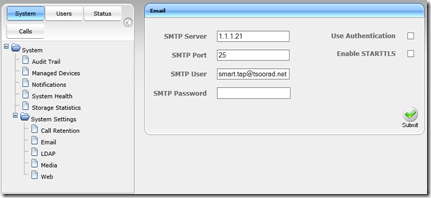
image

to DAP or not LDAP

This is a question of user provisioning.  SmartTAP needs to have user ID’s before it can decide if it needs to record a call. SmartTAP will allow you to do the onsey-twosey route, but with a full LDAP available, why would you want to do something else?  You can go in and start adding users manually; but dang! If you have AD available, why not use it?

Setting up SmartTAP to recognize all my TsooRaD users took less than five minutes; 4 minutes was deciding how to operate the SmartTap LDAP interface.  Apparently John is an idiot, because I totally missed the concept of clicking on the indicated button.

image

Once past the obvious “submit” button, the LDAP sucked in my directory and we had user accounts. Wala!
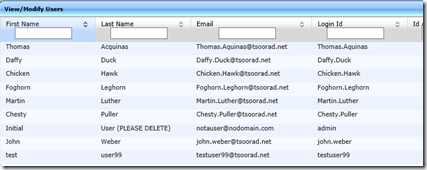
image

Once you have your user accounts by LDAP (or entered manually, it can be done), you are ready to configure the actual call recording objects by defining the user/device provisioning.

image

Selecting a user to record is simple.  As easy as 1-2-3. Select a object from pulldown (1), select “user name” in pulldown (2), then enter their SIP address (just the name) in box (3).  Click on the submit button.  You are done with User 1.

image

Selecting the options to record EVERY call are there somewhere, but I have no idea as I had no need.

Call Recording

Once you have the system installed, configured, and some users configured, you can use those configured users to make a test phone call and listen to your handiwork. Here you can see that two of my four users are in a call.  A qualified guess can also be made as to who placed the call.  Remember that there will be two audio files recorded, one for each endpoint.

image

After you have a call recorded, you can take a variety of actions. After selecting a user, and a date/time range, you can search for calls that user made or received. You can also expand the call details to see who was involved. You can make notes, play it locally on your machine, download it, or email it.

image

Selecting the call brings up a player, and also the email and download buttons.  As a side note, you will need Flash on your system to play the recording.  My laptop worked just fine, but accessing the same function from the SmartTAP server itself resulted in a demand for me to install Flash.  Not on MY server, bucko!  Use a workstation.

image

After hitting the download button, and accepting the basic defaults, I was presented with ONE file – remember I said that was going to happen?

image

Emailing the file to somewhere is just as easy. You might need to pay attention to maximum file attachment size for a longish recording (the file shown above was 972KB delivered to my downloads folder). You will also need to configure the SmartTAP server for SMTP, and then configure the receiving SMTP server to allow you to send mail. But, very handy.

Summary/Conclusions

Setup and Configuration: Not too bad at all.  Overall, the guides were good to excellent, the support I got was knowledgeable and friendly, and in the end, we had some issues, but nothing that we could not work through in just a few clock-cycles.  I think that from start to finish, including building a new VM to be the SmartTAP server, my total time investment to include having recordings was about four hours. To my detriment, I read the install guide AFTER I started.  Ooops.

Admin Usage: The UI is a little…different, but nothing horrible.  I got used to where to find things quickly.  And once there it worked as expected.  The searching for calls feature could be tweaked a little, but that could be just me.  I do wish the dates would not change to be today and this time.  The Lync Monitoring Server Reports are the same way and it drives me crazy.  Listening to recordings, downloading the recordings, and emailing the recordings worked very well. 

I can see myself recommending this solution to a client that needs a call recording solution.

YMMV

2013/07/05

Install Lync 2013 prerequisites script

Faced with having to install 18 servers, 8 gateways, and 2 SBA’s for a upcoming project, I went looking for some scripting help to get at least SOME of the work done semi-automagically…

Fellow MVP Pat Richards has developed an awesome script to install Lync Server 2013 prerequisites, SQL Express, Office Web Apps, and a partridge in a pear tree.

I recommend that you take a look at this wonderful piece of work.  You can find it here.

YMMV.

2013/06/03

Veeam and Volume Mount Points & RDM

It would appear that Veeam does not play well with volume mount points.  At a recent project, we migrated into a new Exchange 2010 environment using volume mount points attached to c:\volmtpt – Veeam would see the empty folder, but never the contents.

We were providing the the raw drive space with RDM.  So we tried the same drive space, but mounted as a direct drive.  Veeam could not see that either. Veeam support forums hinted that RDM may or may not work – apparently depending on the phase of the moon.  There are some folks who claim to have it working – but not me.

In the end, we went with raw drive space vmdk.  Now it works as expected.  But what if you don’t want 24 drive letters?  Or even more than 1?  Windows Server Backup, in the same scenario had no issues with the mount point construction.

WASSUP WID DIS?

YMMV

2013/05/16

Static MAC addresses in Virtual

With the advent of more and more virtualization, and virtualized appliances, you may run across a situation where you need to assign a static MAC to a specific VM. Some virtual appliances use the MAC of the virtual NIC to figure out their licensing, so this would be a perfect example of needing to set a static MAC for the virtual machine. If/when the image moves inside the resource pool or is manually moved to a different host, if the MAC is not static, there is the specter of the VM losing the existing MAC and having a new one assigned. At this point the virtual appliance may lose its’ ability to use the license that was keyed to the MAC on the original load. The answer is to set a static MAC for that virtual machine. As a side note, you may also need to pay attention to doing this license process with only ONE NIC assigned to the VM.

For the VMware addicts:

http://pubs.vmware.com/vsphere-4-esxi-installable-vcenter/index.jsp?topic=/com.vmware.vsphere.esxi_server_config.doc_41/esx_server_config/advanced_networking/c_setting_up_mac_addresses.html

http://kb.vmware.com/selfservice/microsites/search.do?language=en_US&cmd=displayKC&externalId=219

For the Hyper-V folks:

http://www.solution-soft.com/whitepapers/Microsoft-VirtualServer-StaticMAC/Microsoft_Hyper-V_Static-MAC-address.htm

For the Server 2012 Hyper-V users, the actual screens change a bit… here is a zippy screen shot.

clip_image001

YMMV

test 02 Feb

this is a test it’s only a test this should be a picture