About Me

My photo
This is a blog for John Weber. One of my joys in life is helping others get ahead in life. Content here will be focused on that from this date forward. John was a Skype for Business MVP (2015-2018) - before that, a Lync Server MVP (2010-2014). I used to write a variety of articles (https://tsoorad.blogspot.com) on technical issues with a smattering of other interests. I have a variety of certifications dating back to Novell CNE and working up through the Microsoft MCP stack to MCITP multiple times. FWIW, I am on my third career - ex-USMC, retired US Army. I have a fancy MBA. The opinions expressed on this blog are mine and mine alone.
Showing posts with label add-in review. Show all posts

2018/08/14

Logitech Brio & C925E

A pair of nice cameras recently went through the wringer here at the Tsoorad Test Lab.  It has been a long time since I last looked at camera add-ins/add-ons.  I am a laptop user by day, and a lurker when not running a meeting where I need to show some slight sign of being an adult.  Ergo, I have no need for an camera. 

Until that is, I go into an environment where desktops still exist, and those desktops are no longer the large box that used to be, but they still have the normal limitations… like camera’s that don’t exist.  Therefore, last month the camera issue came up again.

Enter the Logitech Brio 4K PRO WEBCAM. According to the Logitech material, the Brio provides:

image

image

OK… what else might this thing offer?

  • Video resolutions up to 4K (ultra-high definition) at 30 fps
  • 5X digital zoom (with digital pan / tilt)
  • Automatic exposure and contrast adjustment with Logitech RightLight 3 and HDR technology
  • Software-selectable field of view (90, 78, or 65 degrees)
  • Dual integrated omni-directional microphones with noise cancellation

The Logitech C925E webcam is offering a reduced feature set (no 4k) but also a reduced price point.

image

image

Software

The available-for-download software is useful for adjusting all of this. Pan and zoom to boot.  Not a large amount of adjustment range, but enough.  Useful rather than over the top.

image image

Zoom and Pan…starting with this:

image

Still good image resolution….

image

OOBE

Oddness – why does the C925 webcam come with an internal privacy shutter when the Brio does not?  The Brio has a clippy-thing that is the privacy shutter – but you have to put it on yourself. Huh?  You would think that the privacy shutter would be built-in on all add-on cameras…but apparently I am in the minority opinion on this subject.

Moving past that, both cameras have a good solid feel.  Materials are very nice, the hinges and other parts were not falling off nor did they appear to want to do so anytime soon.  Always a plus when I cannot break something.

The Brio needs a USB3 port to do 4K.  I have it hanging off a USB3 hub, and it seems to be happy. Both have a threaded boss on the bottom of the mount so you can setup on a tripod or other such device.  The Brio has a separate cable, the 925 has an attached cable.

The Brio documentation included with the units was the now de rigueur one page cartoon.  Surprisingly effective in this case.  What does that say about me?  The 925 had booklets of languages…and cartoons. There was more safety documentation than instructions.  I know that there is always someone, but do we really need to warn the dainbread about using this product in the bath/shower?

And, a final discriminator…the Brio has a velvety carry pouch.

Picture Quality

Brio on the left

image image

Different default field of view, and the Brio is doing some automatic light show stuff.

SfBx/Teams

What Tsoorad review would be worth its electrons if it did not have some hook into SfB/Teams?  Well, this review is no different…

The Skype client loves these things.  You just have to plug them into an appropriate port and then go choose.

image

Teams wants to be different, yet the same.  Bipolar city.  But still, here the cameras are for the choosing.  Hey Microsoft! I sure wish you could do it before deciding to call. 

image

Summary

As expected, Logitech has nice solid devices here; for my purposes the video quality was much better than my onboard laptop camera and was past what I see people typically using in my day-to-day experience.  If you have a need to go up on the big screen, the 4K looks really good – so good you might want to check your makeup before hand. 

I wanted these units to work with SfB/Teams without me having to do anything past choose it.  They both functioned as expected and the output looked great doing it. If you are needing it, the Brio + software can potentially enhance your security and the 4K video is really nice.

You can get a Brio here and a C925E here.

YMMV

2018/07/12

Landis Contact Center

Now, this is significant.  MVP Matt Landis and his merry band of mavens is getting their contact center out to the world. This is a happy event for those of us looking for just a bit more than nested RGS.

Hot off the email press:

https://www.landistechnologies.com/office365contactcenter/


We Plan to Announce Office 365 Contact Center is Publicly Available as Preview at Microsoft Inspire 2018

We wanted to you to be the first to know what we will be announcing at Microsoft Inspire 2018:
Las Vegas, Nevada 7/16/2018 - At Microsoft Inspire 2018, Landis Technologies LLC is announcing that Office 365 Contact Center is now publicly available as a Preview. The Landis Technologies Office 365 Contact Center provides Microsoft Partners with a call center solution that can be provisioned and running in minutes. To read more: https://www.landistechnologies.com/office365contactcenter/ .... read more


Copyright © 2018 Landis Technologies, All rights reserved.
Landis Technologies Office 365 Contact Center


YMMV


2018/05/14

IPP Manager Express Redux

A while back, I did a little write-up of Audiocodes IP Phone Manager Express.  You can read that right here.  A few days ago I installed a newer version and there is enough difference to warrant a redux.  Specifically, I would like to record for my own purposes a configuration that works (so I don’t forget) and maybe you can use it also.

Pre-Conclusion Statement

If you read no further, know this, I like the IPP Manager, I really do.

What are we doing here?

What we need to do is support a number of Audiocodes IP phones – a bunch of 405HD and 450HD models. We want some very basic changes made to the default OOBE configuration, nothing major, but we do want to be able to hand the phone to the user and have it just work.  Audiocodes calls this “Zero Touch” – which was enough of an attraction to get me to try it.  But, I ran into some “difficulties” when I attempted to interpret what somebody thinks is really outstanding documentation into a workable configuration.  After several emails, and several configuration sessions, I managed to achieve parity with the configuration genie. 

Diving In

Installation went as easily as before.  I did not understand the need for a clean server before and I don’t now.  Fuzzy logic on that one.  But, OK, I am in a freebie lab situation.  While the install is happening, let’s verify DHCP Option 160.  And right there we started having issues.  Which option to choose seems to be an ambiguous question as both seem to to work equally well, with ONE of them being preferred, but not required, and no clear (to me) guidance of which is which for my needs.  What I thought would work did not.  I had to use plan B.

Plan A: http://1.1.1.76/firmwarefiles;ipp/dhcpoption160.cfg

Plan B: http://1.1.1.76/firmwarefiles;ipp/tenant/Default

This did not jive with MY reading of the docs.  However, I am sure that I was doing something wrong, so I tried plan B.  At that point I was in Tshooting mode, and I don’t really know if the DHCP Option 160 choice fixed it or if it was the other part I did.  Either way, I found the documentation a smidge confusing.

At any rate

The install churns along, and before too long, we have this lovely “modern” “more visually attractive” “metro” site open on our local machine. You will note the devices already registered – so nice.

image

One of the things I neglected on my first pass through on the config of the tool, was the tenant.  Because the documentation said there was already one there… and so there was!  But it needed a touch of configuring itself, and that was a bit fuzzy as well. This version of the IPP Manager Express requires a “tenant” which is loosely equated to subnets, but could be a separate fiscal entity.  Clearly this line of management tool is meant for something much larger than my little slice of life.  OK, I can work with that.  A few more emails and a few guesses worked out the kinks in that one.

image

If you are doing the “see if the picture matches” thing, here is where you will find the mismatch.  My default tenant picture there is of my lab, where only have one subnet in my lab.  It is just me and my 8 favorite cartoon characters.  254 addresses is more than enough.  But, I have this customer.  You know those pesky customers.  They always seem to expect some sort of defined success.  And don’t you know these folks expected this tool to provision their phones when they have at least 12-15 subnets in the 172.xx.xx.xx/16 range, and the potential for having  SfB clients or a SfB-hosted phone on any of those segments to include the VPN segment.  Yes, Jimmy, I told them not to run the audio/video across the VPN.  You may sit now.

Defining the “tenant” with the proper subnet mask is REQUIRED.  Now, I suppose you could do something dogmatic and create a tenant for each subnet.  You could.  But I did not have a business requirement (see above) for that.  And notice that the subnet in the pic is a MASK not an actual IPv4 address.  We will wait while that runs through a digest cycle.

What we did was define the client subnet as 255.0.0.0 or, /8 which is actually a huge supernet.  But works for the simplicity angle we were also looking for.  We know it is not technically correct to address it that way; but what it did was allow the one IPP Manager to handle ANY address needed.  According to the default tenant in this configuration of  IPP Phone Manager Express, any address that can talk to the server is on a valid subnet.

Moving On

The next thing was the need for a blank template per IPP model (the 405HD and 450HD) and then each needed a customization file.  Included in the install distribution is firmware from about April 2018, and the phones will make use of those firmware files that are newer than the phone. The point here is that I needed to create my own templates before things worked.  I may have (almost certainly) done something wrong in my initial setup.  I know I expected it to be more like my old version – so there is no telling what I did wrong.  I just know that what I have now works. 

Templates

image

I am not going to go through the tenant template file – yours won’t be like mine, but you can clearly see where I have a default tenant configuration template for each phone type and they are tagged (the green/white check mark) as the default.

Once you get this far, you still have a dead stock phone.  Let’s take a look at the edit from here out.  Navigate through the various options and see what is what.   Then click on the button indicated.

That gets you to this:  Fill things out to suit your needs:

image

Make sure that you select the “default” button or not depending on your needs.  You can always go back and make a new one if needed. I know that was needed in my case. Now, you would think that would do it, right?  Well, unless I was making a lot of bad choices, no, now you need to EDIT the entire thing. 

“Ah saved it.”  Huh?  Did I not already do that?  I guess not.

Let’s select “Edit” on our new template.

image

And you get this:

image

Scroll your badself down to the bottom – and there are multiple panes here – confusing as all get out when you work remote…. get to here:

image

Generate your Global Configuration Template for this ONE PHONE MODEL.

image

Woot!

Now, not done yet, we want to edit the template:

Select this “Features” button:

image

In my case I needed the Daylight Savings Time and the Pin Lock.

Here is one, you can figure out the other I think.  But know that when you “SAVE” at the bottom, it will write a secondary config file that the global template will read and enforce.  And that file IS created when you click save.  Don’t ask me, the inconsistency killed me too.

image

Save it…this file is actually located on the ACPhoneMgr drive.

image 

Why the different file saving scheme I have no idea.  But you need both for this to work.  At this point, power cycling a phone does the trick. Phone installs new firmware; reboots, then changes configuration as we want.  So nice.

Conclusion

There is some disconnect between the versions, perhaps due to my lack of mental agility.  This version seems to have some fuzzy documentation – again it could be me.  This is nice piece of kit once you get it cranked. 

PS

I bricked a 450HD while testing this. Phone recovery did not go so well.  Have you ever wondered why a phone with a USB port doesn’t read that port for firmware and as part of the phone bootstrap routine install whatever it finds there?

As always, YMMV


2016/11/02

Microsoft Teams goes Preview

For the past few months, I have had the privilege of participating in the testing of the Microsoft Teams offering that went public preview today.

I am not Mr. Persistent Chat. If nothing else, Persistent Chat was not going to make the jump to Office 365 – too many hurdles there.  Most of my projects have deployed Persistent Chat, and customers that need the feature set really get into it.  With that said, *I* don’t use it to any great extent – but I can see where the history of the conversation between many users can be very helpful – see IT projects, financial folks, etc.

So into the Office 365 breach steps the intrepid group responsible for Microsoft Teams.  IMHO, they have created a very nice application – one that I will use, if for nothing else, for each and every project I am on.  The meeting space alone is worth whatever the price of admission is.  I have tried the web app from IE, FireFox, and Chrome, and it works so well, it is almost scary.  Excellent work.  The desktop app is slick, and all content is homed in the cloud – so swapping between web-based and desktop is, as far as I can tell, seamless.

clip_image002

For those interested in some technical detail, here are the primary features:

  • Threaded, persistent chat organized by teams and channels (topics)
  • A team work space organized around tabs including conversation, files (integrated with SharePoint) and notes (integrated with OneNote), Office files, Power BI reports, and web sites
  • Private 1:1 and group messaging
  • Built-in voice, video and MeetUp capabilities
  • Emoji, stickers, giphys and custom memes
  • @mentions
  • Native integration to SharePoint, OneNote, and Office apps 
  • Over 65 out-of-the box 3rd party Connectors

Note the fourth item down.  Ooooh.  Aaaaah.  Nice beyond further comment.

clip_image002[5]

Interested?  Here are some links to get you going.

Introduction to Microsoft Teams:  This session will explain why Microsoft Teams is the chat-based workspace in Office 365.  With Microsoft Teams, all your team conversations and context - all the related files, notes and content - are kept together in one place and easily accessible by everyone on the team, with everything tightly integrated with the other Office 365 apps you use.  Learn how Microsoft Teams will help your team to communicate more effectively http://aka.ms/microsoft-teams-introduction

Deploy and manage Microsoft Teams:  This session will go into detail what IT Pros need to consider when enabling Microsoft Teams for their users. We will go walk through the process for rolling out Microsoft Teams and configuring the infrastructure, as well as taking a closer look at the supporting technologies for Microsoft Teams. http://aka.ms/microsoft-teams-deployment

https://products.office.com/en-US/microsoft-teams/group-chat-software

https://mva.microsoft.com/en-US/training-courses/introducing-microsoft-teams-in-preview-16877?l=1VQruH2AD_4001937548

How do I get this in my tenant?

Well, as you might expect, login to your tenant portal… and then go to Settings | Services & add-ins.  Scroll down a bit to “Microsoft Teams”  click.

image

Turn Teams on!

image


Select the features you want.  You want all of them.

image

All set!  Watch the vids!

Usually, I end with YMMV… but seriously, you are going to love this.

2016/10/19

Call Flow Manager

I think that RGS is a wonderful thing, and something that every SfB deployment should evaluate for applicability.  Do you detest the SfB Response Group Service?  Then you might not want to read any further.  However, should you recognize the utility of said service, then this review might be just the thing you need to read.

SfB Response Groups allow the creation of simple hunt group or IVR-type grouping of agents to handle calls to a common DID.  They can work to the outside world, or be simply internal; but either way, the RGS is a great tool for those situations to which the RGS talents are applied.  I won’t go into what those talents are, or how to put the entire thing together in this article; rather this is a review of a spiffy tool from New Zealand Skype (well, Office Server and Services) MVP Andrew Morpeth.  What he and his team have done is create a nice GUI interface to the entire RGS management problem.  Let’s take a look at Call Flow Manager (CFM), shall we?

Before we start, you may wish to review the official documentation for RGS.

Install

If you have issues un-zipping a distribution and placing it a server that has met the prerequisites then you have larger issues than I can help with.  Dirt simple.  Just leave things in one folder, and put that folder on the drive.  Execute CallFlowManager.UI.exe and away you go.  You might want to make sure you know the license information before you start, as that will be the first question asked when the tool starts up. And oh yes, run this tool as administrator.

What are those prerequisites you might ask?  Simple: 

  • Supported for Lync 2013 or Skype for Business 2015
  • Microsoft .Net Framework 4.5
  • Lync/SfB Administrative Tools
  • Install the “Local Configuration Store” – this is step 1 of the Lync/SfB deployment wizard. Querying Response Group information requires this component to be installed
  • Outbound internet access on port 443 to https://theucguys.com
  • Minimum screen resolution of 1024×768
  • You may need to Run as administrator to ensure all feature work as expected

As you might ascertain, you will have best results doing CFM on an SfB Front End server.  I put mine on the Tsoorad.Net Test Lab SE.  Truly an awesome piece of gear; used and abused on a regular basis.

Integration

OOBE RGS requires three separate interfaces – an admin headache at the very least.  CFM puts all of that into one GUI.  I had a little challenge getting my head around the interface, but that was me – in the end, I like it quite a bit.  Especially the creation and assignment of business and holiday hours – a PowerShell goat rope for OOBE RGS management.

CFM also offers 10 IVR options rather than four.  And you can flip an RGS workflow between hunt and IVR.   Phone number visibility rounds out the technical offering. 

Functionality

I had zero issues using CFM on my SfB SE.  In fact, one of the nicer things that I always forget is to run things as admin.  C’mon Microsoft.  I am logged in as an administrator, why make me right-click and runas?  CFM checks for you, and rather than barfing in your face, flips up this nice little notice and offers to fix it for you.

image

If like me, you forget your brain at times, CFM has a nice search feature.  Here I have searched for RGS1 and discovered those elements that pertain to anything in my SfB that hints at RGS1…

image

Very nice.  You might also notice that I carefully name my RGS components to include the workflow name…makes things stick out later when you discover that your documentation is not as up-to-date as you claim in your work reviews. You can search on almost anything.  You have no idea how stupid I can get while creating RGS workflows – I forget what I called what, and who belongs to what all the time. This feature alone is worth giving CFM a test drive.  Here I have quick search for TWO letters…

image

Interface Walkthrough

Let’s take a look at the overall GUI. CFM opens to this screen.  I have exercised the upper-left pull down to select an RGS workflow.  Here you can see pretty much the basics of the workflow.  You can change/edit anything on the display, and then save it before moving to something else.  I like this much better than the native tool.

image

Across the top, Call Flow Designer, Queues, Groups, Business Hours (oh yes), Holidays (oh yes #2), Numbers (oh yes #3, and Logs.

Queues allows you to create and manage RGS Queues.  About the same as the CSCP, but with CFM, you get everything you need in one interface.  IMHO, clearly much better.

image

Groups does the same as Queues, and my comment above holds true here also.

image

And now to the “good stuff” – Business Hours (and Holidays).  In the CSCP, webpage, PowerShell combination of native tools, business hours and holidays are, again IMHO, a royal PITA.  El Yucko to paraphrase my second child.  In CFM, you are given a nice GUI to create, edit, and play with both of these options that allow the final customization of the RGS in terms of open hours and closed hours.  The business hours selection comes with pre-worked up day selections, so that you don’t even have to think too much.  Pretty nice for those of use with both brain cells that are already full.

image

The Holiday hours works pretty much the same.

image

The Numbers page will show you all the DIDs that available so that you don’t do the John thing and try to assign a number to an RGS that is already assigned.

image

…and finally, Logs.  This little nifty detail will show you all the PowerShell that is going on under the hood as you create or modify various elements of the RGS structure.  I think it would be even nicer if the entire PowerShell command string was shown rather than a brief “hey, we did this general command.”

image

Nit Picks

I have always disliked the CSCP view of the RGS with the workflow, queue, and group arrangement.  My brain operates on the group, then queue, then create workflow concept, and the tool could be rearranged to reflect that.  However, having observed that, there is nothing WRONG with what is here.  I will reiterate my comment about the logs, and then that is that.  For something like this to have only TWO nitpicks is remarkable all by itself.

Praises

Without reworking all the screen caps already shown, here is the same workflow as above, but seen from the native web tool.

imageimageimage

Note that the queues and groups are not here, and to put together the business and holiday sets, you will need PowerShell. Clearly, CFM does a much better job of presenting options, creating answers, working up the solution, etc. 

And the final Bit of Goodness

CFM can take a workflow that is “hunt group” and transform it to an “IVR” – something that the native tools cannot do (to the best of my knowledge).  If you choose to take this action, be warned that it appears to be a one-way street.  Once an IVR, always an IVR.

image

And when you get to the IVR slice of life, the native tools only gives you four levels, CFM blows past that as mentioned above.  So nice.

Where to get this piece of greatness

Simple.  Just go to TheUCGuys.com

Conclusion

I like it. A lot. I won’t say more.

YMMV

2016/08/15

AudioCodes SBC 7.2 firmware

Most of my customers use AudioCodes appliances in their Skype deployments in one form or another; SBC, analog gateways, recording, management, phone devices.  So, when AudioCodes announced that SBC 7.2 firmware is now GA, I had to go get it.  I won’t bore my gentle readers with the exhaustive listing of the 30+ enhancement and session capacity updates – the document that outlines that stuff is 70 some pages – and I had to buckle down to get the entire thing digested.  Suffice it to say that this is a big update.  What I am really interested in is the promised GUI changes and the “click the GUI to configure” claims.

Having downloaded it the other day, I  upgraded the firmware on my Mediant 800 SBC and started kicking the new tires a bit.

image

OK, file loaded.  28.8MB of spotless CMP file.  I guess I will click on the “reset” button and hope I don’t have to figure out the “reset to factory” option I think might exist.  Well, I clicked the “reset” at 1309 PST…and waited.

image

The Results are In

After picking my teeth and looking at some Olympic Games results, at 1317 PST I am able to login to the upgraded SBC.  I think the watchword here is PATIENCE.  This is a total update for your firmware.  8 minutes of patience is not too much to ask for, right?  And, we have the new goodness that was advertised:

image

Let’s open a few pages to see if the advertised goodness actually is goodness and not pure market-speak.

A few minutes pass – did you sit here reading this same sentence in a loop or did you check those Olympic results for yourself?  Alright, I have poked around a little.  Things in general are the same…but some things have moved.  Not a huge issue, but it will take a bit of adjustment/learning.  The overall look and feel is certainly AudioCodes, yet refreshingly updated.  Like the header CSS?? layout…

image

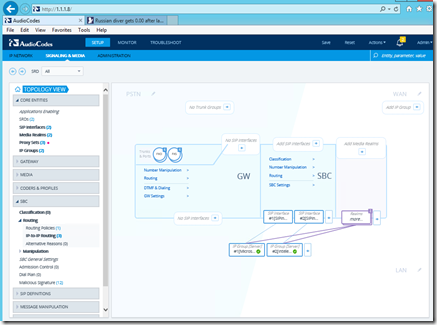
And the promised GUI view of the relationships is certainly there also – very helpful for those of us with limited brain capacity.

image

And as further advertised, clicking an element in the Topology GUI view as shown, does indeed dump you into the tree to configure the element you selected.  Maybe now even *I* can figure this thing out, eh?  And while I am saying nice things, the linking between configuration elements along with “EDIT” right next to the element you want to change is….very welcome.

1.5 “not so nices”

While I am at it, there is a sorta not so great thing.  The old GUI used to have the type of device shown at the top of the page – that seems to have gone away.  I forget what I am doing very easily, and it was nice to have the reminder of what device I was accessing.  And no analog gateway version (boo hiss).

Two more “nices”

One nice thing, well, actually two – is that when you change something, the “SAVE” selection on the top row gets a red box around it.  And (genuflecting towards Tel Aviv) when you resize your browser window, the contents shuffle and resize.  Finally.

image

Conclusion

A big update for the AudioCodes SBC – it took a bit of time for the “burn and reset” but my SBC came back to life without losing a single iota of configuration.  The topology click to configure part is really nice.  I sure wish they had a version for my MP118FXS gateway.  Overall, I think this update is a winner.  Login to your AudioCodes account and get it today!

YMMV

test 02 Feb

this is a test it’s only a test this should be a picture