About Me

My photo
This is a blog for John Weber. One of my joys in life is helping others get ahead in life. Content here will be focused on that from this date forward. John was a Skype for Business MVP (2015-2018) - before that, a Lync Server MVP (2010-2014). I used to write a variety of articles (https://tsoorad.blogspot.com) on technical issues with a smattering of other interests. I have a variety of certifications dating back to Novell CNE and working up through the Microsoft MCP stack to MCITP multiple times. FWIW, I am on my third career - ex-USMC, retired US Army. I have a fancy MBA. The opinions expressed on this blog are mine and mine alone.
Showing posts with label ws08 r2. Show all posts

2018/04/19

SfB Disabling TLS 1.0/1.1 Guidance

Update 20181107
Microsoft waffles yet again.
https://support.microsoft.com/en-us/help/4057306/preparing-for-tls-1-2-in-office-365


On October 31, 2018, Microsoft Office 365 will be disabling support for TLS 1.0 and 1.1. This means that, starting on October 31, 2018, all client-server and browser-server combinations must use TLS 1.2 or later protocol versions to be able to connect without issues to Office 365 services. This may require certain client-server and browser-server combinations to be updated.
https://support.microsoft.com/en-us/help/4057306/preparing-for-tls-1-2-in-office-365

SfB impact?

At a high level, this requires installing Skype for Business Server 2015 CU6 HF2, applying pre-requisite updates to .Net and SQL, and finally another, separate round of OS configuration updates, i.e. disabling TLS 1.0 and 1.1 via registry file import. It is critically important that you complete installation of all prerequisites, including Skype for Business Server 2015 CU6 HF2, prior to disabling TLS 1.0 and 1.1 on any server in your environment. Every Skype for Business Server, including Edge role and SQL Backends, require the updates. Also ensure that all supported (in-scope) clients have been updated to the required minimum versions. Don’t forget to update management workstations as well.

Background reading:

https://blogs.technet.microsoft.com/cloudyhappypeople/2017/12/22/the-end-of-support-for-older-tls-versions-in-office-365/
And then read part 1 here for more background specific to SfB/Lync and the supportability statements
https://blogs.technet.microsoft.com/nexthop/2018/04/18/disabling-tls-1-01-1-in-skype-for-business-server-2015-part-1/
Part 2 here gets into the weeds a bit on “How To Achieve”.https://blogs.technet.microsoft.com/nexthop/2018/04/18/disabling-tls-1-01-1-in-skype-for-business-server-2015-part-2/Part 3 will be published at a later date.  Woot!

Here is guidance for Lync Phone Edition (LPE):

https://techcommunity.microsoft.com/t5/Skype-for-Business-Blog/Certified-Skype-for-Business-Online-Phones-and-what-this-means/ba-p/120035 

General TLS1.2 whitepaper:

https://cloudblogs.microsoft.com/microsoftsecure/2017/06/20/tls-1-2-support-at-microsoft/

Here is the Microsoft Exchange equivalent:

Part 1https://blogs.technet.microsoft.com/exchange/2018/01/26/exchange-server-tls-guidance-part-1-getting-ready-for-tls-1-2/Part 2https://blogs.technet.microsoft.com/exchange/2018/04/02/exchange-server-tls-guidance-part-2-enabling-tls-1-2-and-identifying-clients-not-using-it/And big surprise, part 3 to be published later.

Summary

If you or your customer is doing anything with Office 365 hybrid, then you need to be reading all of this and figuring out your next steps.


2017/05/31

SQL Change Ports

The Port Change Issue

On a project where the SQL team has a policy of changing the SQL port away from the default of 1433? 

This does not pose a huge problem for your intrepid Skype (or Lync) deployment engineer.  If you are needing to know what to do, and maybe you have, oh, 30 or so front ends to modify, then maybe I can help you out a tad.

The issue is modifying the registry to tell your host server where to go to access the requisite port on the target SQL server.  As it turns out, I had to remember this, as it has been a bit since I had to last do this task. 

The Simple Fix to the Simple Issue

Luckily for you and me, it seems that every copy of a Windows operating system I looked at for this post (Win7, Win8, Win10, Server 2008+) have a utility in \windows\system32 called cliconfg.exe.  You can read up on that utility here.

A wonderful tool.  Here is it in Windows 10 form.  Which looks the same as Win7, so I think they will all pretty much appear to be the same. Actually, the Win7 version has a different set of window frames, so the appearance is more rounded instead of the ugly-ass Win10 metro crap.  But I digress.

image

What we need to do is select the Alias tab…the select Add.

image

For the purposes of this exercise, I need my system to talk to my SQL server (FQDN = sqlalwayson-a.tsoorad.net) on port 49001.  So, you set it up like this and then say OK.

image

image

Follow up that OK with an APPLY and your newly modified operating system will for thereafter talk to SQL server sqlalwayson-A.tsoorad.net on port 49001 vice 1433.  Simple.  Easy.  Works well.  Less filling.  Man, I am thirsty!

But Wait!  What if…

…you have like four user pools, and they all need to talk to the same monitoring server, but different archive targets per pool?  And what if there are like 30 front ends that need this modification, and every time you type this stuff in there is the possibility of spelling errors that mean system failure.  Now, I am sure there is some folks out there in techie land that are starting to chant “PowerShell!  PowerShell” -  but in this case, I am going to ignore them, and simply export a registry key, and then incorporate that into my server build process – which can be PowerShell-ized if you wish.

Here is the registry key to export.  HKLM\software\microsoft\mssqlserver\client\connectto

In my project, we had four SQL AG clusters, each with two nodes, a cluster name, and the AG name; all that needed to resolve by DNS.  So, our registry key looked somewhat like this: 16 entries with AG, cluster, node1, and node2 per supporting SQL cluster.  We then simply imported that into each server at build time.

image


Summary

The SQL mavens might well change ports on you.  If they do, there is an answer in form of cliconfg.exe.  If the scale is a tad larger than manual typing will cover, you can regedit your way to success.

YMMV


2016/06/06

WebConf modalities not working for internal users after server patching

This falls into the “oh wonderful” category…

https://technet.microsoft.com/en-us/library/security/ms16-065.aspx breaks Office Web Apps for internal users.  External users seem to be unaffected.

Conferencing modalities no longer function in Lync Server 2010, Lync Server 2013, or Skype for Business Server 2015 after you install Security Bulletin MS16-065Here is a fix workaround:

https://support.microsoft.com/en-us/kb/3165438

And people wonder why I always advise waiting 90 days or so before patching Lync and SfB host servers.

The documented update in the article is KB3156757, but the actual KB installed was KB3156756.  Which also is associated with MS16-065.

YMMV

2015/07/15

Windows PKI SHA-1 to SHA-2

(How do you hear me now?)

Thanks go to fellow CDW co-workers Dean Sesko, Russell Despain, and Keith Crosby


What is the issue here?

Basically, the issue is that SHA-1 for PKI is going away in favor of SHA-2, and you WILL have customers that need help with this.


Reference:


AND…?

Any Microsoft supported operating system, properly patched/upgraded, and any Microsoft supported application, again properly patched/upgraded, will support SHA-2 PKI certificates.


Reference:

…there are some caveats: notably around XP and Server 2003, and oddly, Server 2008.

Reference:

So, there is not an issue with Microsoft supported products; the issue is with BYOD and Microsoft making a HUGE effort to support alternative browsers and operating systems. And those browsers and operating systems are fixing on deprecating their support of SHA-1.


Reference:

However, there are going to be numerous AD internal CA’s out there that are issuing SHA-1 certificates, and depending on how the environment is configured, the customer will need to renew their application certificates for internal use. Logically, it makes sense that the desirable outcome of renewing the application certificates is that the issuing PKI be SHA-2.

CDW AD resident experts advise instantiating a new Root CA, and if needed, a new subordinate CA for issuing SHA-2 certificates. But, you know those pesky customers, they may not want to do this. Which would call for modifying the existing structure to hand out SHA-2 vice SHA-1.


Reference:

Experimentation over the last several hours has revealed the following:

  • Migrating the existing SHA-1 CA went just fine.
  • The new SHA-2 Root Certificates updated almost immediately into the Trusted Root

clip_image001

  • I was able to request new SfB certificates and they were issued by the CA based on the new 3DES/SHA-2 root
    • However, the host server was not able to chain them up into the Trusted Root.
    • I rebooted.
    • I ran GPUpdate –force
    • I rebooted.
  • After waiting overnight, THEN the new certs chained up properly. Why this delay in chaining to the new Root I have no idea. I suggest that if you do this for real, that you do the work on one day and then plan on waiting for at least 8 hours before attempting to get new certificates and expecting them to chain up to the new root.

clip_image002

Testing:

After updating the internal certificates on my SfBSE to a new SHA-2 I successfully tested

  • using Win8.1 and Win7sp1
    • IE 11
    • Chrome Version 43.0.2357.134
  • Surface Pro 2 (8.1) IE
  • iPad (iOS 8.0.2) Safari

Firefox 39 fails – due to it not liking the root cert – why is FF so blinking difficult? Why does it have to have its’ own key chain? The O/S has the root cert! It does this same shit when installed on *nix. After manually importing my new root cert, it worked just fine.

clip_image004

clip_image005

  • SIP Phones.  I had to restart services (stop-cswindowsservice start-cswindowsservice) AFTER I changed the certificate to the new SHA-2 certificate before my AudioCodes 420HD and Polycom VVX-600 would log in.  Why, I do not know.


The SfB/Lync Connection!

You may have been wondering why *I* am worried about this.  Well, on literally every project with which I have been involved over the last few years, they all had *nix and Mac workstations, along with loads of iPhones, iPads, *nix tablets, droids, surface tablets, and here and there the odd Windows phone.  And, you have to know that, in most cases, all of these were attached to an internal corporate wireless.  And in some cases, the internal wireless was dropping these devices into the production network, which put them in a position to being able to directly contact Lync/SfB resources on internal servers, that, for the most part, had a PKI certificate from an internal CA.  With SHA-1.  You knew it had to be simple, right?

Any input to solving/addressing the observed delay would be most welcome. I, for one, totally expected to have the new certificate chain immediately – the appropriate root cert was in place!

YMMV

2015/03/13

SSRS into existing default instance

Are you trying to install SQL Server Reporting Services onto an already built default or named instance of SQL?  Does it error out telling you that the instance already exists and you need to choose another, and you don’t wanna choose another?

Then you might want to read this.  Yes, it is for a really old version of SQL, but hey, it works.  I just tested this on SQL 2014.

Run the below command at the Windows command prompt to start SQL Server setup on the active node.  Make sure to run this command after changing the root directory of the command prompt to the location where you have placed the SQL Server setup files.

Setup.exe /SkipRules=StandaloneInstall_HasClusteredOrPreparedInstanceCheck /Action=Install
This bypasses the SQL install logic checks.  A downside is that the setup routine skips the auto-magic SSRS Native mode configuration. You will need to do a manual configuration of the SSRS using the Reporting Services Configuration Manager.
This is no way implies that if you do a SQL Availability Group, and put SSRS on both (or all) nodes, that the SSRS is now in a DR state.  In fact, some really useful reading for doing the DR process with SSRS in this posture can be found here: 

https://msdn.microsoft.com/en-us/library/hh882437.aspx

YMMV

2015/03/02

Asus Mobo & Server 2012 R2

Did you need to update your lab server?  Do you run a high-end gaming or media platform and need a boatload of RAM so you obtained an Asus mobo so you can have 32 or 64 GB of RAM?  Did you decide to go with a Windows Server 2012 R2 as a workstation host for the goodies you get with that?

If so, then I will make the guess that you discovered that the Asus-supplied driver disk claims that your operating system is not supported.  Horse pucky says you – with Windows 7/Server 2008 and Windows 8 (and 8.1)/Server 2012 (and R2) the core of the operating system is much the same and drivers will work on both, right?  Very frustrating to know something should work and be turned away by a mechanism to save the consumer from themselves.

This is now the second time I have run into this little gotcha; and for the second time, I worked around the issue the same way.  I suppose you could go find all the drivers and try to load them individually; however, one of the problems is that the LAN driver is a toughie.  Downloading the drivers and suite software direct from Asus runs you into the same issue – “your operating system is not supported” and you start questioning your sanity and direction in life.  My first experience with this was with Server 2008 R2 and an Asus P8z68 board.  This weekend I ran into this issue using a Asus Sabertooth X79 board and Server 2012 R2.  Specifically, I am using this mobo here.

What is the issue?

The *.ini files don’t include a proper operating system identifier that tells the driver/utility disk that it is OK to install for Server 2012 R2.  Very frustrating knowing that the drivers and whatnot will work just fine – well, there is an issue with the on-board Ethernet controller (and Intel 82579v) that the Server 2012 R2 doesn’t like – but I have a fix for that as well. 

A little error comes up with the audio drivers, but in my case, this is a headless VM host, and I am not too worried about that aspect of installing.  As it turns out, the audio driver install routine pitches and error, but then continues to install and works just fine.

The Fix

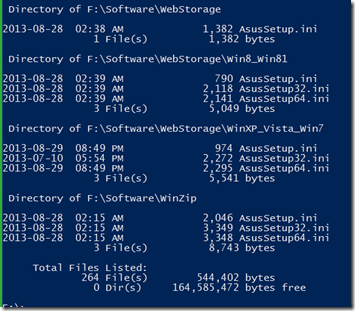
OK, so what do you need to do?  First, copy the CD to somewhere on a writeable drive.  Then find EVERY *.ini file in the resulting file structure.  You should end up with something like this:

image

and here is the end of the list…

image

Yes, that one line reads “264 File(s)”  that is a lot of them!  But, we do want to be successful, yes?  Note also that the very FIRST file listed is not “AsusSetup.ini” or “AsusSetup64.ini” – this is important. 

Let’s Dive In!

Cannonball, Can Opener, perhaps a graceful Swan dive or something you would see off the 10 meter board in a formal diving competition, pick your poison.  What you need to do is modify every last one of those ini files with the name “asussetup.ini” or “AsusSetup64.ini” – not the worlds best task for a Friday night, but you do want this to work, yes?

FWIW, I used this tool here.

Start by looking at the file \bin\Ascdinst.ini in your favorite editor, and find this piece:

WNT_6.3H_64 = Win81_64  --- Without getting too deep into the weeds, this line reads “Windows 8.1 Home Edition”

What you need to do is realize that this:   WNT_6.3I_64 = Win81_64 represents Server 2012 R2.

If you are trying to do this little routine with Server 2012 (why?) or Server 2008 (or R2) (why?) you can use these lines:

Server 2012 R2: WNT_6.3I_64 = Win81_64

Server 2012: WNT_6.2I_64 = Win8_64

Server 2008 R2: WNT_6.1I_64 = Win7_64

Server 2008: WNT_6.0I_64 = Win7_64

For those of us who are font-challenged, or maybe just a bit dim or blind, the “I” in those strings is a capital i.

What is going to happen here is that the installer is going to read the installed operating system as WNT_6.3I_64 and equate that to win81_64, which is supported for install.

At any rate, in your favorite editor, you want the appropriate section in the ascdinst.ini file to read thusly:

WNT_6.3P_32 = Win81_32
WNT_6.3P_64 = Win81_64
WNT_6.3P_32_MCE = Win81_32
WNT_6.3P_64_MCE = Win81_64
WNT_6.3H_32_MCE = Win81_32
WNT_6.3H_64_MCE = Win81_64
WNT_6.3H_32 = Win81_32
WNT_6.3H_64 = Win81_64
WNT_6.3I_64 = Win81_64

Once you get that first one done, the asussetup will be happy.  The other 263 files need to be done also to enable the individual components to install properly.  Happy grepping!  or, Happy notepad ++’ing, or however else you choose to do it. Yes, I know I said that some of the files don’t need to be done, but you never can tell which.  Actually you can, if the WNT_6.3H_64 line is not present, you don’t need to worry about that ini file.  But, do you really want to mess around with looking at each file?  No, I did not think so.  Pick a tool and use it.

As a nit-picky technical note, for your purposes, you really don’t need the WNT_6..3H_64 line at all, so you can just grep every ini file on the disk, and if it finds the WNT_6..3H_64 line in the file, replace it with WNT_6.3I_64 = Win81_64. Which *I* did not do, because there is always the chance that I might, for some reason known only to Microsoft, need to install the Windows 8.1 Home Edition on my 64GB Lab server.  You never can tell.  I might come down with a severe case of stupid one day.

LAN Driver

In a twist of technicality that I have no desire to attempt unraveling, Intel does not produce a driver for the 82579V GB Ethernet Controller that supports Server 2012 R2.  Don’t ask me to elucidate, I said I don’t know.  But, what remains is that even when you work your way through 264 different ini files doing the above routine, the LAN driver on the disk is going to barf on you because it doesn’t like Server 2012 R2.  Again, I don’t know why.

What I do know is that you can do the Device Manager thing, and tell Windows itself to install the 82579LM driver, which works splendidly.
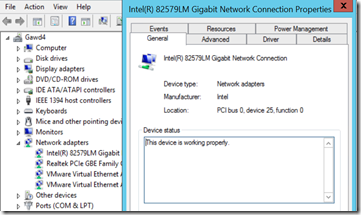
image

If you go here: https://downloadcenter.intel.com/download/23073 and actually read the fine print, you will find this:

NOTE: The following devices do not have driver or software support for Windows Server 2012 R2:
- Intel® Ethernet Connection I217-V
- Intel® Ethernet Connection I218-V
- Intel® 82579V Gigabit Ethernet PHY

So, it would appear that the 82579LM driver is going to have to suffice. As you can see, I have plenty of traffic on the network, but as a fraction of the speed provided by the NIC, it doesn’t even make a pimple on the radar screen…

image

When we do a little file transfer to get a feel for actual speed, it certainly looks like we are getting GB speed.

image


Summary

At this point, remember that the first file you do is different from the rest in the terms of naming convention.  All the rest you need to worry about will say asussetup*.ini.  There is a bunch of language ini files; I don’t think you need to worry about those, unless of course you know something about language files being bit-specific that I don’t know.

Oh, BTW, this Asus board rocks.  Although I am not sure I will ever need all 30 USB ports.

YMMV

test 02 Feb

this is a test it’s only a test this should be a picture