About Me

My photo
This is a blog for John Weber. One of my joys in life is helping others get ahead in life. Content here will be focused on that from this date forward. John was a Skype for Business MVP (2015-2018) - before that, a Lync Server MVP (2010-2014). I used to write a variety of articles (https://tsoorad.blogspot.com) on technical issues with a smattering of other interests. I have a variety of certifications dating back to Novell CNE and working up through the Microsoft MCP stack to MCITP multiple times. FWIW, I am on my third career - ex-USMC, retired US Army. I have a fancy MBA. The opinions expressed on this blog are mine and mine alone.
Showing posts with label O365. Show all posts

2019/02/15

Audiocodes Teams Phone C450HD

I feel like cueing up Steve Martin in “The Jerk” but I have already done that once, and I hate to repeat.   So, you think about that scene where the phone book arrives….

I got a squeaky new Audiocodes C450HD.  A long time coming.  But, now I have a Teams phone.  And based on the goodness that is an Audiocodes handset.

So, we should have a pretty nice piece of gear here.  Let’s kick the virtual tires and see how this thing works.

Taking it out of the box, connected to PoE, and here we go…


Tapping the 'Sign in' gets you to the Company Portal page, and a further tap in address entry cell pops up a handy qwerty keyboard.


Edited Note:  I contacted Audiodcodes about the placement of the virtual keyboard and was told that anything UI is Microsoft-dictated.  So, if you get chapped off at poor design (like I did), your complaint needs to go to Microsoft, who we all know is NOT E.F. Hutton when it comes to this kind of thing.
Once you figure out how to spell your UPN correctly, and the verification code is received, you get two options for data entry…keyboard on screen or you can simply use the big square things on the phone itself.


There are a few cartoon screens of “how to” and “what can you do…”

But in the end, you get this – and you say to yourself – “…this is different…”


Let’s do a little reading to figure this out. And we discover that on this page here:  https://www.audiocodes.com/library/technical-documents?productFamilyGroup=1672&productGroup=16127 there does not appear to be any user guide for the TEAMS version of this phone…. odd.  

A quick call to my Audiocodes contact (who I am sure  will never answer my call again) revealed that the code is not GA yet (Microsoft supplied code) so therefore the TEAMS documentation is not published yet.  Bummer.

But, to answer my own question, a few quick (or not) logins later and we have the information that “Shared” pretty much presents the phone as a CAP (nee SfBS CAP).  I can see how to make this have a semi-generic account and get invited to meetings and such… and then the room could have this phone in it and we’d be able to join the meeting, but not see contacts, history of personal calls, et cetera.

Shared:  Nothing but join a meeting.


Personal: here I am presented with calls,. meetings, my voicemail.


After all  the button clicking and MFA entering, we now have a phone that works with Microsoft TEAMS natively.  Not a 3PIP phone that sort of works, but a handset set that is actually a full login.  Minus video, screen sharing, and access to my full Teams account content.

You can make the C450HD into an SfB phone if you wish.  From the login screen, before you login to the Teams phone, switching the c450HD to SfB is three clicks.

Menu | Debug | Switch to Skype for Business


I have been using this device now for the better part of this week to make and take my business calls and participate in meetings.  The build quality, technical execution of the device, audio quality, fit, finish and feel are all what you would expect from Audiocodes. 


YMMV

2018/08/20

Polycom VoxBox

You would think that the market is fairly saturated with speaker-phone devices that plug in via USB or attach via BT and work with anything that is connected to the PC.  Right?  I mean, these things have been around for almost as long as I have been knowing what a USB connection is and the difference between an A, and a B USB.

Apparently I am wrong – Polycom has a device called VoxBox.  I have been living in a cave lately, from all appearances, and totally missed this product.  The Polycom website claims that the VoxBox is certified for Office 365 and SfB.  You’d think so seeing as how it connects to the PC or BYOD via USB/BT and is therefore abstracted from what is actually providing media.  It thinks the media is coming right from the port.  But, SfB does know what to do with it.  Teams O365 doesn’t like the on-device controls, but Teams O365 doesn’t like any on-device controls (yet).  So, I think it is safe to say that subject is a wash in terms of function.

Marketing blather straight from Polycom’s website:

Polycom VoxBox sets a new standard in ultra-compact USB / Bluetooth speakerphone performance and packs it with HD Voice and patented NoiseBlock noise reduction technology. Give your mind and ears the quality they deserve—in offices, in huddle spaces, and wherever your travels may take you.

Better Sound. Hear Everyone.

  • Hear everyone – Designed and built for group conversations, so discussions are interactive and everyone is clearly heard
  • Easy to connect – Simply pair using Bluetooth, or plug in via USB — no software driver required
  • Sounds better – you will hear the difference with 4 microphones and our high quality, low-distortion speaker
  • Stay focused – eliminate meeting disruptors like echo, noise, and insufficient microphone range

Let’s see if that is true in testing.

OOBE

2 cables (USB and USB+security cable), a little wrench (for the anti-theft cable) and the unit itself.

image

Square, solid, brushed aluminum-like finish.  Looks good; feels good; and the bottom has whateveritis that stops it from sliding around.  So, pretty good from that angle.

Function

Here is the official data sheet. 

As you might guess, I did not test the VoxBox with just anything, I used SfBS and Teams Office 365.  Surprised?  Ha!  Don’t be.  I plugged it in, my laptop went dink-donk, and I had a functional speaker phone.  It doesn’t get any easier.

My ONLY niggle with this unit is that the mute button is bit too sensitive. I swear that several times just thinking about the mute button caused it to activate. 

Lights are easily visible, even in office lighting levels of brightness, and the lights themselves are understandable as to what they are indicating.  As long as you don’t expect the + and – to provide video zoom you are good to go.

imageimage

Audio was clear and presented with good volume out to a 12x12 room size.

Conclusions

This is a high quality speaker phone device.  I had zero issues working this device with both Teams O365 and SfBx.  I set up about two feet from the device and normal operations were crisp, clear, and all the device features were indeed as advertised.  With the exception of achieving world peace, I would say the marketing mavens had accurate VoxBox blather.

You can get one right here.


YMMV

2018/07/12

Landis Contact Center

Now, this is significant.  MVP Matt Landis and his merry band of mavens is getting their contact center out to the world. This is a happy event for those of us looking for just a bit more than nested RGS.

Hot off the email press:

https://www.landistechnologies.com/office365contactcenter/


We Plan to Announce Office 365 Contact Center is Publicly Available as Preview at Microsoft Inspire 2018

We wanted to you to be the first to know what we will be announcing at Microsoft Inspire 2018:
Las Vegas, Nevada 7/16/2018 - At Microsoft Inspire 2018, Landis Technologies LLC is announcing that Office 365 Contact Center is now publicly available as a Preview. The Landis Technologies Office 365 Contact Center provides Microsoft Partners with a call center solution that can be provisioned and running in minutes. To read more: https://www.landistechnologies.com/office365contactcenter/ .... read more


Copyright © 2018 Landis Technologies, All rights reserved.
Landis Technologies Office 365 Contact Center


YMMV


2018/05/21

Official SfB 2015 Server Disable TLS 1.0 and 1.1 part 3 guidance

updated 20181107


Microsoft update to what they think they are doing, how they are going to do it, and basically, another waffle episode on their part.


https://support.microsoft.com/en-us/help/4057306/preparing-for-tls-1-2-in-office-365


As you may be aware, we have covered the upcoming 31 October 2018 TLS 1.0/1.1 support being removed from O365.  You can find that guidance here.  As promised, Microsoft has finally published the last pieces of the series.
You can find part 3 here.
As usual, I strongly recommend that you start looking at this now – some of this might take a bit of planning and coordination on your part to accomplish in a clean fashion.

Now is the time to get your sales types contacting existing customers and offering to help.  This will not be a clean thing; rest assured that there will be “issues” and IMHO there is significant potential for unintended consequences.

YMMV

2018/04/19

SfB Disabling TLS 1.0/1.1 Guidance

Update 20181107
Microsoft waffles yet again.
https://support.microsoft.com/en-us/help/4057306/preparing-for-tls-1-2-in-office-365


On October 31, 2018, Microsoft Office 365 will be disabling support for TLS 1.0 and 1.1. This means that, starting on October 31, 2018, all client-server and browser-server combinations must use TLS 1.2 or later protocol versions to be able to connect without issues to Office 365 services. This may require certain client-server and browser-server combinations to be updated.
https://support.microsoft.com/en-us/help/4057306/preparing-for-tls-1-2-in-office-365

SfB impact?

At a high level, this requires installing Skype for Business Server 2015 CU6 HF2, applying pre-requisite updates to .Net and SQL, and finally another, separate round of OS configuration updates, i.e. disabling TLS 1.0 and 1.1 via registry file import. It is critically important that you complete installation of all prerequisites, including Skype for Business Server 2015 CU6 HF2, prior to disabling TLS 1.0 and 1.1 on any server in your environment. Every Skype for Business Server, including Edge role and SQL Backends, require the updates. Also ensure that all supported (in-scope) clients have been updated to the required minimum versions. Don’t forget to update management workstations as well.

Background reading:

https://blogs.technet.microsoft.com/cloudyhappypeople/2017/12/22/the-end-of-support-for-older-tls-versions-in-office-365/
And then read part 1 here for more background specific to SfB/Lync and the supportability statements
https://blogs.technet.microsoft.com/nexthop/2018/04/18/disabling-tls-1-01-1-in-skype-for-business-server-2015-part-1/
Part 2 here gets into the weeds a bit on “How To Achieve”.https://blogs.technet.microsoft.com/nexthop/2018/04/18/disabling-tls-1-01-1-in-skype-for-business-server-2015-part-2/Part 3 will be published at a later date.  Woot!

Here is guidance for Lync Phone Edition (LPE):

https://techcommunity.microsoft.com/t5/Skype-for-Business-Blog/Certified-Skype-for-Business-Online-Phones-and-what-this-means/ba-p/120035 

General TLS1.2 whitepaper:

https://cloudblogs.microsoft.com/microsoftsecure/2017/06/20/tls-1-2-support-at-microsoft/

Here is the Microsoft Exchange equivalent:

Part 1https://blogs.technet.microsoft.com/exchange/2018/01/26/exchange-server-tls-guidance-part-1-getting-ready-for-tls-1-2/Part 2https://blogs.technet.microsoft.com/exchange/2018/04/02/exchange-server-tls-guidance-part-2-enabling-tls-1-2-and-identifying-clients-not-using-it/And big surprise, part 3 to be published later.

Summary

If you or your customer is doing anything with Office 365 hybrid, then you need to be reading all of this and figuring out your next steps.


2018/03/03

FastTrack Network Checking

You may not know but Microsoft is providing a fairly nice tool to check your network for SfB performance.  Free.  Free is a very good price, eh?

I am not going to extol the virtues and services offered by fastrack.microsoft.com, I just want to delve a little into the network checking tool.  And, this tool has been around for a bit.  So, I wanted to get a little updated review.

First off, I cannot even find this thing anywhere on the https://fasttrack.microsoft.com site.  Sorry.  Maybe I am blind,  but I am not seeing it anywhere.  There is probably some zippy button marked “tools” but I am just not groking.  Having said that, I know of

http://ap1-fasttrack.cloudapp.net/o365nwtest

http://em1-fasttrack.cloudapp.net/o365nwtest

http://na1-fasttrack.cloudapp.net/o365nwtest

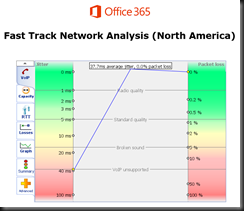
Here I am checking my lab tenant against the ap1 site.

image

Note the two addresses given by the tool…

image

The 76 address is my laptop, currently operating from a hotel out in the middle of the Oregon Cascade mountain range.  So, this connection is going to be testing from my laptop to the AP1 site to see how things stack up. 

With a little imagination, you could bury a workstation in some remote spot on your network, and pretty much map out the entire path to the world – giving a glimpse into how things line up.  This could be useful, yes?

You can see that the lag from here to there is running about 170 ms, which might be so great in some circumstances. 

image

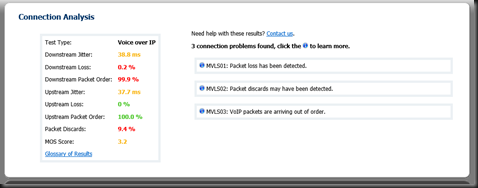
Overall, the tool produces a raft of great info… here is the summary tab.  Note that something is not quite right as the tool cannot simulate VOIP traffic.  Could be something you need to look into here?

Here is the same test run against the NA1 site.  Note the differences.  We also now have a MOS score.  3.2 is not as good as we want, but doable.  Not too bad for out of a hotel where I am sharing bandwidth with 200 other rooms.

image

image 

We also got some nice jitter measurements on this run…

image

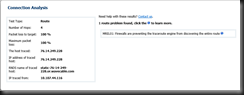
And finally, if you drive into the route tab, you will get more data points.

image

What do you think you could do with information such as this?

image

If you have questions about any attribute/factor measured in these tests, there is also a handy glossary. 


If you or your organization is considering moving to Office 365 in any capacity, this is one of the first tools you should be working. I have been telling customers for a long time that if we do our job right, then any problems will be network, firewall, or load balancers.  This tool can help you prove that.  In a more complex internal net, you might even be able to tell the network team right where to look!


YMMV

2018/01/24

IP Phones in the Teams Road Maps

Hello all,

I got some good stuff from my friend Daryl over at AudioCodes the other day.  Daryl Hunter is a voice architect over there; he just knows stuff.  Good source.

At any rate, the important tidbit for our purposes is that Daryl/AudioCodes thinks that Microsoft has a solid chance of making good on it's 2Q2018 target for IP phones to be used in Microsoft Teams.

Note the "Calling Road Map"


This means that your existing SfB/Lync IP phones can be re-used with Teams.  Nice.  Hate to buy that stuff more than once.

FYI, here is the two road maps.  Note that they conflict to a small degree, but generally say the same thing. 

The “static roadmap” PDF is here: https://aka.ms/skype2teamsroadmap and using phones is road mapped for 2Q2018.  The “interactive roadmap” is here: https://products.office.com/en-US/business/office-365-roadmap?filters=%26freeformsearch=teams%20calling#abc and shows the same info (CY2018) but doesn’t specific 2Q.  It was refreshed last Friday.  


I also think that the casual reader could benefit from reading the FAQ - it gives some quasi-good answers to the "why" questions that are bound to come up.

YMMV


2017/12/17

AudioCodes HRS 458

I have noticed, over the last few years, that companies are spending less on the fancy Video TeleConference (VTC) rooms.  I have also noticed that in my project work, the same companies want the video in Skype for Business (SfB) enabled, but they also note that it does not get used as much as they expected.  Tie that fact with the expense of the VTC room equipment, and we see the rise of the small conference room (cue ominous/heroic background music).

Now, you would think that most folks would fall over themselves trying to get on camera.  I base this on the moonbeams on reality TV who will do anything for camera time.  In the business world, it seems that a bit more prudence takes precedence.  And it turns out most times that video is not the friend of telecommuters who work, like me, in their jammies sometimes.  Or coworkers who did not have their matching suit, their hair just right, or don’t like to be on camera for some other reason.  Bottom line, video use spikes up at introduction, then usage tends to fall off. Way off.  Or at least it does in my little world.

In recognition of this phenomena, companies are starting to use smaller conference rooms.  With Skype, anyone who brings a laptop to the meeting, or if there is already something in the room with a camera, you can stream video.  No need for the bazillion dollar wall unit in every room.

To facilitate this, there have been a variety of conference room solutions whereby the audio is presented both ways, but no video.  Video becomes an add-on for SOME meetings, but not all.  Audio reigns supreme, as it has since the first conference call in 1956.  If you are really interested, you can read some sycophantic stuff here, here, and here.

Enter AudioCodes

To link, somewhat nebulously to the previous paragraphs, these conference rooms need a “something” to sit on the table and provide audio, phone services, and perhaps even a data connection.  You could bring your laptop, and many people do.  But having a static piece of gear is the way to go.  And you need it to be somewhat cost effective, and usable.  I think some emphasis needs to be on “usable” because I have seen some setups that were a tad incomprehensible. I do this for a living and found operation difficult and sometimes tedious.

The fine folks at AudioCodes present the Huddle Room System (HRS).  Ta Da!  At the top of the HRS lineup is the 458 – designed for that mid-size room that holds about 10-15, has a table about 15 feet long, you know… the semi-exec room.  Here is the full AudioCodes IP phone Series so you can visualize where this product lives.

image

For that use case you need something that has great audio pickup, clarity, great audio delivery, and maybe more importantly, looks and acts like a traditional handset.  I know, that is really counter to popular thinking.  But, you know, maybe the pundits who are not spending their own money might just be wrong, eh?

Let’s take a somewhat detailed look at the AudioCodes HRS 458.

The first thing to know is that the HRS is based on the 450HD handset.  Then, what is this thingy attached to it?  Yes, looks just like the Jabra Speak 810.  It looks just like that, because, mainly, it is.  Which also brings us to the first point.  No PoE here – I think mainly to maintain power levels for the speaker phone.  Here is your first professionally posed still life photograph:

image

I really wonder at times why I am not a photographer by trade.  Look at the composition!  The color!  Oh my.  Adelante.

The HRS came out just as I was delivering a project and I took my demo down for them to try out.  Customer loved it.  Great audio presentation just on the 450HD, but with the football attached to it, the HRS 458 can now service the entire room.  And does it in an excellent fashion.  We tried to find a spot in the room where the football would not find you talking and we failed.  Perhaps a larger room would have caused some degradation in audio quality.  Perhaps not.  Our test room was a 20 person room, long and narrow.  The 458 system simply did what was expected with overall excellent audio.

Having the 450HD as the basis for the HRS results in the customer being able to reduce the handsets needed as the 450HD base unit provides telephony services to the room – no need for a “something” on the table, and a “real” phone in the corner so you can call for help, donuts, coffee, or whatever.

IP Phone Manager

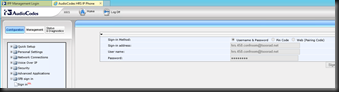
Yes, as a 450HD-derived piece of kit, there is a handy web interface to provide configuration and management. 
image

The HRS shows up in IPP Manager also.

image


Skype Connection

You know I have to do it – somehow get the Skype for Business angle highlighted.  After all, that is what I do.

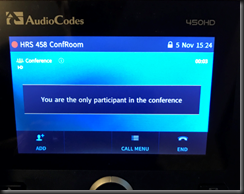
Knowing that I had what amounts to a IP phone coming into the environment, I prepared a simple full user account, with a mailbox, enabled it for Enterprise Voice with a secret squirrel PIN and extension dialing.  Taking the 458 out of the box and connecting it took longer than setting up the account.  Once powered on, getting to this point here took all of two minutes… literally.  Compare the on-phone time.
image

Because we are using SfB and AudioCodes together, the experience is just like using a regular 450 – that is – so nice.  All call controls, interactions, connections, and usage patterns will be the same as the user and their own account.  Because I ginned up a regular account, the HRS had a copy of the meeting on hand for those critical single click meeting joins.

I did notice that it took 5-10 minutes for the EWS read to occur which updates the calendar display on the HRS.  A little expectation setting with your users will be in order so as to avoid a bunch of bitchy help desk calls.

Logging in with the room ID, shows the current schedule for the room:

image

If you are really bright and include the phone account in a SfB meeting, then you get one-button joins as shown.  Otherwise you have a “details” | “attendees”|  “dial” button that provides calling the organizer directly.

image


Logging in as a regular user displays… duh!  Your schedule. Here is Mr. Chicken Hawk…

image

In terms of total time, maybe 10 minutes total, and I did not have to do anything special to either the SfB environment or the phone itself.  I literally plugged the 458 into the network, into power, and logged in using the 10-key.  And it just works.  Fairly perfect from over here in the cheap seats.

Summary of Findings

Standard AudioCodes build quality – which means this is excellent, solid kit.  Great materials, look, feel, functions.  All a package that works the way you do generally – kinda on the fly, groups probably not bigger than 10-15, and video not needed or wanted.    This solution should be on your short list.

YMMV


2017/12/04

O365 Exchange Voice Mail–Oracle

I have been informed, by a source that I deem to be about 75-80% reliable, that Oracle will not be participating in gymkhana that is the 3rd party PBX using Exchange O365 as a voice-mail target.

A while back, Microsoft announced that Office 365 as a valid voice mail target for 3rd party PBX systems would no longer be an option.  In fact, at the designated date, it’s not like the solution set becomes “non-supported” it will simply not be possible.  These solutions had an SBC (session border controller) sitting between the PBX and O365.   But no longer.

AudioCodes has a solution setanyNode has a solution set with which  one of my co-workers has worked.  Actual words will not be published in respect to my gentle readers.

So here is the announcement, and if you use Acme Packet SBC to connect your PBX to EOL Voice mail, then this might impact you.

“Oracle is not pursuing a product for this, mostly due to the proprietary nature of the implementation.  The interface into Exchange uses the Microsoft UCMA API/protocol which isn’t something we support.”

YMMV

2017/10/06

AC firmware v3.0.1.x BToE button greyed out

Scenario

BToE is pretty nice.  But let’s face it.  Not always easy to work with.  Especially when a service provider insists that a buried setting be configured so as to disable the manual concepts and default to automatic.

So, let’s figure out how to get an AudioCodes 450HD with the latest firmware (3.0.1.9.367) to play BToE with us like WE want, not how somebody else wants. 

OOBE for a phone that is going to be qualified for SfBO is with the BToE pairing forced to “automatic.”  This results in the button being greyed out when you go to MENU on the phone.  In this mode, BToE pass-though mode works just fine.  Web login to SfBO works as expected.

But what if you want to do something like, pair a wireless laptop with the handset device always CAT5 so you can just grab the laptop and go?  Like a laptop is designed to work? 

The Fix

What we need to do is light up the BToE button so we can get a pairing code (essentially a representation of the device IP).  Not exactly easy to find for those who don’t typically read 200+ pages of setup. Like me.

Hmmm… (page 113 of LTRT-14820 450HD IP Phone for Microsoft Skype for Business User’s manual ver.3.0.1.pdf) says

clip_image002

Going to the admin manual…. ( page 157 of LTRT-09943 400HD Series IP Phone for Microsoft Skype for Business Administrator's Manual Ver. 3.0.1)

clip_image004

And that does work to enable the BToE button.

The cfg file is available here – there is the semi-standard “download the file, modify the file with text editor, upload the file to phone routine.”

image

Here is how the phone cfg file looks by default…

image

And here is how it needs to look.  After uploading the cfg file, the phone will restart and you can then manually pair.  Remember that the manual pair code is case sensitive.

image

SfBO policy

Make sure that your Office 365 admins, if that role is not you, changes your online policy for ip phones to enable BToE, and further more to not change the pairing setting.  For more information see this.

https://webcache.googleusercontent.com/search?q=cache:hYptjYU9T9AJ:https://technet.microsoft.com/en-us/library/mt629497.aspx+&cd=1&hl=en&ct=clnk&gl=us

clip_image002[7]

Summary

BToE button greyed out, but automatic pass-through BToE works.  You want control of that button so manual pairing is possible for wireless connections.  Modification of the cfg file is required.

As always,


YMMV

2017/10/05

Restricted Office 365 OWA–Skype on-premises Integration

Scenario

Office 365 tenant established.  Exchange Online (EOL) for the user mailbox.  Skype for Business on-premises for IM/P.  Users are mixed – some have full Office suite, others are just a browser.  Security is tight.  No federation is desired or allowed with partners, vendors, spammers, or public (consumer) Skype. In addition, the requirement also stipulates that no authorized user can use the system remotely without going through a VPN. 

This last requirement means that remote users via the Edge server must be disallowed – but….won’t the Office 365 users be remote?  Great question.  We will cover that down below.

Because of the user software mix, we need the pure browser user to have OWA (EOL) integrate with the SfB on-premises.  Not the most attractive (visually and functionally) solution from the user perspective, but it does work.  Specifically, the function requirement was for OWA users to have presence information and be able to IM.

This article will not attempt to show the end user how to muddle through using SfB with EOL OWA.  The focus is just providing the service.

So, here is a visual of what we want… presence going both directions between the on-premises SfB users, and at least one of the users is using EOL OWA.

OWA User

clip_image002

On-premises user

image

How to

Obviously, we need an on-premise pool of some sort, and an edge server.  And then get your hybrid working.  In this case, the tenant (and the EOL work) was up and running before the SfB project started, so all we had to do was make sure that the Azure AD Connect was done right. 

  Danger Will Robinson!  

Because the AAD Connect was done prior to to SfB schema extension, the AAD connect will need to be FORCED to reread schema and synchronize.  You can read about this in a somewhat related post here. 

Moving on…

Having taken care of the obvious install and configuration items, the next thing is to establish hybrid posture.  If you have not already done so, you can read up on it here, here, and here.  Pay particular attention to this last reference.  Failure to do this will result in a no-go..  If you want all the fancy-schmancy integration, then you will need to do this here also. 

Now that you have all that done, we are done.  Right?

Well, no.  Remember that we needed to have no federation with anyone other than an Office 365 user, and no remote user access?  That seems to be a bit conflicting, yes?  But no.  A remote user is someone using a full client.  A bit of testing showed that Office 365 connecting to the on-premises SfB was a federation user not a remote user.

As a final bit of constraint, we did not want to be changing the external firewall.  So what to do?  Maybe we need to do a little something with Edge configuration and policy, eh?

Here is our Access Edge Configuration:

image

From the top down, we need to federate – Office 365 is a federation.  Per security requirement, no partner domain discovery, which closes out contacting anyone other than our own domain.  No need to send an archiving disclaimer to people we cannot talk to.  Per security, no remote user access.  Lastly, no outside access to web conferencing, so no need for those pesky anonymous attendees.  Just to confirm your deepest doubts, here is the SIP Federated Domains list:

image

Here is the External Access Policy:

image

Again, from the top, and note that we only have one thing checked…federated users is the requirement.  Nothing else needed… XMPP is pretty much dead nowadays anyhow; no remote users, ergo, no need for that, and without public user federation, no need for that either.

Conclusion

We had a set of requirements:  OWA integration between EOL and on-premises SfB.  Security concerns were that no other domains be contacted, and none of our domain users can be remote.  EOL users were not using Outlook, just OWA and we needed presence and IM.  We did not do the full OAuth as those features were not part of the specification.

YMMV

2017/09/06

AudioCodes X-UM

By now, I hope you already know that as of July 2018, Office 365 will no longer work with SBC connections linking your off-brand PBX to Exchange Online UM services (read voice mail).  For an actual read of the announcement, see this.

Here are the solutions offered by Microsoft:

  • Option 1: Complete migration from 3rd party on-premises PBX to Office 365 Cloud PBX.
  • Option 2: Complete migration from 3rd party on-premises PBX to Skype for Business Server Enterprise Voice on-premises.
  • Option 3: For customers with a mixed deployment of 3rd party PBX and Skype for Business, connect the PBX to Skype for Business Server using a connector from a Microsoft partner, and continue using Exchange Online UM through that connector. For example, TE-SYSTEMS’ anynode UM connector can be used for that purpose. (sic)
  • Option 4: For customers with no Skype for Business Server deployment or for whom the solutions above are not appropriate, implement a 3rd party voicemail system.

Personally, I would change Option 1 and Option 2.  Especially if you have any combination of complexity, multiple locations, and user count.  Couple that risk scale item with sheer lack of calendar, and I think it would be easier to get on-premises fired up and connected.  And, IMHO, doing 2 would make getting to 1 easier with a better user experience.

Option 4 is not really an option is it?  Everyone should want, need, and implement SfB.  Life is better with SfB.  Trust me.

About this time, the alert reader will notice that I skipped Option 3.  That’s because those nice folks at AudioCodes have somewhat solidified their plans for stepping into the breach.  How nice of them! 

AudioCodes has put together a very nice, comprehensive, suite of solutions based on their outstanding hardware and CCE experience. 

image

As the X-UM solution set, there are three of them:

image

Here is a bit different look at it…being a visual kinda guy, this is the view that helped me the most:

image

And then we have these further details for each scenario:

image

image

Microsoft licensing for the X-UM solution you choose is not covered, which makes sense, there are too many variations.  Here is the official blurb:

 image

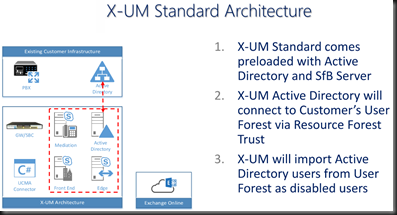
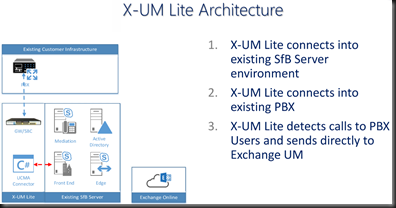
How about some architecture oulines?  I like pictures that show me things.  Here is the X-UM Standard and Lite.  Note that the “Lite” version relies on existing on-premises SfB resources.

image

image

Now, based on my current project, I know that there is going to be someone out there in reader-land who needs a visual of the call flows.  I know I do.

image

image

Summary

About now you are most likely wondering which of these will work for you. AudioCodes X-UM is based on proven hardware and proven solution approaches (CloudBond, CCE). If your environment is more complex, needs that existing PBX to coexist with Office 365 for your VoiceMail needs, then choose the flavor that answers your needs.  AudioCodes has you covered for any of the option 3 scenarios and could possibly help you (in the Lite version) with Option 1 and 2 also.

I know that somewhere above 75% of my customers all have some sort of “mixed deployment” usually due to call centers, business process, and culture.  Notice that none of those are easily changed before July 2018.  Ergo, we need to do something else in the short time we have available.  I submit that AudioCodes X-UM might well be that something.


As always, YMMV


test 02 Feb

this is a test it’s only a test this should be a picture