About Me

My photo
This is a blog for John Weber. One of my joys in life is helping others get ahead in life. Content here will be focused on that from this date forward. John was a Skype for Business MVP (2015-2018) - before that, a Lync Server MVP (2010-2014). I used to write a variety of articles (https://tsoorad.blogspot.com) on technical issues with a smattering of other interests. I have a variety of certifications dating back to Novell CNE and working up through the Microsoft MCP stack to MCITP multiple times. FWIW, I am on my third career - ex-USMC, retired US Army. I have a fancy MBA. The opinions expressed on this blog are mine and mine alone.

2016/10/15

SfB & Jabber via XMPP & Cisco Express

Much thanks and deep appreciation to Justin O’Sullivan, Cisco dood extraordinaire. (http://www.syferstrategies.com/blog)

Background

Microsoft Skype for Business and Cisco Jabber are, by far, the two most popular IM/P applications for the general business community.  Yes, there are some fringe applications that offer some really good features, and they work well, but for the mainstream business community, it really boils down to either Microsoft SfB or Cisco Jabber.

This is empirically proved by my blog tracking. Since its’ original posting in May of 2013, my #2 most viewed article, month after month, has been http://tsoorad.blogspot.com/2013/05/connecting-lync-2013-and-cisco-jabber.html.

Seeing as how both applications have had several years to mature and evolve, I thought this would be a good time to revisit the entire scenario of connecting the two most popular suites so your business can connect to another to streamline process and communication.

To achieve this lofty goal, I leveraged my SfB lab, which is currently running SfB update to the June 2016 Cumulative Update.  I also leveraged one of my awesome Cisco-centric co-workers, Justin O’Sullivan.  Justin runs a full Cisco lab in the course of his job, and he graciously agreed to burn up his off hours helping create the SfB <-> Jabber federation.

Initial Environment Layout

As stated, my lab is SfB, running a full edge on three IP’s. All SfB components are updated to 6.0.9319.259. (and yes, I know that not all components update to that version, but they are all 6.0.9319, and Microsoft does not update components that have no need to update).

Justin’s Cisco lab is an alphanumeric soup of Expressway C/E Version: 8.8.0, Cisco IM & Presence Version: 10.5.2.22900-2, Cisco UCM Version: 10.5.2.12901-1, & Cisco Jabber Version: 11.7.1.  Whew!

As in the previous Lync-Jabber article, the SfB side is extremely simple, but we’ll step through all the necessary configurations and considerations (with pictures so that Amanda sitting in the back of the class will understand), and then we’ll do the same with the Jabber side.

Skype for Business XMPP setup.

First, make sure that XMPP is enabled in your environment. At the site level and at the Edge Pool level:

imageimage

Personally, I always light up every possible configuration on initial install, so I don’t have to go back and do it again later.  You can just turn things off later, but if you waited until now, you will need to publish the topology when you get done with this step, and then either run step 2 of the deployment wizard on the appropriate servers, or bootstrap the appropriate servers so that the necessary bits are turned on to make this work.

Next, you need to head off for your Control Panel.  I suppose you could also do this next piece from PowerShell, but I like GUI when I can GUI.

Inside CSCP (yes, still called that) go to your Federation and External Access tab on the left, and check your External Access Policy.  Make sure the “Enable communications with XMPP federated users is checked.

image

Now go to the XMPP Federated Partners and setup a partner as shown.

image

Get yourself an admin PowerShell window open on your server and do get-csxmppallowedpartner so you can double-check your work (read your spelling).

image

You might also want to have your dialbackpassphrase set.  Just set it to something easy-peasy.  If I am not too mistaken, I set this example to “xmppdialback” – if you need a primer on just what this part does, see this.

image

Now, go to your external DNS provider, and get yourself a squeaky clean SRV record:

_xmpp-server._tcp.domain.com or in my case, _xmpp-server._tcp.tsoorad.net.  Port 5269.  In DNS parlance, you want to submit, if you need to, _xmpp-server._tcp.domain.com 0 0 300 5269 sip.domain.com, where the numbers mean 0 weight, 0 priority, TTL 300, port 5269, and a target of sip.domain.com.  An NSLOOKUP from the world should reveal something that looks a lot like this:

image

Set your firewall to allow port 5269 inbound and outbound from your Edge server (or servers).  At this point, I can expect things to work from the SfB side of life.

And now the fun (?) begins

As a preface, Justin worked through this one time, but it took a few server restarts before he could convince his system to operate as expected.  Neither of us could figure that out but, what the heck, eh?

Reference Material Used:

http://www.cisco.com/c/dam/en/us/td/docs/voice_ip_comm/expressway/config_guide/X8-5/XMPP-Federation-with-Cisco-Expressway-and-IM-and-Presence-Service.pdf

Expressway C/E Version: 8.8.0

Cisco IM & Presence Version: 10.5.2.22900-2

Cisco UCM Version: 10.5.2.12901-1

Cisco Jabber Version: 11.7.1

JabberID = sAMAccountName@domain.com

In this example, we will be configuring external XMPP federation using the Cisco Expressway solution as opposed to the IM&P based XMPP federation option. When deploying external XMPP federation, you must choose one or the other and not both. Verify the service is correctly enabled on the selected option (Expressway) and disabled on the other (IM&P).

Service disabled on CUPS/IM&P

clip_image002

clip_image004

Follow the certificate requirements as per Cisco documentation.

Add the local domains to the Expressway-C server and verify XMPP Federation is set to “On”:

Navigate to Configuration > Domains

clip_image006

clip_image007

On the Expressway-E, further enable the XMPP federation settings as below:

Navigate to Configuration > Unified Communications > Configuration

clip_image009

Notes:

1. In our example, we are not using TLS as depicted above

2. If in use, the Dialback Secret must be the same on other Expressways in the domain

XMPP DNS Records

For foreign systems to resolve/authenticate your domain correctly, set up the below SRV record for XMPP services:

_xmpp-server._tcp.{domain} (priority) (weight) (port 5269) (Target Host)

(e.g. _xmpp-server._tcp.syferstrategies.com 0 0 5269 expe.syferstrategies.com)

Group Chat Records

For group chat node DNS resolution to work properly with federated domains, configure the below external SRV records:

_xmpp-server._tcp.{chatnode}.{domain} (priority) (weight) (port 5269) (Target Host)

(e.g. _xmpp-server._tcp.chatnode1.syferstrategies.com 0 0 5269 expe.syferstrategies.com)

Notes:

1. Alternatively, static routes can be used on the local Expressway if the remote system does not have these DNS records enabled

a. This can be added under Configuration > Unified Communications > Federated Static Routes

Checking XMPP Federation status

Navigate to Status > Unified Communications > XMPP Federation Connections

clip_image010

Jabber Experience

clip_image011

Add the external contact

clip_image012

Enter the IM address of the external contact

clip_image013

New federated contact seen below

clip_image002[1]


Back to SfB to see how that looks!

image

Summary

We have demonstrated a SfB XMPP configuration then the Cisco Expressway/Jabber configuration. Works great, less filling.  Let the commo begin!

YMMV

2016/10/14

SfB Call Drops–Actiance Vantage

If you are running Actiance Vantage on Lync 2013 and have it working just fine, and are planning on upgrading your environment to SfB…

The Issue

Lync 2013 environment totally replaced by SfB.  Everything works great. So we then installed Actiance Vantage for compliance requirements.

SfB calls work pretty well for the most part; but there are random drops, disconnects, and other flaky problems.  SfB, PBX (Avaya 6.x in our case) and network troubleshooting showed nothing.  Digging deeper, there were trace logs that showed the SfB FE dropping calls for no apparent reason.  Digging deeper with Microsoft CSS revealed that the call disconnects were coming from the Vantage agent.

It turns out that the Vantage agent installer for the SfB servers uses Lync 2013 SDK components (installed onto the SfB server by the Vantage agent install process). Apparently there is some incompatibilities with SfB and the Lync 2013 SDK components as installed by the Vantage installer.

Resolution

There is a fix that involves new Vantage agent installs.  I will assume that you must contact Actiance to help resolve this issue.

YMMV.

2016/09/28

SBA and RGS Central Site Down

This is an old fix to an old issue.  But, I ran into it again, and was obliged to explain to my customer the what and why of SBA and RGS in a central site and how to get around the RGS going unanswered if the central site is down. So, in the midst of doing that, I also created some documentation which I thought I would share.  

Issue:

SBA can terminate a local call, but if the call is destined for an RGS workflow, and the central site is not available for any reason, then the call will fail.  

Why:

The SBA can answer the call at the gateway routing level and at the mediation server level, but when the incoming DID is resolved, the system needs to send the call up to the central site to the RGS workflow because the RGS SIP address matches the incoming DID.

SBA does not handle RGS, so therefore the call needs to route up to the central site FE pool for handling; but the central site is not-available; the call fails.  

Fix:

There are two possible fixes for this:

First, SLA can be used, or delegates. However, if there are more than a few account involved, this becomes somewhat onerous. It is also possible to use an ExUM AA, but usually the SBA site will not have an Exchange services, so while this might answer the call, in the end the caller will not reach the proper resource because of the central site outage.

Second, creating a dummy account with simulring for all hours. The call will come into the SBA, and then user is local, then the user connection is initiated. If the simulring is enabled for all hours, the call will simulring up to the RGS workflow. The RGS workflow will answer and route the call according to the workflow setup.

I guess there is a third option – put a full user pool in the site instead of the SBA – but this then becomes a cost/benefit ratio analysis that I am not prepared to go into here.  Suffice it to say that when faced with an SBA request, I can honestly say that 100% of the time I bring up installing an SE for the site.  Just sayin’  

Scenario:

Customer has existing RGS, which has an e.164 DID, which is routed inbound on a PRI that is handled by the SBA. During central site outages, the RGS inbound call fails. Customer wants the RGS call to be handled by an SBA local user until the central site becomes active. Customer is OK with notifying a user at the SBA site to login to a second account to answer the calls during the outage.  

Process to follow:

  • Identify the dummy account e.164 number then create dummy account in AD.

clip_image002

  • Create SIP account for dummy, registrar is SBA (not the SE as shown). Enable for Enterprise Voice.
  • Identify RGS workflow e.164 and assign to RGS workflow

clip_image001

  •   Open dummy account and setup for simulring to the RGS workflow. You can also accomplish this sub-task with sefautil.
  • clip_image003Test

Follow-up tasks:

1. Identify personnel at each SBA site to be prepared to login as the dummy acount from a full SfB client to handle calls in outage.

2. Possible alternative is to put a phone device on the network somewhere in the SBA site and have the *operator account login and stay logged in – and the training would be to answer that phone if needed.

An alternative to #2 is to just have the phone device available and login as needed (my personal choice).

If #2 is the route chosen, then you would be advised to set a ext= format and PIN on the account so that login process would be ext and then PIN.

Summary

I have show the what and why and how of SBA/RGS/Central site outage and suggested a way around your RGS not working in that scenario.

YMMV

2016/08/15

AudioCodes SBC 7.2 firmware

Most of my customers use AudioCodes appliances in their Skype deployments in one form or another; SBC, analog gateways, recording, management, phone devices.  So, when AudioCodes announced that SBC 7.2 firmware is now GA, I had to go get it.  I won’t bore my gentle readers with the exhaustive listing of the 30+ enhancement and session capacity updates – the document that outlines that stuff is 70 some pages – and I had to buckle down to get the entire thing digested.  Suffice it to say that this is a big update.  What I am really interested in is the promised GUI changes and the “click the GUI to configure” claims.

Having downloaded it the other day, I  upgraded the firmware on my Mediant 800 SBC and started kicking the new tires a bit.

image

OK, file loaded.  28.8MB of spotless CMP file.  I guess I will click on the “reset” button and hope I don’t have to figure out the “reset to factory” option I think might exist.  Well, I clicked the “reset” at 1309 PST…and waited.

image

The Results are In

After picking my teeth and looking at some Olympic Games results, at 1317 PST I am able to login to the upgraded SBC.  I think the watchword here is PATIENCE.  This is a total update for your firmware.  8 minutes of patience is not too much to ask for, right?  And, we have the new goodness that was advertised:

image

Let’s open a few pages to see if the advertised goodness actually is goodness and not pure market-speak.

A few minutes pass – did you sit here reading this same sentence in a loop or did you check those Olympic results for yourself?  Alright, I have poked around a little.  Things in general are the same…but some things have moved.  Not a huge issue, but it will take a bit of adjustment/learning.  The overall look and feel is certainly AudioCodes, yet refreshingly updated.  Like the header CSS?? layout…

image

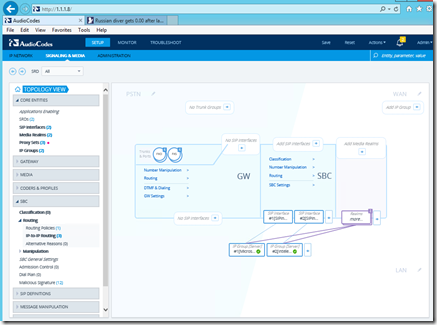
And the promised GUI view of the relationships is certainly there also – very helpful for those of us with limited brain capacity.

image

And as further advertised, clicking an element in the Topology GUI view as shown, does indeed dump you into the tree to configure the element you selected.  Maybe now even *I* can figure this thing out, eh?  And while I am saying nice things, the linking between configuration elements along with “EDIT” right next to the element you want to change is….very welcome.

1.5 “not so nices”

While I am at it, there is a sorta not so great thing.  The old GUI used to have the type of device shown at the top of the page – that seems to have gone away.  I forget what I am doing very easily, and it was nice to have the reminder of what device I was accessing.  And no analog gateway version (boo hiss).

Two more “nices”

One nice thing, well, actually two – is that when you change something, the “SAVE” selection on the top row gets a red box around it.  And (genuflecting towards Tel Aviv) when you resize your browser window, the contents shuffle and resize.  Finally.

image

Conclusion

A big update for the AudioCodes SBC – it took a bit of time for the “burn and reset” but my SBC came back to life without losing a single iota of configuration.  The topology click to configure part is really nice.  I sure wish they had a version for my MP118FXS gateway.  Overall, I think this update is a winner.  Login to your AudioCodes account and get it today!

YMMV

2016/08/02

Logitech h650e v h570e

In my goody box that arrived about a month ago were two Logitech headsets.  Wired, stereo – well-built pieces of kit that work with SfB/Lync right out of the box.

image_thumb2<—H650e v H570e –>image_thumb3

Don’t they look just about the same in these high-quality graphics?  Maybe some color differences…and the mic booms look a little off.

What does Logitech Say?

Here is the official market-speak for each:

H650e Stylish and Sophisticated Headset with Pro-Quality Audio and H570e Comfortable, Resilient Headset in Stereo or Mono.

Other than price, what is the difference between these two headsets?  After an examination of the datasheets for each unit, it appears that the differences are:

  • In-call LED indicator light (h650e)
  • Flat no-tangle cable (H650e)
  • Dynamic equalizer (H650e)
  • Premium velvet bag (H650e) – oooh aaaah  
  • The headphone speakers are different – the H570 actually has (IMHO) better specs in terms of frequency response – and the THD is listed as only 1% difference – which you and I cannot differentiate.  The H570e specs are listed on the right side.

image_thumb image_thumb1[1]

How do they feel clamped to my gourd?

image_thumb1

The H650 feels better on my hat-rack.  But this is totally subjective (I put them on the cat too; that did not work well).

Which plays better Musack?

image_thumb4

H570e, hands down.  To my ears at least.  This is somewhat indicated by the frequency response numbers as the bass/mid-range is much fuller on the 570 than the 650.  But why check this?  Because I do listen to music during the day, and if, gawd forbid, that I am in an office setting, I don’t want my choice of tunes to intrude on my co-workers.

SfB Connection

Hey, you knew I would get to this.  After all, we are in business and what better tool to use for your business communications than Skype for Business.  And to get the most out of that experience, you are going to need a high-quality headset.  Sure, you could run down to the local bodega and pick up some POS for $19.99, but you will not be getting DSP, wideband, noise/echo cancelling pieces of wonderfulness to match up with the goodness that is SfB.  OK, </rant off>

Bottom line, both of these headsets, like everything else that Logitech makes in this category, plugs in and starts working.  SfB did not even blink the screen.  It just used them like they were built-in.  The inline controls worked as expected.  I had three plugged in at one time and could flop my audio around amongst them no problem.  Simply put, these headsets work with SfB as expected with ZERO hassles.  Perfect.

Conclusion

If you are purchasing for a number of users, I would get one or three of each, and let the users pick for themselves.  I would think that your system provider can probably get you some demos to try out.  Or you could just blanket buy.  Either way, you cannot lose picking one of these two headsets.  As a side note, Logitech also makes these units in single ear, but who wants that?

You can get your H650e here

image16

or H570e here

YMMV

2016/07/14

AudioCodes IP Phone Manager Express

Yes, Matilda, another supporting software piece to examine and run through the Tsoorad Lab Experience.  This time AudioCodes released a FREE tool to help you manage your AudioCodes phones.  Previous to this, the AudioCodes EMS required some cabbage up front; this tool is FREE.  Up to 500 managed devices.  No SBC, SBA, or MPxxx management, but hey…

The EMS package allows you to manage all of the AudioCodes family, SBC, analog gateways, 4xx phones, and SBA’s too.  The IP Phone Manager Express does just the phones.  But, this may be very attractive to you.  Let’s take a look.

You can download right here. The basic documentation is included in the download.  The installer, once you have a suitable host SERVER, runs with zero issues.  I would think that something like this tool would be perfect for running on a workstation, but that is not what the documentation calls for.  To whit, the IP Phone Manager Express calls for a clean install of Server 2012R2.  Hmmm.  I suppose you could run this on a virtualized instance on your workstation…I, of course, am running it in virtual in my lab.  I also ignored the resource allocations called for in the documentation.  I used a single core and 2GB, and things appear to be hunky-dory. I imagine if you need to manage more than a few devices your resources might need to increase just a tad.

Here is the official market-speak on the features:

image

Also note that AudioCodes thinks that you can step up to the “Pro” version (part of the EMS) with one button click.

You can download the applicable documentation here.

For a quickie comparison of the different flavors offered, take a look at this.

image

The Install

</Rant> I would like to see this tool run on something other than a brand new server.  I see SQL Express and IIS getting installed…isn’t there anyway to get this running on something other than a new build? Not everyone has an environment leveraging Datacenter where you can load up as many servers as the hardware will handle Using an existing server would make this tool really free instead of incurring the server license. Or work out a way to get this into an admin workstation?</rant off>

I built on a clean 2012R2 server, patched (250+ of them – yikes!) it up to snuff, and then simply executed the installer.  I think I may have clicked on a few license boxes or “yes” selections, but I did nothing other than defaults.  It wanted a reboot.

After reboot, you can go to http://serverIP/IPP and you are in.  Install done.  Even I got it right the first time through.  That will change in the next section.

The Configuration

Note:  some manual editing of cfg files is needed.  For some weird reason, notepad on my server presented the cfg files as one long line.  Yucko.  I installed Notepad ++ and it worked as expected.  Don’t know what the issue is, but I know how to get around it!

Following along with page 13 of the aforementioned admin guide, I modified my DHCP server to present option 160 as follows:

image

If you are modifying a previous entry for your AudioCodes deployment, be aware that the previous entry was most likely FTP, not HTTP.  Ergo, my comment from above.  Using FTP (like I did) results in things not working as expected.  OOOPS.  This time I even read the documentation first, and yet I still managed to screw it up.  Just a heads up.  I know that my gentle (genteel?) readers would never make such a sophomoric mistake.  I also took the liberty of restarting the DHCP service to make sure things were right.

Back to the voluminous instructions on page 13, plug in your phones.  In my case, being POE, I just pulled the Cat5 and replugged it effectively restarting the phones.  After you get this tool setup, you will be able to perform that magic trick remotely to every phone in the org.  You can send messages to the individual phones - the practical joke prospects are endless.

Look and Feel

Pretty slick.  I might suggest changes to some of the GUI, but in the overall scheme of things, the entire tool works really well.  The navigation tree on the upper left gives access to everything, but you can do the clickety thing on various elements on the center and right sections and that works equally well.  Being able to do mass actions is an enormous plus.

Here is my new tool.  Use the secret squirrel code from page 13.  And then change it to suit your security policy.  You do have a security policy, right?

image

At any rate, here is our interface in all its glory.

image

I think the buttons in the middle could be a different size… but the automatic refresh makes up for it.  Note that I have the one 420HD phone registered.  Interestingly,  the IPP Manager ships with firmware files… and apparently the 420HD.img that came with was newer than what was on my phone.

image

I noticed this because as the phone was booting, it flipped into upgrading its firmware.  Nice, in some cases.  Maybe not so nice in others.  Just something to be aware of, I guess, if you start doing magic tricks in the middle of the day.

I downloaded the newest 405 IMG available, changed it’s name and pushed it up there for my 405 to discover when it restarts.  I have cleverly avoided that moment until now, because I want to use it as the demo for this article.  Here is the 405 before restarting it to pick up the new DHCP Option 160:

image

Note the firmware version.  And the incorrect Option 160 information.  You can’t see it, but rebooting the phone at this point resulted in the phone snaking the new firmware and working through the process to update itself.  And now we have this:

image

And in the IPP Manager we now have two devices – the unregistered part means that no user is logged into the phone.

image

If you get the dhcpoption160.cfg file correct (and use HTTP not FTP) rebooting phones will result in them showing up in the interface – its as easy as that.

Now What?

Log in to the phone silly!  IPP Manager handles the device…SfB/Lync handles the users.  Using the phones’ web interface (which, btw, you can access right from the IPP Manager), I did an extension+PIN login, and now we have this:

image

Update Firmware

One of the nice things here is that system-wide firmware updates can be done centrally.  Upload the new firmware file..

image

and tell the phone to update…

image

There might be a better way to accomplish this task, but, gee, it worked for me.  You could have a boatload of one model, upload one file, select the appropriate checkboxes, and tell them all to reset at once. At any rate, we now have two devices, both operating the same firmware whereas before we had two different firmware versions.

image

Configuration Files

You can work with configuration files en masse, or individually…If you need to see what a configuration (cfg) file can do, take a read of this document, or go searching for LTRT-11950 which will probably require a visit to www.audiocodes.com.

image


Conclusions

If you have more than a few Audiocodes phones, or even if you do have only a few phones, the new Audiocodes IP Phone Manager Express is a great piece of kit.  It does, however, require a server platform – but you can get around that with some virtualization.  Offering one-stop device management and visibility into the devices without having to go to a user’s desk, the IPP Manager can streamline bulk operations or allow you to get as granular as you want.  Just the firmware tracking and updating makes it worth looking closely at this tool. I would like to see it run direct on an existing server and not require its own server; ideally it would be nice to have it run on a desktop.  But, even with the implications of needing a server, free is a very good price.

I guess to be fair to all the other systems out there, I should mention that this tool manages Audiocodes IP phones, and is not restricted to just SfB/Lync environments – but why would you want to use another VOIP solution other than Skype for Business?

YMMV

2016/06/30

YADR–Logitech H820e (dual)

OMG.

I had forgotten.  Back a few years ago, May of 2013 to be exact, I reviewed this headset.  I used it for a few months, and then other headsets came and went, and I kept going back to it.  About a year ago, it broke.  Not the headset’s fault, but a *&^%$# cat incident.  So I used other solutions.

The other day a box showed up with some new toys from Logitech, and one of them was a squeaky new Logitech Wireless Headset Dual H820.  DECT.  No software needed.  Plug n Play.  And no, not Plug n Pray, it really just jacks in and works.

image

Here is the official Logitech market-speak

SfB Connection

I have to say something.  uhm… it works perfectly.  Optimized for SfB/Lync, certified on the OIP.  What else can you say about a product that plugs in and your application goes “blink bonk” and starts to use it?


image

Comfort

Much as I remembered, oh so nice.  No wires tethering my skull to the laptop. I consider this to be a HUGE plus.

Audio Quality

Dang but this is a nice piece of gear for voice. And with the slider in the WB (as opposed to NB) wowzer!  For the unwashed, WB and NB is Wide Band and Narrow Band.  In the DECT world, this somewhat equates to signal quality and range.  And maybe battery life.  Music is pretty excellent also. 

Back to SfB Connections

SfB client will do stereo to this headset.  Oh yes.  For those of us who suffer from a previous lifetime that caused hearing loss, having an over-the-ear, or on-the-ear solution with actual speakers in cups rather than some microdot in a ear canal thing is a real bonus.  ooh ooh ooh.

Noise cancelling mic standard.  One of the problems I see with SfB/Lync is that the devices pick up every last little noise.  And when the audio stream is literally silent if no one is talking, then the ambient noise on either end can be a real distraction.  Logitech wizardry to the rescue.  This headset ignores just about everything except what is right in front of the mic boom.  Really well done.

Build quality is right up there in the excellent to superior bracket – as you would expect from Logitech.  Comfort – yep.  Range?  Dang, I can wander all over and not lose signal.  Another HUGE plus.  That makes two of them.

Summary

Build quality, SfB/Lync certified, comfort, features, functionality. After having used at least six different headsets over the last 18 months, I hereby declare the H820e as my favorite.  There are others that offer more widgets, more wires, more software, or are customizable to the nth degree, but none of them perform the core task of being a VOIP headset and delivering audio to your gourd nearly as well the H820e.  

And, you can still get your very own H820e right here.

YMMV

test 02 Feb

this is a test it’s only a test this should be a picture