About Me

My photo
This is a blog for John Weber. One of my joys in life is helping others get ahead in life. Content here will be focused on that from this date forward. John was a Skype for Business MVP (2015-2018) - before that, a Lync Server MVP (2010-2014). I used to write a variety of articles (https://tsoorad.blogspot.com) on technical issues with a smattering of other interests. I have a variety of certifications dating back to Novell CNE and working up through the Microsoft MCP stack to MCITP multiple times. FWIW, I am on my third career - ex-USMC, retired US Army. I have a fancy MBA. The opinions expressed on this blog are mine and mine alone.

2012/09/11

Lync 2013 Client Installs

Now that Lync 2013 is a full member of Office 2013, the following bears some attention if your organization decides to go this route far!

http://technet.microsoft.com/en-us/library/jj204827(v=ocs.15).aspx

Note that things become a lot more ORK-ish. In some ways, much better than Lync 2010, in some ways a bit more tedious to get JUST the Lync client installed.

YMMV

2012/09/05

Lync 2013 SQL outline


Lync 2013 has a lot of new(ish) features. To me, the interesting ones are on the backend support, how HA is accomplished, server pairing, and things like that.  Recently, I had to chase down the specifics of the new backend SQL support and how it fits into the new architecture.

To that end, I submit the following bullets regarding Lync 2013 and the SQL support.

  • Each pool member has a local SQL Express running.
  • Each pool member synchronizes with other pool members.
  • One pool member is active for the backup service and synchronizes with the active pool member in the paired pool.
  • Each pool member synchronizes with the backend full SQL also.
  • The full SQL does NOT synchronize with the paired pool full SQL.
  • If your paired pool (Pool A) contains the Central Management Store (CMS), then when you pair Pool A with Pool B, Pool B will have a backup copy of the CMS.  Only one of these CMS copies is "master" at any one time. If you need to failover Pool A to Pool B, then you need to move the CMS master to Pool B using the invoke-csmanagementserverfailover cmdlet.  For more information see this link.
  • Each full SQL for each pool can also provide an archiving, monitoring, and Persistent Chat database.
  • Persistent Chat uses Log Shipping to and stretches its’ pool across sites to provide for resiliency.
  • Paired pools are also backup registrars for each other (not really a SQL thing, but an interesting point before you go pairing pools).

But each full SQL could fail, leaving those services unavailable.

  • To answer this HA requirement, Lync 2013 can use SQL mirror to provide for intrasite High Availability - not to be confused with the ability of the paired pool to assume full services if needed.

Clear as mud?

YMMV

Lync Server 2013 Office Web Apps

As you undoubtedly know by now, Lync 2013 has a component called Office Web Apps Server that is required for presentation of PPT in conferences. In the course of developing the design document for my current project, I am learning more than I wanted to about Office Web Apps Server.

These links are for the Office Web Apps Server PREVIEW that fits up under Office 2013.

Office Web Apps Server Preview

Article

Description

Overview of Office Web Apps Server Preview

Learn about how Office Web Apps Server Preview provides browser-based Office functionality to on-premises hosts in your organization.

Plan Office Web Apps Server Preview

Learn about Office Web Apps Server Preview requirements, such as HTTPS, certificates, virtualization, load balancing, topologies, and security.

Deploy Office Web Apps Server Preview

Learn how to deploy Office Web Apps Server Preview on-premises.

Technical reference for Office Web Apps Server 2013 Preview

Find technical reference articles for Office Web Apps Server Preview. These include help for the OfficeWebApps Windows PowerShell cmndlets.

You may also be interested in this link: Lync Server 2013 and Office Web Apps

YMMV

2012/08/04

Logitech BCC950 Review

The nice folks at Logitech contacted me recently and offered to let me preview the BCC950, a small group conferencing camera.  The box actually says “Logitech for Business” and “BCC950 ConferenceCam.”  Either way, Logitech touts this unit as “Optmized for Microsoft Lync” so naturally I was interested.

The Microsoft Roundtable (CX5000) is an excellent device with 360˚ video and audio tracking, a built in dial pad, and satellite microphones to handle a large area.  However, it also comes with a steep price tag.  A little eBaying just now shows the CX5000 anywhere from $400-1700 used.  Other conferencing camera solutions are pricey also.

The BCC950 appears to run out at $199 at eCost.com or as much as $239 at dell.com.  But for a small conference room, this could be the unit for you.  Much lower cost, a solid feature set, and totally plug-n-play when I hooked it up to my Windows 7 laptop.  My Lync client saw it as a valid audio/video device without me having to do anything.

image

Setup for the unit was very straightforward.  The base unit is solid, with controls that are both easy to use and clearly marked.  The camera actually sits into the base, but there is also an 8.5 inch extension.  Here is the unit in both modes:

image

image

All assembled, with the extension, the BCC950 is about 14 inches tall, and takes up only about a 6 inch circle on my desk.  It comes with LONG USB cables and an AC adapter.  I tried the BCC950 with both and was happy with the results.  I did make a point of plugging in the USB power cable in to a powered USB hub, but it performed equally well with my workstation USB ports.  All in all, from taking it out of the box to completing the setup took less than 10 minutes, and that included me reading the inside of the box where Logitech put the assembly instructions.

image

How well does it work?

With a claimed 78˚ field of view, and a 180˚ pan, AND zoom, it would seem that the BCC950 would be near perfect to match up with Lync for a small group meeting.  And that is exactly what I found.  The picture is crisp at 1080p, and while I do not have facilities to measure frame rate, the claimed 30fps delivered smooth motion. 

I mentioned earlier that my Lync 2013 client accepted this unit with no issues; I also tried it with joining a meeting using Lync Web App (2013 pool), and the results were equally excellent.  Here is a sample pic.  The unit is sitting about 30 inches off my left shoulder… the clarity is good, the focus is good, and the field of view is about 6 feet wide.  The lighting in the room is both outside sunny and inside floodlights in the overhead.  The BCC950 adjusted itself without my prompting and delivered a good mix of resolution and contrast.

image

The audio was surprisingly good; far better than other units I have used.  Clear, loud, and not tinny at all.  The microphone picked up direct voice sounds and the advertised anti-echo worked well also.  I achieved some nasty feedback, but I had to try pretty hard to get it.

Conclusion

The Logitech BCC950 impressed me with great video, excellent audio, and the included remote allowed me to control the unit from across the room.  Setup was very simple, and when used with Windows 7, totally plug-n-play.  No drivers needed.  Functionality with both Lync 2013 Preview and Lync 2013 LWA was better than expected seeing as how the Lync 2013 bits are still in preview and not RTM.  The BCC950 was significantly better than the built-in camera on my laptop; and the prospect of using this unit for a small group conference instead of the usual huddle is very appealing.

I wish it had some automagic function that tracks the active speaker, but that undoubtedly would drive up the price.  All-in all, a great compromise unit for the small conference room.  When it comes time for my clients to hear some hardware options for their Lync deployments, I will certainly be mentioning the BCC950.

YMMV.

2012/07/05

Firewall rule viewer app

This new application is a graphic depiction of the ports and traffic types between Lync endpoints.  It looks very handy. Very nice work by the team that worked to get this lined out. Take a look!

http://blogs.technet.com/b/nexthop/archive/2012/07/03/lync-firewall-rules-viewer.aspx

YMMV.

2012/06/12

2012/06/11

Lync HLB Edge

Lync Server 2010 has two modes of load balancing:  DNSLB (Domain Name System Load Balancing) and it also support hardware load balancing (HLB).  DNSLB works really well; however, there are some limitations regarding the Lync Edge when it comes to load balancing.  Specifically, because DNSLB is implemented at the client level, if your DNSLB is broken due to a server outage, then the remote users on downlevel clients, federated partners using OCS R2 (or earlier), XMPP clients, etc., may not work because they cannot find the second server; this is especially evident if the first server in the DNS records is the server that fails.  External Exchange UM sessions may also fail to work for the same reason.  Many implementations are therefore done with HLB on the Edge.  In a previous article, I showed how to setup a Kemp Load Balancer to support these two high availability modes for internal operations with Lync Server.  In this article, I will demonstrate HLB for the Lync 2010 Edge.

The Setup

Setting up the Lync Edge HLB is really all about understanding your network and the relationships between NICs on real servers versus IP on HLB VIP, IP on public edges of firewall/routers, and how traffic needs to flow from device to server to device to server.  And where traffic needs to go on the inside versus where the traffic needs to go when headed outside.  Clear as mud?  Excellent!

Kemp publishes a very nice document on “how to” accomplish HLB and Lync with their products.  Just so you can follow along, my lab is setup for the alternate deployment method shown on page 25.  I am using one Kemp VLB for both internal and external HLB functions. I am also using all roles consolidated and there are no directors.

image

My lab does not have a security issue as I address all security before traffic enters my lab net.  You should evaluate your risk and implement accordingly.  FWIW, I always advise clients to double firewall and use a set of HLB in the perimeter net for Lync (and OCS)(and everything else that needs it) along with internal HLB.  YMMV.

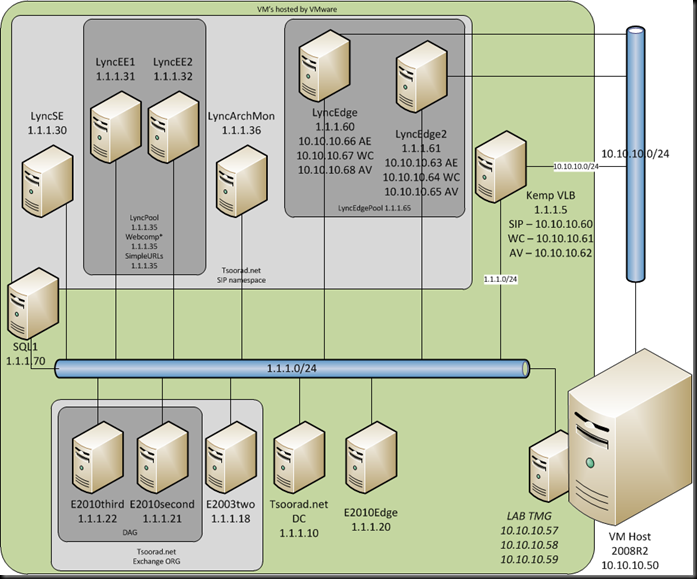
Here is how I have the lab setup for this exercise:
image

This illustrates what the Kemp documentation refers to as a “one-arm” deployment.

The Kemp documentation, along with the Microsoft Lync Server online documentation for Edge deployments, provides all the guidance you need.  I won’t try to duplicate those instructions here; instead, here is what my Kemp looks like after working through the configuration guide.

LyncEdgePool.tsoorad.net: 1.1.1.65 (Edge internal VIP on VLB)

     LyncEdge.tsoorad.net: 1.1.1.60 (Edge Server1 internal NIC)

     LyncEdge2.tsoorad.net: 1.1.1.61 (Edge Server2 internal NIC)

SIP.tsoorad.net: 10.10.10.60 (VIP on the VLB)

     SIP.tsoorad.net: 10.10.10.63 (Edge Server 1 external NIC)

     SIP.tsoorad.net: 10.10.10.66 (Edge Server 2 external NIC)

WC.tsoorad.net: 10.10.10.61 (VIP on the VLB)

     WC.tsoorad.net: 10.10.10.67 (Edge Server 1 external NIC)

     WC.tsoorad.net: 10.10.10.64 (Edge Server 2 external NIC)

AV.tsoorad.net: 10.10.10.62 (VIP on the VLB)

     AV.tsoorad.net: 10.10.10.65 (Edge Server 1 external NIC)

     AV.tsoorad.net: 10.10.10.68 (Edge Server 2 external NIC)

image

Observe that I am using the same LB as the previous article; I have added another NIC to the VM, bridged that NIC to the proper subnet, and started configuring.

Errata

As with all things, nothing is perfect.  The following items in the Kemp guide are noted for consideration and clarity.

Starting with section 8.2 (page 36) step 15, the guide says “For each Front-End server…”  It should really say Edge Server.  If you refer to the IP addresses given in the guide, and look at page 35, the guide clearly wants Edge server not Front-end, and common sense dictates the same.  This comment is made for each subsequent Real Server setup for Edge Services.

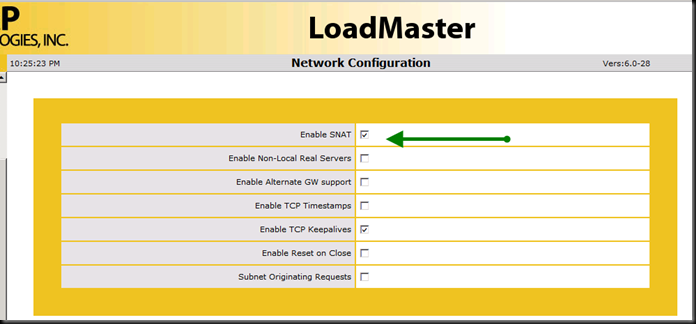
On page 26, section 5.1 (General Configuration – Disable Global SNAT) the option for “enable SNAT” is unchecked.  However, when doing the Edge external services for AV on page 42, in sections 9.6 and 9.7, the guide instructs us to “Select the Use Address for SNAT checkbox” – ooops!  Unless you go back and set the global to “ENABLE SNAT” the option does not show up in the Virtual Server Standard Options.  After enabling that option in the System Configuration | Miscellaneous Options | Network Options, THEN I got the check box for the Virtual Service | Standard Options.
image

image

Luckily, in response to my support request, the folks at Kemp support sent me an excellent description of how to find the check box in each location.

Summary

All in all, an almost painless evolution.  It literally took me longer to reconfigure my lab to support this exercise than it did to configure the Kemp to provide a full HLB Edge solution.  With the exception of the missing check box for SNAT and the mis-labeling of server IP to use, everything went as advertised.  If you need a high-availability solution for your environment that is fully supported by both the third-party and by Microsoft, this might be a good choice for your deployment.  For what is it worth, Kemp is also on the Exchange OIP, and I could easily use this same VLB for my Exchange deployment.

YMMV.

test 02 Feb

this is a test it’s only a test this should be a picture