About Me

My photo
This is a blog for John Weber. One of my joys in life is helping others get ahead in life. Content here will be focused on that from this date forward. John was a Skype for Business MVP (2015-2018) - before that, a Lync Server MVP (2010-2014). I used to write a variety of articles (https://tsoorad.blogspot.com) on technical issues with a smattering of other interests. I have a variety of certifications dating back to Novell CNE and working up through the Microsoft MCP stack to MCITP multiple times. FWIW, I am on my third career - ex-USMC, retired US Army. I have a fancy MBA. The opinions expressed on this blog are mine and mine alone.

2013/03/06

Jabra Supreme UC MS

Yet another short product review.  This time a Jabra Bluetooth headset.  The box is labeled “Jabra Supreme UC MS” and there is a label that says “optimized for Microsoft Lync.”  Let’s find out.

One of the problems I had writing this article was that there was nothing negative to report.  You can find the manufacturer brag sheet here.

This is what comes out of the box:  the USB key and the headset in a nice little case (not pictured), a USB charging cable, a car adapter, extra ear cushion and wire thingy, a 110 adapter, and the ubiquitous instruction booklet. Fit and finish appear to be first rate. The wire-thingy to fit your ear is bendable/adjustable to provide a custom fit.

image

I pulled it out of the box, gave it a charge, and then plugged in the included USB key thingy, and it just worked. I will note that I did not even read the little instruction manual other than to see what the buttons did. This is a folding device that turns on when you open the microphone boom.

image

When I pushed the USB dongle into the USB port, my laptop loaded some drivers and then the Lync 2013 client discovered the headset and started using it.  Painless and worked well.  I literally did nothing special and the Jabra Supreme UC lived up to its’ name right out of the box.

image

Audio was clear and crisp. Noise reduction was excellent. I made several test calls and asked the other end about the audio quality. In each case the other person assumed I was on a wired headset. Nice. 

I was able to pair to the Lync client as well as my cell phone at the same time. Pairing with my cell phone worked first time through with no hassles. Several times I had calls on both – it took a few fumbles to get the correct device answered, but that is just a learning curve on how to use the new piece of gear and not a hit on the Jabra usability or functionality. After pairing with my phone, I was alerted that there was a Jabra app that would enable better experience – I declined to install this. But, even without it, this device worked as expected. What the app does I do not know.

Overall, I think this proved out to be an excellent device.

YMMV.

Lync 2013 Archiving

Some organizations have a need for Archiving – be it for legal compliance or other reason.  But once you get the environment setup for archiving, you need to be able to view the contents.  Lync 2013 makes the first part extremely easy.  Lync 2010 changed how to see the content, and Lync 2013 continues with that same paradigm.  Additionally, there is an Office Communications Server 2007 R2 tool that will reveal the some of the hidden secrets in the archive database.

What we’ll do here is layout, at a high level, how to get archiving deployed with Lync 2013, and then review the various methods of seeing the Archive contents.

What is Needed

For this exercise, we’ll use Topology Builder, either an SE or and EE pool, a SQL server, and either PowerShell or the Lync Control Panel.  The viewing of archived material will also require a few other utilities.  You will also need to do a bit of planning on database sizing.   You can use this handy chart to swag the needs for your environment.  In general, you can predict archive database size with the following formula: 

days to keep data * KB * users. 

Here is an example (note that I have this in excel and it includes monitoring database size predictions as well.

image

In general, the planning instructions found here are pretty good; and the deployment instructions are here. If you follow those you should have no problem setting this up.

Setup and Installing Lync 2013 Archiving Role

If you have your SQL in place before you start, you can set this all up at the same time as you deploy your first Front End pool server.Assuming here that you already have either an SE or an EE pool deployed, you can simply go in and hit the Archive checkbox for the pool.  If you already have an EE pool, then you have the option of placing the Archiving database on that backend SQL. If not, you will have to have a SQL server in mind, and you will need to know the instance on that SQL server. Remember that an SE pool does not require the SQL backend, but the Archive role on an SE pool does. Using Topology Builder:

image

Fill in the SQL information –

If you have multiple pools, they can all point to the same Archive target.  Here is my SE pool, pointing at the same SQL for Archiving.

image

Once you have that done, remember to publish the new topology.  I always like to define my database locations ahead of time.  Then, when you publish the topology, choose the store server, and click on it…then hit the “Advanced…” button and specify your location.
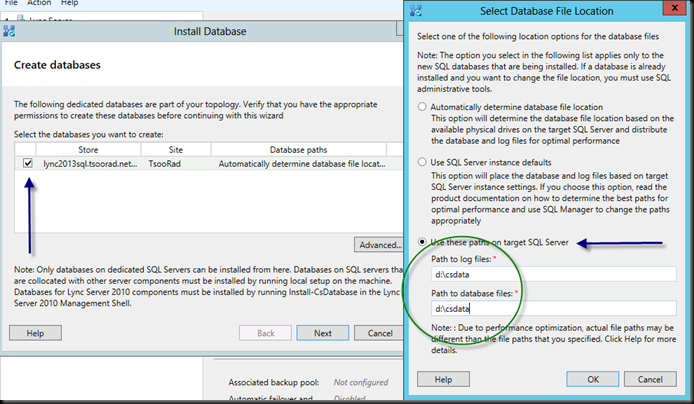
image

OK, so you published the topology, the databases were deployed as expected – now what?  First you need to actually install the Archive role onto each SE pool or if you have an EE pool, each EE pool member.  This is done by opening the Lync Deployment Wizard on each affected server and choosing the “Install or Update Lync Server System.”

image

…now select step one…

…if you already have a server installed, you want step two…

image

Note that in my environment, the server is already deployed, but we need to run this again to put the Archiving role into place.

Configure Archiving

Once that is done, we need to configure Archiving. Out of the box, the system defaults to doing nothing.  You will have to enable the archiving process as well as configure archiving for “what,” for “how long,” and for what to do if the archiving service stops.  For that, we need to use either PowerShell or the Lync Control Panel.  For the PowerShell-challenged (like me) the Lync Control Panel is an easier option. 

Here we are in the Lync Control Panel:
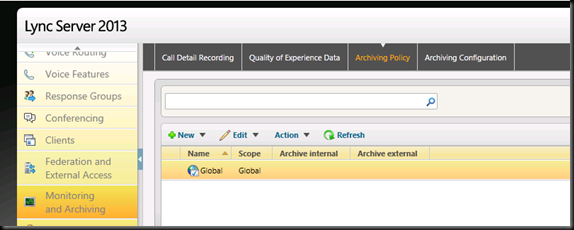
image

Note that the Archiving Policy is zero.  You can have site or user archive policy.  For a quick read on that, see this.  So we’ll ignore the site and user options, and just configure the default global. 

image

Hopefully you read the above reference, and you know the difference between internal and external :). Commit that change, and let’s do the next tab over – Archiving Configuration.  Here we have the option for site or pool.  Again, the reference above explains that and why.  For now, modify the global.  There are several important options here – I think that the possible need for a pool being separate from a site are fairly clear.  For instance, you could have a pool dedicated just for large conferences and you would want to handle that differently than the regular pool.  You will also want to pay attention to the behavior if archiving fails.  If there is a compliance issue that requires all IM and Conferencing to be archived, then you will want to enable this.  It prevents activity unless the archiving is functioning.

image

The other important piece is the Exchange 2013 archiving.  If this is enabled, then the archive store becomes the users’ mailbox.  If this is the case, you will need to ensure you understand this.  At any rate, commit our changes and let’s go look at some data.  Before you can look at the results of archiving, you will need to either generate some data, or let your users do it for you.  If you want to see the output difference, you will want to have both.

The PowerShell cmdlets you need to modify the global archiving policy and global archiving configuration are set-csarchivingpolicy and set-csarchivingconfiguration. For your more complicated setups, you will also want to investigate new-csarchivingpolicy and perhaps new-csarchivingconfiguration.

Viewing Archive Contents

The basic toolset used to view archive contents is PowerShell and Outlook.  Here is the PowerShell cmdlet that you will need to know:  Export-CsArchivingData.  As a note, you must use valid data ranges.  For instance, if you did not turn on archiving prior to 1/1/2013, why would you ask for data from start date10/1/2012 to end date 12/15/2012?  Here is an example of a successful archive export.

image

Here in the target output folder, it looks like this – with one folder per day.

image

Inside one of those folders you will see this – note the file name differentiates between a peer to peer (P2P) and a conference archive.  Also note that the conference archive item(s) appear to be larger than just the P2P archive items. 

image

Let’s take a look at the inside of one of these.  The file type is “eml” which Outlook 2010 and higher will open directly.  Outlook 2007 with an SP might also, but don’t take my word for it.  You can also rename the files to *.mht, and open them in a browser (well, they open in IE at any rate).  Here is one of the P2P files when the eml is opened in Outlook.

image

Here is a conference archive result when opened in Outlook.  Note that there is attachments here, the data collaboration, a PNG attachment (somebody put a picture into the conference), and a whiteboard.
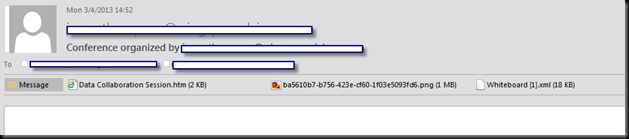
image

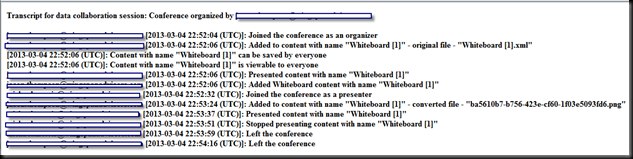
Here is the Data Collaboration:

image

Here is the pretty picture that was included – you can tell serious work was going on here!

image

And here is the raw whiteboard output – seeing as how it was 18K it goes on for a longish bit, this is just a few of the first lines.

image

If, like me, your brain does not decode XML on the fly, you will want to obtain the handy-dandy Lync Server 2013 Whiteboard Archiving Viewer.  I strongly suggest that you read the documentation available – the usage is not just point and click.  To install this tool on a workstation, you will need access to the “Microsoft Visual C++ 2012 x64 Minimum Runtime – 11.050727” – you can install this onto your workstation from the Lync Server 2013 iso – \setup\amd64\vcredist_x64.exe is what you are looking for.  You will find the installed wbviewer at C:\Program Files\Microsoft Lync Server 2013\Web Conferencing.  I copied the exported “whiteboard [1].xml file out of the EML to my c:\temp folder before running this command:

image

and we get to see this business critical content:

image

OCS IM Archive Viewer 1.0

Another (totally unsupported) option to view IM archive content is the Office Communications Server 2007 R2 IM Archive Viewer.  You can download the OCS R2 Archive IM Viewer v.10 here. This tool is only good for looking at IM content – it will not show you conferencing archive content.  However, for a quick look and not needing to run PowerShell export commands, this may be a useful tool.  Remember that this is UNSUPPORTED.  After a very quick setup on my Lync 2013 Front End pool server, I was able to view IM archive content directly.

image

Summary

Installation and setup of Lync Server 2013 Archiving is very straightforward – but it does require a separate SQL server or instance.  After installation, you will need to configure the Archiving Policy and Archiving Configuration settings to match the business needs of your organization.  Policy and configuration may need to expand past the default global settings.  After you have some content, PowerShell and Outlook will be your primary tools to export and view archive content.  Viewing exported whiteboard archive content requires a separate utility.

YMMV.

2013/03/03

Lenovo Twist

OK, I like toys.  My toys tend to fall into three categories:  wood working, motorcycles, and (duh) computer-related stuff.  Recently, I gave into lust and desire and purchased a Lenovo Twist – similar to a Levovo Yoga.  The difference?  I have zero idea, really.  However, the Twist is on the “tablet” page, while the Yoga is on the “Ultrabook” page.  The Yoga is a “versatile multimode ultraportable,” while the Twist is touted as a “convertible Ultrabook.”  Huh?  Seriously, marketing spiel loses me most of the time.

Why did I buy one over the other?  Why this instead of a Surface or Surface Pro?  For why the Twist over the Yoga, that is easy.  When I walked into the store, the Twist they had was $300 less than the Yoga they had.  As to the Ultrabook style over a Surface or Surface Pro?  The Twist was an easy $350 less than a Surface Pro when the Pro has the keyboard cover.  And the Surface RT requires different software – and I like my software consistent.  And I already have an iPad, so the “pure” tablet need is already met.  Justification enough?  OK, I wanted it.

Build

Typical Lenovo quality.  Keyboard (the zippy “chiclet” type feels good.  The function keys are friggin backwards!  If you want Shift-F3 in word to, you need to use Function-Shift-F3.  Otherwise the F3 key increases volume.  I get it in the end, but it took a few times around the block before I caught on. The screen is very nice.  Good, crisp resolution.  What I appreciate more than anything – especially when comparing this to the HP Envy or the Dell flippy floppy thing, is how solid the screen pivot and fold mechanism is.

If I have a complaint about that screen-twist-flip feature is the low-rent accelerometer (or whatever it is) that controls sending screen orientation to the video.  Several time I have gotten things upside down, and when I turned it the other way, the screen flipped and I was still upside down.  Nothing a seasoned professional such as myself can’t handle, but what a PITA.

While I am at it, when the Twist in folder over into pure tablet mode, the power button is in the very spot my hand holds the unit. And the power button is sensitive.  Several times I have turned the whole thing off just by picking it up.  Other than those items, overall all quality seems to be very good.

Performance

Not too bad!  Given the i5 is sort a slow, and the Twist operates in a paired SSD+HD configuration, not too bad!  Easily as fast in overall response as the iPad.  The screen is quite nice.

Coming out of sleep mode is a tad pokey, but once there, all is good.  File transfers (this is a full Win8 machine – Apple boy eat your heart out – zip right along.  Wireless has connected easily to everyplace I tried.  I wish the battery lasted longer; but the silly thing appears to charge from zero to full in about 2 hours.

Overall Microsoft Office 2013 performance – what I really bought this thing for in the first place is quite good.  I have full workloads:  Word, Excel, PowerPoint, Visio, Outlook, and Lync.

Lync

But let’s talk about Lync!  After all, what is more important than Lync?  The speakers are good, the microphone is sensitive, and the camera is flawless, with good contrast.  On the Twist, Lync never asked me to setup anything, it all just worked.  Plugging in my USB headset resulted in Lync simply starting to use it.  I also played with pairing with a variety of Lync-optimized devices such as external cameras, headsets, and a speaker phone device.  All flawless.

YMMV.

2013/03/01

Stupid Lync Tricks

Anyone remember the infinity mirrors?  The ones where it looked like the image went repeating itself over and over into a perspective infinity point?

Here is Lync imitating art…

image

Lync 2013 Mobility Push Notifications Failing

In a recent deployment, my Apple mobility push notifications were not working.  The mobile client itself worked, but when the client was moved to the background, the push notifications from the Lync FE pool were not working – in this case, the iPad and iPhone clients never got notified. 

Scenario

Greenfield install of Lync 2013 with an Edge (duh).  No O365, only dial-in conferencing for a PBX touch.  Only one SIP domain, split-DNS, all required SRV and A records are in place.  Remote logins are normal, full workloads across the edge and reverse proxy are fully functional.  All internal workloads are normal.  Just the mobility push via sipfed.online.lync.com were failing.  The actual iOS clients were able to send and receive IM (along with AB and contacts lists were good).  Just that when the client was not foreground the notifications did not work.

Troubleshooting

To start, I did a review of “how to” setup push notifications and how to test.  Needless to say, I ran around this process about 12 times to no avail. 

I had missed doing the allowed federation domain of push.lync.com (I had a typo – ooops!) – fixed that.  Nada.

The SIP Federated Providers tab already had a hosted provider of LyncOnline with edge server of sipfed.online.lync.com listed.  I enabled that, no joy.

Things I verified: 

Resolution of _sipfederationtls._tcp.push.lync.com to A record of sipfed.online.lync.com. 

> set type=srv
> _sipfederationtls._tcp.push.lync.com
Server:  wingdc301.wingspan.local
Address:  10.1.1.21

Non-authoritative answer:
_sipfederationtls._tcp.push.lync.com    SRV service location:
          priority       = 1
          weight         = 100
          port           = 5061
          svr hostname   = sipfed.online.lync.com

sipfed.online.lync.com  internet address = 132.245.113.21

Test-CSFederatedPartner –targetfqdn internalfqdnofedgepool.domain.com –domain push.lync.com

image

Test-CSMCXPushNotification –AccessEdgeFQDN internalfqdnofedgepool.domain.com – this failed with “Work flow failed validation” – I will observe that this message was less than helpful.  University of Google/Bing gave me nothing useful on this.

The Fix

So I went back through the entire mess again.  Followed the instructions line by line. Still failing.  OK.  On to OCSLogger (I know, I should have used Centralized Logging) and Snooper on the edge.  I picked the edge because the federatedPartner test was good (see above).  My reasoning was that if the first step of the testing process was good, something between me and sipfed.online.lync.com was wrong still wrong, and that connection was the edge, so look there first. What I got was this:

image

Lovely, eh wot?  Again, U of G/B did not help.  So I started casting about for those off-topic solutions that are so wonderful to stumble across.  I found this.  Not quite the exact problem and not quite the exact answer, but still, a nice clue.  What I got out of this was to recreate the CSHostingProvider “LyncOnline”

Why?  Because that provider was already deployed out of the box. I did not need it; yet there is was, disabled.  I had enabled it earlier (following instructions, remember?) – now I went through this KB and removed it entirely and remade it. 

And not being to patient, while I was at it, I threw February 2013 Cumulative Update into the FE layer and the Edge layer.  Rebooted the entire mess.

Success!  My problem, of course, is I don’t know if recreating the CSHostingProvider LyncOnline or the CU1 that actually solved the issue; but I do know that I did both, and now the situation is resolved. 

YMMV.

2013/02/26

Lync 2013 VDI

Aren’t you just dying to fire up a complete virtualized client environment and try out the exciting new features in Lync 2013 as they pertain to those wonderful Citrix and VMWare clients? Welcome to the world of fully virtualized clients.

But wait! You may want to do a little light reading first.

I had to hunt and peck all over the web to find some of this information, so I have made this lame attempt to bring some of it together into one place (so poco viejo me does not lose it).

http://technet.microsoft.com/en-us/library/jj205304.aspx

http://technet.microsoft.com/en-us/library/jj204683.aspx

http://www.microsoft.com/en-us/download/details.aspx?id=21129 (VDI in Lync 2010)(But good reading)

http://blogs.technet.com/b/nexthop/archive/2012/09/21/microsoft-lync-2013-preview-in-a-virtual-desktop-infrastructure.aspx

http://blogs.technet.com/b/nexthop/archive/2012/12/21/support-for-lync-2013-dvc-implementation-vs-the-citrix-hdx-optimization-pack-for-microsoft-lync.aspx

http://www.thincomputing.net/2013/01/08/support-for-lync-2013-dvc-implementation-versus-the-citrix-hdx-optimization-pack-for-microsoft-lync/

http://blogs.citrix.com/2012/07/24/xendesktop-support-for-lync-2013/

http://blogs.vmware.com/euc/2012/07/microsoft-lync-2013-support-with-vmware-view-desktops.html

http://h20435.www2.hp.com/t5/367-Addison-Avenue-Blog/Talking-Thin-Clients-Yes-Literally-Here-s-What-HP-Has-Planned/ba-p/79021

http://community.wyse.com/forum/entry.php?68-Dell-Wyse-Enables-Microsoft-Lync-To-Be-Deployed-On-Its-Thin-Clients

Oh, BTW, for you O365 freaks: VDI not supported.

Known Limitations for VDI

The following are known limitations when you are using Lync 2013 in a VDI environment:

  • There is limited support for Call Delegation and Response Group Agent Anonymization features.
  • There is no support for the following features:
    • Integrated Audio Device and Video Device tuning pages.
    • Multi-view video.
    • Recording of conversations.
    • Joining meetings anonymously (that is, joining Lync meetings hosted by an organization that does not federate with your organization).
    • Using the Lync VDI plug-in along with a Lync Phone Edition device.
    • Call continuity in case of a network outage.
    • Customized ringtones and music on hold features.
The Lync VDI plug-in is not supported in an Office 365 environment.

2013/02/22

Jabra Speak 510 MS

Having a new toy to play with is always fun.  Today I am putting a Jabra Speak 510 together with Lync 2013 to see how things go.  The “official” description of this device is:

Jabra SPEAK™ 510 - A personal Bluetooth® and USB speakerphone to call and multitask on your terms – at the office, at home, or on the go.

Getting this thing out of the box took like 5 seconds – sort of like Christmas – I just ripped it open.  Minus the reams of safety warnings and other government dictated stuff, all that comes out of the box is a nice carrying case, and the unit.  The cord for connecting this to your favorite computing device is neatly coiled around a provided-for-this-purpose gap around the unit’s base.  The cord itself is a usable 24 inches or so long.  Long enough to allow positioning the 510 somewhere other than in your face, but not so long that coiling the cord becomes an issue.  A note on the one piece of documentation that was non-government-regulated:  There are only four pages for any language.  However, four pages pretty much covers all the instructions you need to operate this device. If you are seriously stuck, you can get the official Jabra unit documentation here.  Size-wise, the Speak 510 is about the size of your hand and maybe an inch thick.  For a good estimate, here is the 510 next to my laptop.

DSC_0003

According to Jabra’s website, the intent of this device is to “turn any room into a conference room” and the 510 (in our case the 510 MS) is “Microsoft optimized and seamlessly integrates with Microsoft Lync.”  Let’s find out.

It took my laptop (Windows 7 Ultimate) about 15 seconds to load up some USB software and then I was informed that it was ready to go.  There is a light next to the power button, and the battery has a red LED next to it – a quick check of the documentation showed that this is as expected for the first time plugging the 510 up to your computer.

I did absolutely nothing special to use the Speak 510, it just worked properly.  I did not have to setup Lync for it, nor did I have to play with any settings – other than to turn the volume down.   Wowzer! this thing can fill the room with sound.

I thought the controls were intuitive to use – they are touch-sensitive and provide visual and aural feedback.  For instance, increasing the volume lights up a ring of lights…more volume, more lights.  Nice. Bluetooth pairing went as described in the manual…right down to having spoken instructions!  Perfect for someone like me who is slightly brain dead at times.  During my testing with Lync 2013 client, I never heard any squeal or feedback unless I forced audio interference.  I also managed to initiate an outbound call using the unit to take my Lync off-hook and then entering a PSTN number with my computer keyboard. Nice.

DSC_0006

Here is the unit with the volume turned up to a setting that you could hear very comfortably from across the room.

Speaking of Bluetooth, you can connect this device to your phone or your headset.  I had a pairing with my iPhone in very quick order – complete to Pandora playing from my phone through the 510.  Zippy.

After playing with this unit for several hours (I am easily amused) I come to the conclusion that this is a very nice piece.   I could find no defects in the manufacturing and it did everything I was told it would do.  The claim of “seamless” integration with Lync 2013 is completely justified.  The sound quality was very good, the microphone pickup was good even from across the room, and the controls/ease of use were spot on. And it fits easily into my backpack.  A great addition to my mobile office. 

YMMV

test 02 Feb

this is a test it’s only a test this should be a picture