About Me

My photo
This is a blog for John Weber. One of my joys in life is helping others get ahead in life. Content here will be focused on that from this date forward. John was a Skype for Business MVP (2015-2018) - before that, a Lync Server MVP (2010-2014). I used to write a variety of articles (https://tsoorad.blogspot.com) on technical issues with a smattering of other interests. I have a variety of certifications dating back to Novell CNE and working up through the Microsoft MCP stack to MCITP multiple times. FWIW, I am on my third career - ex-USMC, retired US Army. I have a fancy MBA. The opinions expressed on this blog are mine and mine alone.

2012/12/31

Lync 2010 Pool / Lync 2013 Client Coexistence

Scenario

If you are in a coexistence environment, and you have your LyncDiscover pointing at your 2013 Front End Pool, you may experience some odd behavior.

Your Lync 2013 clients that are still homed on the 2010 pool (why you would do this, I don’t know) will start pitching an error that says they cannot trust the server…

image

clicking on “Connect” here lets the login continue.  But the next time, this error does not reappear.  It does not reappear because the endpointconfiguration.cache file is holding your information.  However, we don’t want this error to appear at all!

Why is this happening?

Well, it happens the first time because the LyncDiscover.domain.com is the primary discover tool for the Lync 2013 client.  For a more detailed look at this new method, see this. When you click on the “Connect” the endpointconfiguration.cache (c:\\users\username\appdata\local\microsoft\office\15.0\lync\sip_username@domain.com)  file is updated with the proper information.  You can prove this by logging out the user, deleting the endpointconfiguration.cache file, then login again.  The error will reappear.  Worse, if you have a large environment with the Lync 2013 client deployed to users on a Lync 2010 pool, you may see this a lot.  Help Desk calls galore.

How to fix this?

This is happening because the LyncDiscover service is pointing the user at the Lync 2013 pool.  And then that server is doing an AD lookup, discovering that the user is homed on a 2010 pool, and telling the client to talk to that server – at which point the pool name and the cert used by the client for the initial login no longer matches – hence the error.

To fix this, you need to keep your LyncDiscover DNS pointing at the Lync 2010 pool.  Alternatively, if you never deployed Lync 2010 Mobility (where LyncDiscover comes from in Lync 2010) and you don’t plan on using Lync 2013 Mobility, then you can simply not define LyncDiscover at all.  Personally, I do not like this second option – I would go out of my way to deploy the Lync 2010 Mobility just to get the entire suite deployed, and start using LyncDiscover; after all, Mobility is now part of Lync natively, and the 2013 client is looking for this service.

YMMV

2012/12/20

Lync 2013 Migration Process Outline


Do you get frustrated with the online documentation that makes you flip back and forth between pages?  I know I get lost a lot.  And sometimes I would like a nice, easy-peesy layout that will allow me to click on the subject I want without having to go diving in and out.  Accordingly, I assembled all the Lync 2013 migration process pages into one doc.  Links should be clickable.

The following information is taken directly from the latest online Microsoft Lync Server 2013 documentation. Full understanding  the implications of each action inside of each migration project phase will make your Lync 2013 migration much easier.

2012/12/14

Lync File Share Size

One of Lync’s great features is Web Conferencing.  With users leveraging Web Conferencing more and more, complete with content uploads, a question of “how big does my share space need to be” comes up.

The Lync File Share, per pool, is an amalgamation of all web services content, address book, and conferencing data uploaded by users. By default, the size limit per conference is 500MB and the Conferencing Server will maintain the conference data for 15 days. In my experience, the uploaded meeting content will be the bulk of any projected Lync share space usage.

I had a project with 60,000 users and the initial decision was to let them ALL have full global conferencing profile status.  Using the numbers above and the projected 60,000 conferencing users would have created a file share need of 450TB.


days to retain

max data (MB

provisioned users

file share size (MB)

15

500

60,000

450,000,000

So we had to do something.  450TB of data storage, even thin-provisioned and potentially spread across multiple servers, represents a considerable cost and commitment. 

One Solution

Let’s take a look at the default  CSConferencingConfiguration:

Get-CsConferencingConfiguration

Identity                           : Global
MaxContentStorageMb                : 500
MaxUploadFileSizeMb                : 500
MaxBandwidthPerAppSharingServiceMb : 375
ContentGracePeriod                 : 15.00:00:00
ClientMediaPortRangeEnabled        : False
ClientMediaPort                    : 5350
ClientMediaPortRange               : 40
ClientAudioPort                    : 5350
ClientAudioPortRange               : 40
ClientVideoPort                    : 5350
ClientVideoPortRange               : 40
ClientAppSharingPort               : 5350
ClientAppSharingPortRange          : 40
ClientFileTransferPort             : 5350
ClientFileTransferPortRange        : 40
ClientSipDynamicPort               : 7100
ClientSipDynamicPortRange          : 3
Organization                       :
HelpdeskInternalUrl                :
HelpdeskExternalUrl                :
ConsoleDownloadInternalUrl         :
ConsoleDownloadExternalUrl         :

From here is it fairly easy to see that we can use a few of these attributes to make some changes:

Set-CsConferencingConfiguration -identity global -MaxCon
tentStorageMb 200 -MaxUploadFilesize 10 -ContentGracePeriod 7.00:00:00

This gives us a totally different outcome:

Get-CsConferencingConfiguration

Identity                           : Global
MaxContentStorageMb                : 200
MaxUploadFileSizeMb                : 10
MaxBandwidthPerAppSharingServiceMb : 375
ContentGracePeriod                 : 7.00:00:00
ClientMediaPortRangeEnabled        : False
ClientMediaPort                    : 5350
ClientMediaPortRange               : 40
ClientAudioPort                    : 5350
ClientAudioPortRange               : 40
ClientVideoPort                    : 5350
ClientVideoPortRange               : 40
ClientAppSharingPort               : 5350
ClientAppSharingPortRange          : 40
ClientFileTransferPort             : 5350
ClientFileTransferPortRange        : 40
ClientSipDynamicPort               : 7100
ClientSipDynamicPortRange          : 3
Organization                       :
HelpdeskInternalUrl                :
HelpdeskExternalUrl                :
ConsoleDownloadInternalUrl         :
ConsoleDownloadExternalUrl         :

days to retain

max data (MB

provisioned users

file share size (MB)

7

200

60,000

84,000,000

Still not great, but much better.  You will notice that in the previous command, I also restricted the size of the maximum upload, which will help also. What they ended up deciding was that only 10k users would have the ability to create a web conference with 100MB of storage for a retention period of 7 days. even so, the projected need at that point was 7TB. 

While that one project is LARGE in terms of users, a more recent project with only 200 users calculated out to needing 600GB projected storage for 15 days of 200 users at 200MB.  This project team will want to use policies to control the ability to create conferences and control content also.  After all, even in the days of multi-terabyte drives, throwing drive space at the issue is not a substitute for understanding and planning. Here is a handy chart that might help visualize the issue:

days to retain

max data (MB

provisioned users

file share size (MB)

7

100

200

140,000

15

200 200 600,000
10 300 200 600,000
10 400 200 800,000
15 500 200 1,500,000
7 200 60,000 84,000,000

Clearly, there may be other methods to control the size of the file share, this is just one.  Remember that in your efforts to be concise in capacity planning that the file share holds the uploaded conference material and plan accordingly.  A few questions come to mind:

  1. How much uploaded material will there be for the typical user?
  2. Can the users be segregated in terms of capacity?
  3. If #2, can we safely place users in distinct pools to help control size?

This list can go on for a long time, but I think you get the idea.

YMMV.

2012/12/11

Project Guidance

This article was written with Lync in mind; however, it also applies to Exchange and almost any other IT project as well.

http://blogs.technet.com/b/nexthop/archive/2012/12/11/ten-tips-plus-one-for-implementing-lync-server.aspx

As a modest disclaimer, I wrote it.

YMMV.

2012/12/03

IIS AAR hotfix

With TMG on the verge of no longer being sold, we need to find some reasonable alternatives to Reverse Proxy solutions for both Exchange and Lync.

IIS Application Request Routing is one such solution that may work for you or your client’s environment. If that is the case, then you will want to be aware of this hotfix: MS KB 2785586

http://www.microsoft.com/en-us/download/details.aspx?id=35827&WT.mc_id=rss_alldownloads_all

YMMV.

2012/11/25

Lync 2013 Office Web Apps Server Farm

<Revised 8 Feb 2013>

As Lync 2013 becomes more of a reality to many of us, we must address what is, in my opinion, the biggest change to Web Conferencing:  the requirement for Office Web Apps Server (WAS).  Microsoft has addressed a few display/usability issues in Web Conferencing with the inclusion of  WAS.  WAS is now the PowerPoint presentation rendering engine for Web Conferencing.  You can deploy your pool without it, but your Web Conferences will not do PowerPoint presentations.  Because PowerPoint presentations are a big part of most formal presentations, we need to deploy WAS as part of the pool.  Here are a couple of caveats:

  • WAS must be on its’ own server (thank the powers for virtualization, eh?).
  • The WAS server cannot have had any office product installed on it, ever.  Do yourself a favor and just make up a new server (see previous comment on virtualization).
  • If you want WAS to be highly available, you WILL NEED load balancing in the hardware variety, and this will require HLB w/SSL offloading.

<according to this new documentation on TechNet the comment for requiring SSL offloading appears to have been removed – this may be good news>

  • Licensing for this new component is a bit up in the air – once I find out what the final story is going to be, I will update this article.

<As I understand it, using WAS for READONLY does not require a license.  See this, and more importantly, this.  The second link states that “…view-only.  By default, Office Web Apps is view-only.  View-only functionality is provided for free…”  Excellent!  That is all we need for Lync 2013.>

  • WAS can be used for Exchange 2013 and SharePoint 2013, so one WAS farm could be used for more than one service.
  • WAS is also the rendering engine for external users, so you will need to plan some additional IP and DNS resources.  And don’t forget how you are going to provide Reverse Proxy services because that is the route the external user is going to take to get the PowerPoint content.  Luckily, the client(s) will get the proper URL's via in-band provisioning, so access should be automagic from the user point of view.
  • If you are planning a Lync 2010 upwards migration into 2013, then your existing reverse proxy web listener certificate is going to need to have another SAN entry to handle the external WAS traffic.  Alternatively, you can gin up another external, public IP and create a new conduit just for this WAS traffic.

WAS Install Official Instructions

Documentation for this process is NOT contained on the Lync 2013 online help, but rather in the Office Web Apps and SharePoint sites.  Take a look here.  What I found was a fair amount of back-and-forth comparing steps and whatnot, hence this guide which will (hopefully) bring it all into one place.

At any rate, what I am going to show is how to build a WAS farm, complete with HLB.  The tools we are going to use are:  Topology Builder, PowerShell, a squeaky clean set of Windows Server 2012 hosts, an internal PKI CA, and an HLB.  For HLB, I am using my Kemp VLM-100.  Reverse Proxy will be TMG.

A note on the TMG as reverse proxy.  I am making a whole new DNS and IP for this service.  As such, I am going to export the certificate for my LSWASPoolInt which has LSWASPoolExt.tsoorad.net as one of the SAN’s and place it on the web listener.  For a real deployment, I would conserve IP space and just use the existing Lync web listener and add the LSWASPoolext FQDN to the certificate for that listener.  This will require you to plan your external Lync DNS space in advance, along with the IP space.  But you already knew that, right?  DNS and IP planning is crucial to Lync success – this is just another example of that concept.

This is going to have more than a few steps to it, so let’s dive in.

First off, when dealing with WAS, *ALL* WAS related commands are PowerShell.  Here is a handy guide.  Second, and I have not yet figured out how to turn it down, WAS logs a ton of stuff in the event log.  As in 200k entries in one week!!  But, I digress.

If we go along with the official documentation, you are going to need to get into your Lync 2013 deployment plans and define your IP and FQDN requirements because the official documentation says you are supposed to do the HLB setup first.  OK. Here is my WAS setup:

lswaspoolint.tsoorad.net (my internal FQDN for the WAS farm): 1.1.1.45

lswaspoolext.tsoorad.net (my external FQDN for the WAS farm): 10.10.10.58

LS2013WAS1.tsoorad.net: 1.1.1.46

LS2013WAS2.tsoorad.net: 1.1.1.47

WAS Farm HLB

For my load balancer, I decided to just bring all traffic for the WAS straight to the HLB.  So the HLB in my case will only have 1 virtual server and I will bring internal and reverse proxy traffic to 1.1.1.45.

Here is the topology builder viewpoint.

image

Here is the Kemp HLB virtual server setup.  Note that it is marked as DOWN because we have not yet installed anything!

image

image

image

image

While you are at it, now would be a good time to envision your external and internal access paths.  Here are the firewall considerations. Ensure that the following ports are not blocked by firewalls on either the server that runs Office Web Apps Server or the load balancer:

  • Port 443 for HTTPS traffic
  • Port 80 for HTTP traffic
  • Port 809 for private traffic between the servers that run Office Web Apps Server (if you’re setting up a multi-server farm)

Host Server Setup

  1. Prep your servers.  I used VM’s with 1 CPU core, 1 GB RAM, and 50GB drive space.  YMMV.
  2. Install WAS prerequisites appropriate to your host server operating system.

For Server 2008 R2, install the following software:

Next, open the Windows PowerShell prompt as an administrator and run the following example commands to install the required roles and services.  You may find it helpful to set the execution policy in PowerShell to remotesigned or unrestricted.

Import-Module ServerManager

And then run the follow example command:

Add-WindowsFeature Web-Server,Web-WebServer,Web-Common-Http,Web-Static-Content,Web-App-Dev,Web-Asp-Net,Web-Net-Ext,Web-ISAPI-Ext,Web-ISAPI-Filter,Web-Includes,Web-Security,Web-Windows-Auth,Web-Filtering,Web-Stat-Compression,Web-Dyn-Compression,Web-Mgmt-Console,Ink-Handwriting,IH-Ink-Support –restart

I always tack on the “-restart” so if servermanager wants to reboot it will without asking.

For Server 2012 - Server 2012 already has what it needs so you just need to do the following:


Add-WindowsFeature Web-Server,Web-Mgmt-Tools,Web-Mgmt-Console,Web-WebServer,Web-Common-Http,Web-Default-Doc,Web-Static-Content,Web-Performance,Web-Stat-Compression,Web-Dyn-Compression,Web-Security,Web-Filtering,Web-Windows-Auth,Web-App-Dev,Web-Net-Ext45,Web-Asp-Net45,Web-ISAPI-Ext,Web-ISAPI-Filter,Web-Includes,InkandHandwritingServices,NET-Framework-Features, NET-Framework-Core, NET-HTTP-Activation, NET-Non-HTTP-Activ, NET-WCF-HTTP-Activation45 -restart


Run windows update to get patched.  Your call on this step, but I always do it just to claim due diligence.


Get a PKI certificate that will be trusted by all players.  I used my DigiCert.com utility to generate the CSR – I wanted to include the internal and external URL’s which means I needed a SAN entry or three.  In my case, I used the following:


CN= LSWASPoolint.tsoorad.net


DNS Name=LSWASPoolint.tsoorad.net
DNS Name=LSWASPoolext.tsoorad.net
DNS Name=LS2013WAS1.tsoorad.net
DNS Name=LS2013WAS2.tsoorad.net


This certificate needs to be on each member server and also the HLB to support the SSL Offloading that is required for a WAS farm.  I am not absolutely sure that the certificate actually needs to be on the farm member servers, but in the interest of simplicity and for future single server farm use, I put it on each – remember that you need to generate the certificate on just one server, then export it for use on the other server and the HLB. 


WAS Install


Finally, we are ready to actually install Office Web Apps Server.  You can get the Office Web Apps server install from here.  There is not a lot to note on this install… I just banged through all the defaults.  However, I will note that I needed to execute the setup.exe as an Administrator to get it to run through properly. 


Once you have your WAS installed, now is a good time to remember that there is NO GUI – this thing is PowerShell only.


Now, the point to this article is to create a WAS farm; but so far, we have not done anything that can’t be used for a single server farm.  So here is the command to run on your first server if you want to create just a single server farm.  Note that there is a dependency on the certificate friendly name.


OK, from a PowerShell prompt:


New-OfficeWebAppsFarm -InternalURL "https://lswaspoolint.tsoorad.net" –ExternalURL “https://lswaspoolext.tsoorad.net” -CertificateName "FRIENDLYNAME"


If you are doing a two server farm, here is what you need.  I ran the first command on ls2013was1.tsoorad.net; this affects the syntax on the second server command!


On the first server:


New-OfficeWebAppsFarm -InternalURL "https://lswaspoolint.tsoorad.net" –ExternalURL “https://lswaspoolext.tsoorad.net” –ssloffloaded


Note that the “–ssloffloaded” is different – which implies that the certificate is not needed.

Then, on the second server:


New-OfficeWebAppsMachine –MachineToJoin ls2013WAS1.tsoorad.net


Let’s take a look at our new farm.  Note the AllowHTTP, SSLOffloaded, and Machines attributes.

image

Also note that now the HLB is showing the farm as “up”…

image

To further test that we have a viable WAS farm, we will hit the following URL in a browser:  https://lswaspoolint.tsoorad.net/hosting/discovery/.  The actual response is a good deal longer than the screen cap I am showing…of course you will want to test your HLB to ensure that each server is actually responding.
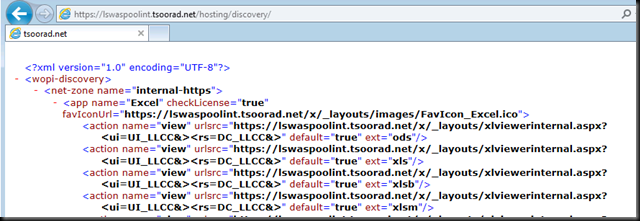

image


Reverse Proxy Setup


Alright, now to configure TMG as our reverse proxy so external users can enjoy the WAS goodness too.


First, get the WAS pool external URL SSL cert installed onto the TMG.  In this case, I am going to use my internally generated certificate; in real life, you will need to have a certificate that is trusted by any and all users – typically that means a public certificate.


Next, if you have a unique IP address for your external services, create a new listener with a new cert just for your WAS pool external URL.  If you are using URL redirects via TMG Website Publishing rule, then you will need to add the WAS pool external URL to the cert you have and re-work your listener just a tad. 


I am using the same listener with a revised certificate.  So, what we need now is a just a new TMG Website Publishing rule that takes the URL “lswaspoolext.tsoorad.net” and send it to our WAS VS on 1.1.1.45:443. Here is a link to the official document for completing this task.  Note that these instructions assume you are going to be making a new web listener – you may have to do a little judicious reading between the lines to accomplish this task for your environment.


Also, note that my rule in TMG did not test “good” but it works “good.” The sharp-eyed reader will also note that my current login does not trust the lab domain CA – hence the certificate error showing here.


image


Summary


  • Office Web Apps Server (WAS) is a required element of Lync 2013.
  • WAS setup is PowerShell only.
  • The prerequisite setup is different from Server 2008 R2 to Server 2012.
  • A WAS farm is one or more servers.  A single server needs to be HTTPS.  A two (or more) server farm is SSL offloaded to a hardware load balancer.  WNLB is not a supported option.
  • Understand and plan your DNS and IP space before starting.
  • Reverse Proxy (or something) is strongly suggested to separate the outside world from your WAS farm.  You will need to have a DNS setup to support external access along with certificates that past the public trust test.
  • Overall process:

    • Lync Topology Builder
    • HLB setup
    • Server Prep
    • WAS Install
    • TMG (or some other reverse proxy solution)

As always, YMMV.

2012/10/31

Lync 2013 Client Login using LyncDiscover and LyncDiscoverInternal

Perhaps you may not know, but the Lync 2013 client no longer defaults to discovering _sipinternaltls._tcp.domain.com, _sip._tls.domain.com, sip.domain.com, sipinternal.domain.com, or sipexternal.domain.com for automatic login.  What we have now is a default preference for LyncDiscover.domain.com or LyncDiscoverInternal.domain.com.  Should it not find one of those records, Lync 2013 will then start working down the SRV chain, followed by default A records such as SIP.domain.com.  This is different from the default Lync 2010 client behavior, where the client looks for the SRV record first, followed by hardcoded SIP record lookups.  To see the PUBLISHED (as of 30 Oct 2012) Lync 2013 client behavior, reference this link here; to see the published Lync 2010 client behavior, see this link.

LyncDiscover and LyncDiscoverInternal came about when Lync 2010 Mobility arrived to support Lync on mobile devices.  LyncDiscover.domain.com and LyncDiscoverInternal.domain.com are A records for which the Lync Mobility client searches to find the Lync Autodiscover service. Once it finds the Lync Discover service, the client is provided with login resources such as sipserver and href to external web services.

So what’s the Big Deal?

The Big Deal is that if you deploy mobility, you need to have those two records – LyncDiscover.domain.com (for external access) and LyncDiscoverInternal.domain.com (for internal wireless access).  And now that you have those two records, the Lync 2013 client is using them also – and if it finds them, it is reading the sipserver attribute directly and auto-configuring based off of that. 

There are implications to the Lync 2013 client resolving lyncdiscover and lyncdiscoverinternal before resolving SRV records.  If you have a mixed client environment, you COULD have 2013 clients that login correctly and 2010 clients that do not, and if you assume that both discover login sources in the same manner, you would be wrong!  Which could lead to many trips around the troubleshooting circuit.

2010 Client Login Sequence

So, let’s take a look at a 2010 Client login, and see how it looks up where to go.   Here is a segment of a 2010 communicator-uccapi-0.uccapilog file (for the purposes of this test, I forced all my DNS lookups to fail).  First, the client looks for the SRV records:

INFO  :: domainName:tsoorad.com: serviceName:sipinternaltls: transportName:tcp:
:: domainName:tsoorad.com: serviceName:sip: transportName:tls:
:: QueryDNSSrv - DNS Name[_sipinternaltls._tcp.tsoorad.com]
:: QueryDNSSrv GetDnsResults query: _sipinternaltls._tcp.tsoorad.com failed 8007232b
:: DNS_RESOLUTION_WORKITEM::ProcessWorkItem ResolveHostName failed 8007232b
:: QueryDNSSrv - DNS Name[_sip._tls.tsoorad.com]
:: CUccDnsQuery::UpdateLookup - error code=80ee0066, index=0
:: CUccDnsQuery::CompleteLookup - index=0
:: QueryDNSSrv GetDnsResults query: _sip._tls.tsoorad.com failed 8007232b


…then it proceeds to look for the SIP.domain.com, sipinternal.domain.com, and sipexternal.domain.com A records…

ResolveHostName - getaddrinfo failed for sip.tsoorad.com
ResolveHostNameUsingGetAddrInfo - getaddrinfo(sipinternal.tsoorad.com) failed
ResolveHostNameUsingGetAddrInfo - getaddrinfo(sipexternal.tsoorad.com) failed

Pretty straightforward and inline with the aforementioned documentation from Microsoft.

2013 Client Login Sequence

Here is a Lync 2013 client, trying the same process, same user account, same domain.  Note that the DNS query looks pretty much the same. 

In the interest of total disclosure, the Lync 2013 uccapilog file is different, and has a new section in it that summarizes activity for login, so I cut up the first section so that we can see like-to-like comparison.

:: QueryDNSSrv - DNS Name[_sipinternaltls._tcp.tsoorad.com]
:: QueryDNSSrv GetDnsResults query: _sipinternaltls._tcp.tsoorad.com failed 8007232b
:: DNS_RESOLUTION_WORKITEM::ProcessWorkItem ResolveHostName failed 8007232b
:: CUccDnsQuery::UpdateLookup - error code=80ee0066, index=0
:: CUccDnsQuery::CompleteLookup - index=0
:: QueryDNSSrv - DNS Name[_sip._tls.tsoorad.com]
:: QueryDNSSrv GetDnsResults query: _sip._tls.tsoorad.com failed 8007232b
:: DNS_RESOLUTION_WORKITEM::ProcessWorkItem ResolveHostName failed 8007232b
:: CUccDnsQuery::UpdateLookup - error code=80ee0066, index=1
:: CUccDnsQuery::CompleteLookup - index=1
:: Function: CUccServerEndpoint::OnDnsQueryCompleted

…and the 2013 client proceeds to try to find the SIP.domain.com, sipinternal.domain.com,  and sipexternal.domain.com records also…

ResolveHostNameUsingGetAddrInfo - getaddrinfo(sipinternal.tsoorad.com) failed ResolveHostNameUsingGetAddrInfo - getaddrinfo(sip.tsoorad.com) failed ResolveHostNameUsingGetAddrInfo - getaddrinfo(sipexternal.tsoorad.com) failed

And now, here is the Lync 2013 client logging in, but this time it found a LyncDiscover record and the Lync Autodiscover service to use.  Vastly different.  It never looked for the SRV or A Records at all.  It simply announces that it connected to a server.

TRACE :: SIP_MSG_PROCESSOR::OnDnsResolutionComplete[0F50DFC0] Entered host Lync15Edge.tsoorad.com
TRACE :: SIP_MSG_PROCESSOR::OnDnsResolutionComplete get DNS result server: Lync15Edge.tsoorad.com IP: 10.10.10.61:443
INFO  :: Use proxy server cache:1
INFO  :: Remote Addr: 10.10.10.61
INFO  :: Verification Flags: 1
INFO  :: Interface Index: 12
INFO  :: Interface Type: 0
INFO  :: GetAdaptersAddresses Succeeded.
INFO  :: Identified local Ipv4 address: 10.10.10.104
INFO  :: Found local routable Ipv4 address for SIP proxy server from proxy address list
INFO  :: SockMgr: Create New Connection:DestName:(Lync15Edge.tsoorad.com)DestPort:(443)Transport:(2)httpTunnel:(0)TLS RemotePrincipalName:(Lync15Edge.tsoorad.com)
TRACE :: DestAddr :10.10.10.61:443

See what I mean?  Blammo, straight to the (in my case) edge server!  And here is the fancy new section in the uccapilog file… notice that is shows NOTHING in the way of SRV records or A records like it did before. The conclusion I reach is that it never looked for them after it found the Lync autodiscover (This has been confirmed by contacts within Microsoft).

<!DOCTYPE ProgressReport>

<root>

  <Login><![CDATA[Created DefaultCredential: CManagedCredential[DEFAULT this=0A80D210]]]><![CDATA[Adding new managed cred CManagedCredential[DEFAULT this=0A80D210]]]><![CDATA[GetBestManagedCredentialByType return the cred: 00000000, type:specific, userId:PHO]]><![CDATA[Certificate 0x0FA300A0:
UPN:
Subject: lync15testuser@tsoorad.com
Issuer: Communications Server
Serial number: 08ca2c4e949cc0c9dcc7
Valid from: Wednesday, October 24, 2012 14:46:44
Valid to: Monday, April 22, 2013 14:46:44
]]><![CDATA[Created CManagedCredential[CERT this=0A80E180, PCERT_CONTEXT=0FA300A0]]]><![CDATA[Adding new managed cred CManagedCredential[CERT this=0A80E180, PCERT_CONTEXT=0FA300A0]]]><![CDATA[GetBestManagedCredentialByType found a matching cred: 0A80E180, type:certificate, userId:OCS]]><![CDATA[Bootstrap task queued]]><![CDATA[Starting bootstrap task: baseUrl=, pinBased=0, forceDownloadRootCert=0, deviceId=F87F107C-13E9-531A-8FC9-AA148ABE1C3A, credType=0, cert=0FA300A0]]><![CDATA[Changed CBootstrapper status [10000] -> [10000]]]><![CDATA[Bootstrap task completed with hr=0x1]]><![CDATA[GetBestManagedCredentialByType return the cred: 0A80D210, type:default, userId:CER]]><![CDATA[GetBestManagedCredentialByType found a matching cred: 0A80E180, type:certificate, userId:OCS]]><![CDATA[Created CManagedCredential[CERT this=0A80E250, PCERT_CONTEXT=0FA300A0]]]><![CDATA[Adding new managed cred CManagedCredential[CERT this=0A80E250, PCERT_CONTEXT=0FA300A0]]]><![CDATA[Changed CBootstrapper status [10000] -> [10006]]]><Lync-autodiscovery><![CDATA[GetBestManagedCredentialByType return the cred: 00000000, type:specific, userId:LAD]]><![CDATA[Discovery request sent to URL http://lyncdiscoverinternal.tsoorad.com?sipuri=lync15testuser@tsoorad.com, txn (0F6BE5F0)]]><![CDATA[GetBestManagedCredentialByType return the cred: 00000000, type:specific, userId:LAD]]><![CDATA[Discovery request sent to URL https://lyncdiscoverinternal.tsoorad.com?sipuri=lync15testuser@tsoorad.com, txn (0F6C2708)]]><![CDATA[GetBestManagedCredentialByType return the cred: 00000000, type:specific, userId:LAD]]><![CDATA[Discovery request sent to URL https://lyncdiscover.tsoorad.com?sipuri=lync15testuser@tsoorad.com, txn (0F6C2720)]]><![CDATA[GetBestManagedCredentialByType return the cred: 00000000, type:specific, userId:LAD]]><![CDATA[Discovery request sent to URL http://lyncdiscover.tsoorad.com?sipuri=lync15testuser@tsoorad.com, txn (0F6C2738)]]><![CDATA[

Clearly, the Lync 2013 client is using both LyncDiscover and LyncDiscoverInternal for automatic connections.  While the 2013 client can use the traditional methods, it appears to look for the autodiscover records first and if it cannot find them, then it falls back to the previous versions’ methodology.

Is there any downside to NOT defining LyncDiscover/LyncDiscoverInternal?

Not for the Lync 2013 client – but not doing so will negate the ability of the Lync Mobility client to perform automatic logins.  Having just the LyncDiscoverInternal and LyncDiscover records will result in Lync 2010 (and lower) clients that cannot perform auto-login.  The take-away for me? Yet another enforcement of the lesson “get your name space and DNS figured out before you begin.”

Summary

With Lync 2013, the client has a new (improved?!) automatic login search mechanism that demonstrates as preference to LyncDiscover.domain.com and LyncDiscoverInternal.domain.com.  Support for N-1 Lync client environments will still need to configure DNS SRV and A records to support the down-level automatic logins.

test 02 Feb

this is a test it’s only a test this should be a picture